

AI Insights can be toggled off in Project Settings > AI Features.
The problem Insights solve
You can quickly log hundreds of thousands or millions of traces. You can run LLM judges or other metrics to score those logs, and visualize those in dashboards showing pass/fail rates. Those might tell you that you have a problem, but scores rarely tell you how to fix anything. Freeplay helps you track evaluation performance over time but raw metrics alone stop short of helping you understand why performance changed or what to do about it. When you try to decide what to actually improve, you’re stuck asking the same questions: Why is that metric failing? What should I do to fix it? Where should I start first? AI Insights closes that gap by proactively generating findings that add a layer of interpretation on top of your raw metrics — turning scores into direction. See our blog post for more information.How Insights work
Insights come from Freeplay’s own AI agent that analyzes your data from multiple sources and generates actionable findings.Where Insights run
Insights run in two places across the Freeplay platform, each representing a decision point in the AI quality workflow:
Each of these represents a moment where you need to interpret lots of data and decide what to do next — exactly the kind of work AI is good at.
Types of Insights
Freeplay generates two types of Insights, each tied to a different data source and decision point in your workflow:- Evaluation Insights - Analyze production logs scored by LLM-as-a-judge evaluations. Run on a weekly cadence to surface systemic issues across your logged data.
- Review Insights - Analyze human annotations in real time. Every note, label, or evaluation triggers the agent to identify patterns and group them into themes.
What data insights use
Each type of insight is based on different types of information within Freeplay. Here are the sources for each insight:AI Insights does not currently use code evaluations or auto-categorizations as input sources.
Viewing and using Insights
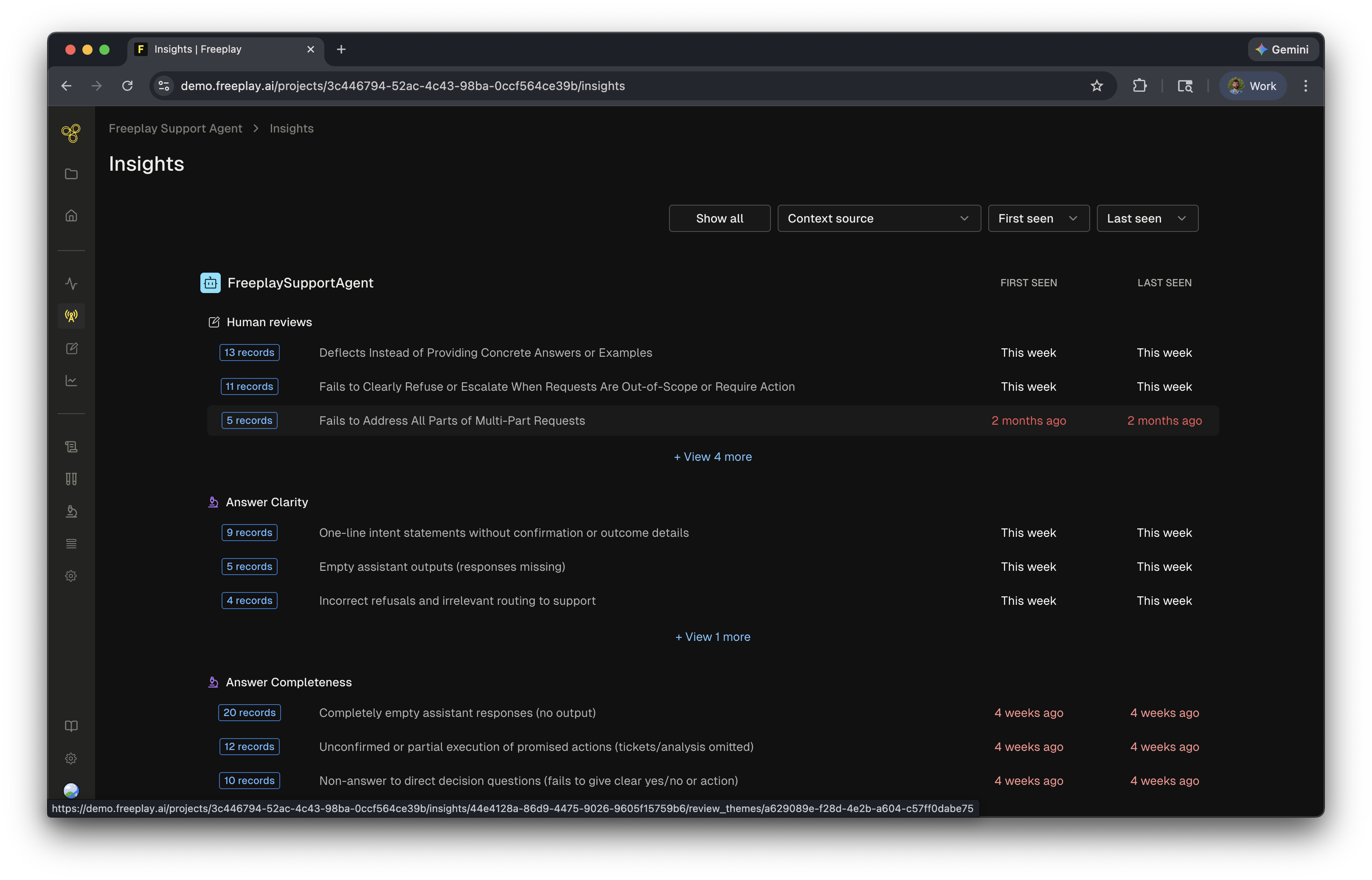
Refining Insights
You can fine-tune insights to improve their accuracy and usefulness:- Update the name — providing a more descriptive name can slightly adjust and refine the grouping of tagged records
- Edit the description — adding more details, specific errors, or patterns found in your analysis helps fine-tune what the insight captures
Resolving Insights
The goal of insights is to resolve them and surface new ones. Insights can help lead your team towards solving the key issues in your product. Once an issue is identified and fixed, the insight will start to lose traction as no new information is added to it.Insights and the data flywheel
Insights provide a clean path towards understanding the why behind errors. Some outcomes of insights include:- Prompt improvements — actionable suggestions for how to modify your prompts
- New evaluations — generating new LLM-as-a-judge evals based on discovered patterns
- Deeper investigation — surfacing issues that people might be missing
Related resources
- AI Features Overview — Overview of all AI-powered features in Freeplay
- Model-Graded Evaluations — Configure the LLM judges that feed into Insights
- Review Queues — Set up human review workflows that generate Review Insights
- Automated Insights for AI Agents — Blog post with more detail on the vision behind Insights