

Overview
Many LLM applications now leverage multi-modal data types beyond just text. For mutimodal models, product images, charts, PDFs, and even audio can provide critical context to generate better responses. Quick start To get started using multimodal support within Freeplay follow these steps:- Define media variables in prompt templates (similar to other Mustache variable)
- Upload and test sample files in the Freeplay prompt editor
- Update your code to handle media files with the Freeplay SDK
- Record and view multimodal interactions in Freeplay
- Save recorded examples to your data datasets
Introduction
Understanding Multimodal Data for LLMs
Multimodal models can process and analyze different types of data such as images, audio, and documents alongside text. This allows your LLM applications to “see,” “hear,” and “read” just like humans do. Consider these examples of how multimodal data enhances LLM applications: Image + Text- User uploads a product image with a defect and asks: “What’s wrong with my product?”
- The LLM can see the image, identify the issue, and provide a relevant response.
- User uploads a financial report and asks: “Summarize the key findings in this report.”
- The LLM can analyze the document contents and generate an accurate summary.
- User uploads a phone call recording and asks: “Describe the tone of this call and summarize the key points”.
- The LLM can analyze the audio and provide tonal analysis and generate a more accurate summary with that in mind.
Using Freeplay with Multimodal Data
What’s different about using Freeplay with multimodal data? There are a couple important things to be aware of:- Prompt Templates: You’ll define media variables in a prompt template allowing you to pass image, audio, or document data at the right point. This can only be done with models that support multi-media inputs.
- Recording Multimodal Data: You’ll record media inputs with each completion, making it possible to view the original inputs alongside the LLM’s responses during review.
- Media in History: You can record media as part of history, helping you preserve key context and inputs passed within your system.
Media Variables in Prompt Templates
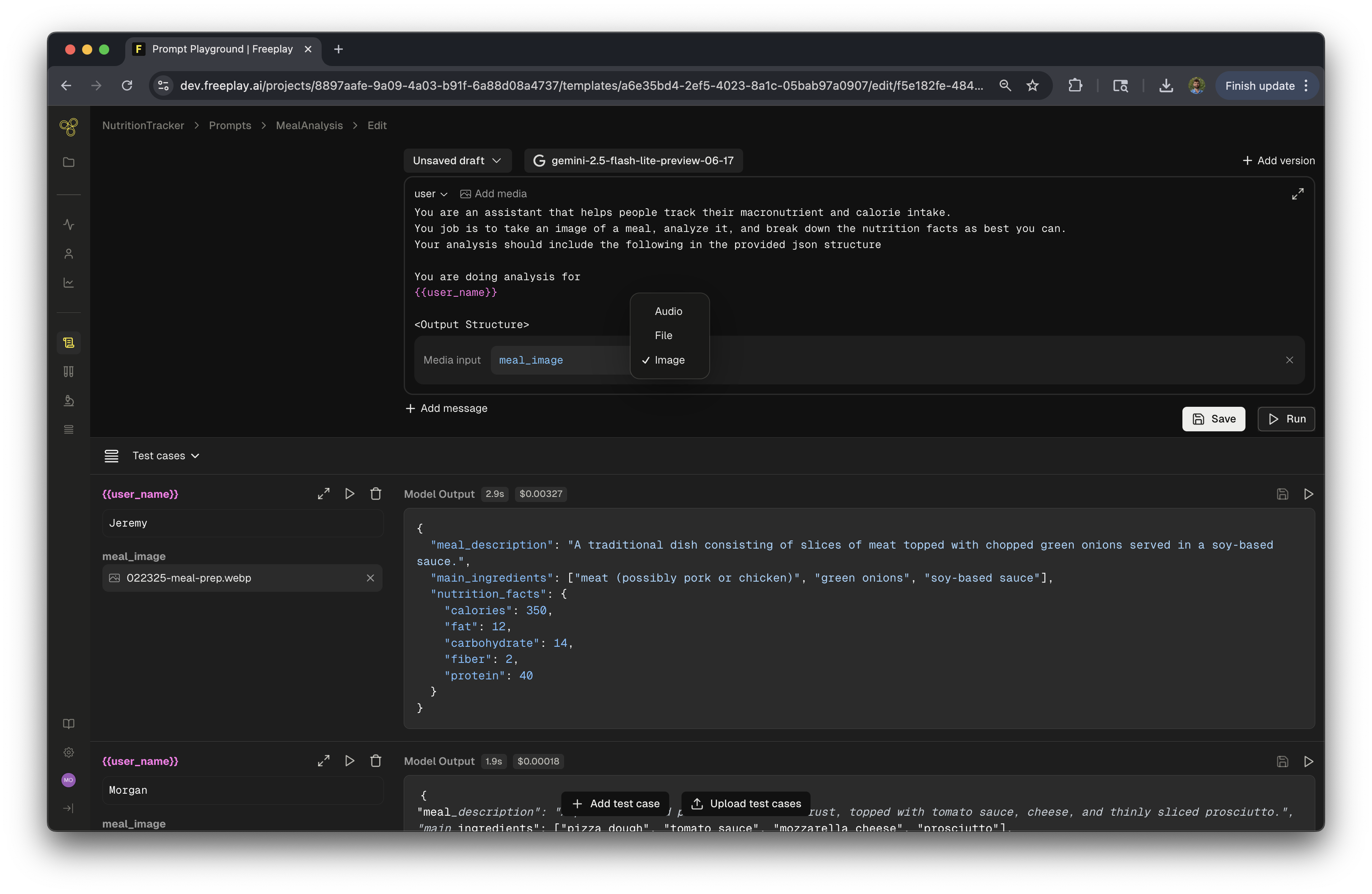
Media variables should be configured within your Prompt Templates in Freeplay.
When configuring your Prompt Template, you will add media variables to user or assistant messages. This tells Freeplay where to insert image, audio, or document data when the prompt template is formatted.- When editing or creating a prompt template in the playground, click the “Add media” button next to the prompt section type
- Note: Media can only be added to user or assistant message types
- Enter a variable name for your media input (e.g.,
product_image,support_document) - Select the media type (file, image or audio, types depend on the models support)
Multimodal Data in Freeplay
Observability and Completions
View original media inputs alongside LLM responses in Freeplay’s interface.
When reviewing completions in Freeplay, you’ll be able to see the original images, documents, or audio files that were included in the prompt. This provides essential context when evaluating model performance.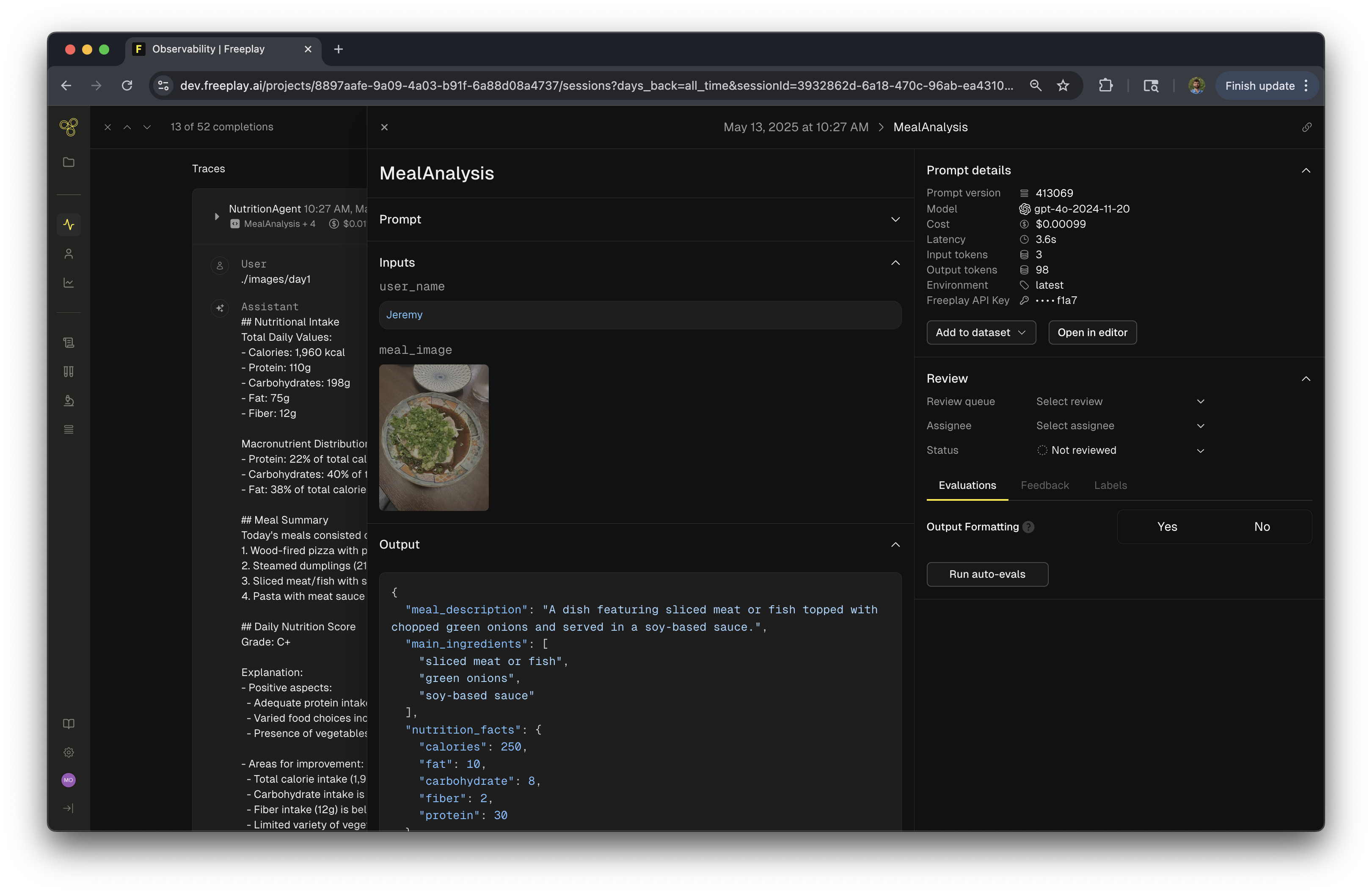
- The full prompt including all media inputs
- The model’s response
- Evaluation scores and feedback
Testing Multimodal Prompts with Real Data
Freeplay enables rapid prompt iteration by allowing you to load completions with multimodal data directly into the prompt playground. This streamlined workflow lets you test new prompt versions against real production data without leaving the editor interface.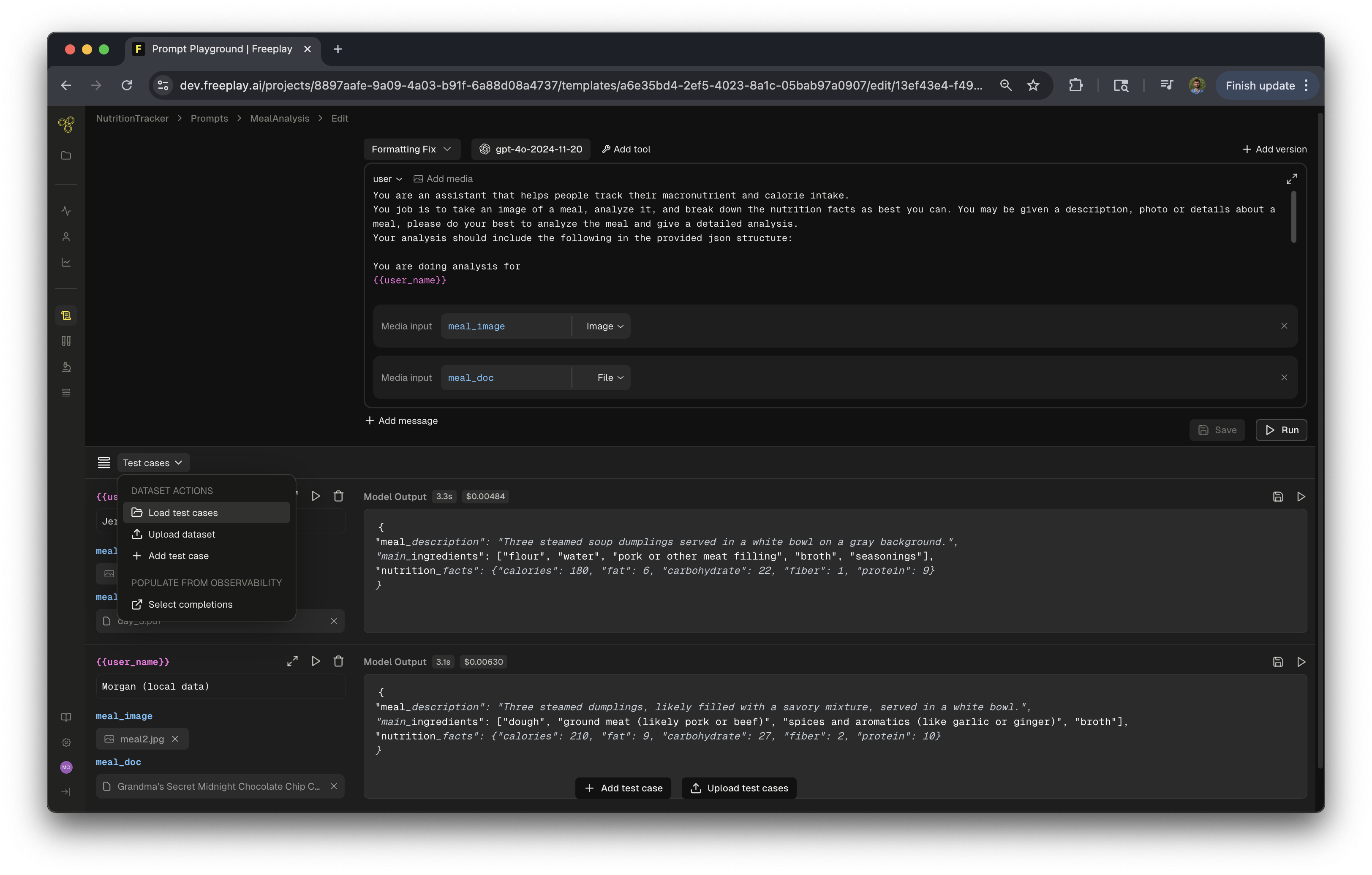
Testing Workflows with Multimodal
Multimodal Data in the SDK
Create amedia_inputs map when formatting prompts via the SDK.
When using the Freeplay SDK, you’ll create a map of media variable names to their corresponding data, then pass this map to the get_formatted method.Creating Media Inputs
Using the Media Input Map
To create the media map, import the proper type fromfreeplay.resources.prompts Then create a map of the variable name in your Freeplay prompt template to the data associated with it. In the examples below, the variable names are product_image, legal_document, and voice_recording .- Create a media input map (either
MediaContentUrlorMediaContentBase64) - Pass it to the
get_formattedmethod - Include it when recording the completion
Getting Formatted Prompt with Media
When calling the Freeplay API to get a formatted prompt, include your media inputs:Recording Completions with Media
When recording the completion, make sure to include the media inputs:Media Support
Supported Media Types
Freeplay supports the following media types:- Images - JPG,JPEG,PNG, WebP
- Audio - WAV, MP3
- Documents - PDFs
Supported Sizes
We support a total request size of up to 30 mb. If your file/data is over that limit it will not work within the Freeplay Application.Supported Providers
Multimodal functionality is supported today by default with: Please reach out to support@freeplay.ai if you’re interested in using other models.Best Practices
- Keep file sizes reasonable: While Freeplay supports various file sizes, providers may have limits on the size of media files they can process, this can also drive up costs.
- Test & Monitor thoroughly: Multimodal models may perform differently with various types of images, audio quality, or document formats, Freeplay allows for rapid testing, review and iteration to ensure your product performs as expected.
- Combine media types: For complex use cases, you can include multiple media inputs of different types in the same prompt such as documents and images.
- Iterate regularly: Regularly review completions with media inputs to ensure your model is interpreting the media correctly.