

Introduction
Voice-enabled AI applications present unique challenges when it comes to testing, monitoring, and iterating on your prompts and models. This guide demonstrates how Freeplay’s observability and prompt management tools can support your development workflow when building voice applications. In this example, we show how to use Freeplay together with Pipecat and Twilio.What is Pipecat?
Pipecat is a powerful open source framework for building voice-enabled, real-time, multimodal AI applications. When paired with Twilio for real-time voice over the phone, Pipecat enables teams to quickly build audio-based agentic systems that combine both user and bot audio with LLM interactions. This combination creates a strong foundation for the core application, but building a high-quality generative AI product also requires robust monitoring, evaluation, and continuous experimentation. This is where Freeplay helps.Using Freeplay for Rapid Iteration and Observability
When it comes to monitoring and improving a voice agent, teams often struggle with:- Multi-modal Observability: Tracking and analyzing model inputs and outputs across different data types (audio, text, images, files, etc.)
- Quality Evaluation: Understanding how your application performs in real user scenarios and using evaluation criteria relevant to your product
- Experimentation & Iteration: Systematically versioning, testing, and deploying changes to prompts, tools, and/or models
- Team Collaboration: Keeping all team members on the same page when it comes to testing and understanding quality (including non-developers)
What You’ll Be Able to Monitor
Once implemented, you’ll be able to view complete user interactions in Freeplay, including:- Audio recordings from the user and bot turns
- Transcribed text for easy review and analysis
- LLM responses with full context
- Cost & latency metrics for performance optimization
- Evaluation results against your quality criteria
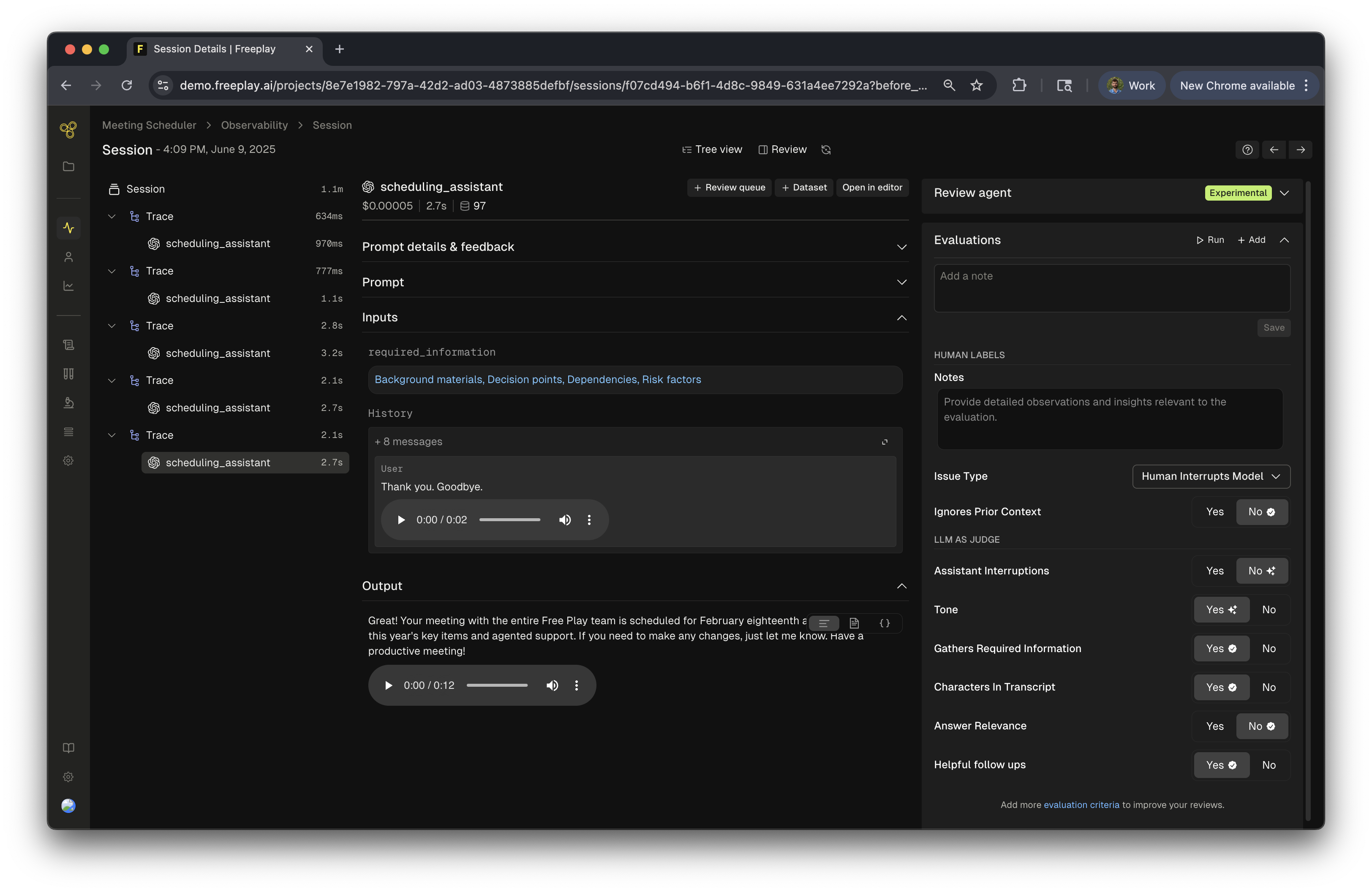
- Audio recordings
- Transcribed text
- LLM responses
- Cost & latency metrics
- Evaluation results
Integration Approaches
Freeplay provides seamless integration with Pipecat to log audio interactions and LLM responses for comprehensive testing and evaluation of your voice agents.Option 1: Processor Integration
- How it works: Directly intercepts frames within the pipeline processing flow
- Trade-off: Adds minimal latency as processing happens inline
- Best for: Cases where you need direct frame manipulation or synchronous processing
- Documentation: Pipecat Processors
- Full Example: FreeplayProcessor
Option 2: Observer Integration ⭐ Recommended
- How it works: Uses callbacks to log data asynchronously in the background
- Trade-off: Zero impact on pipeline latency since logging happens outside the main flow
- Best for: Voice agents where low latency is critical
- Documentation: Pipecat Observer Pattern
- Full Example: FreeplayObserver
Conversation Flow in a Pipecat + Twilio + Freeplay Integration
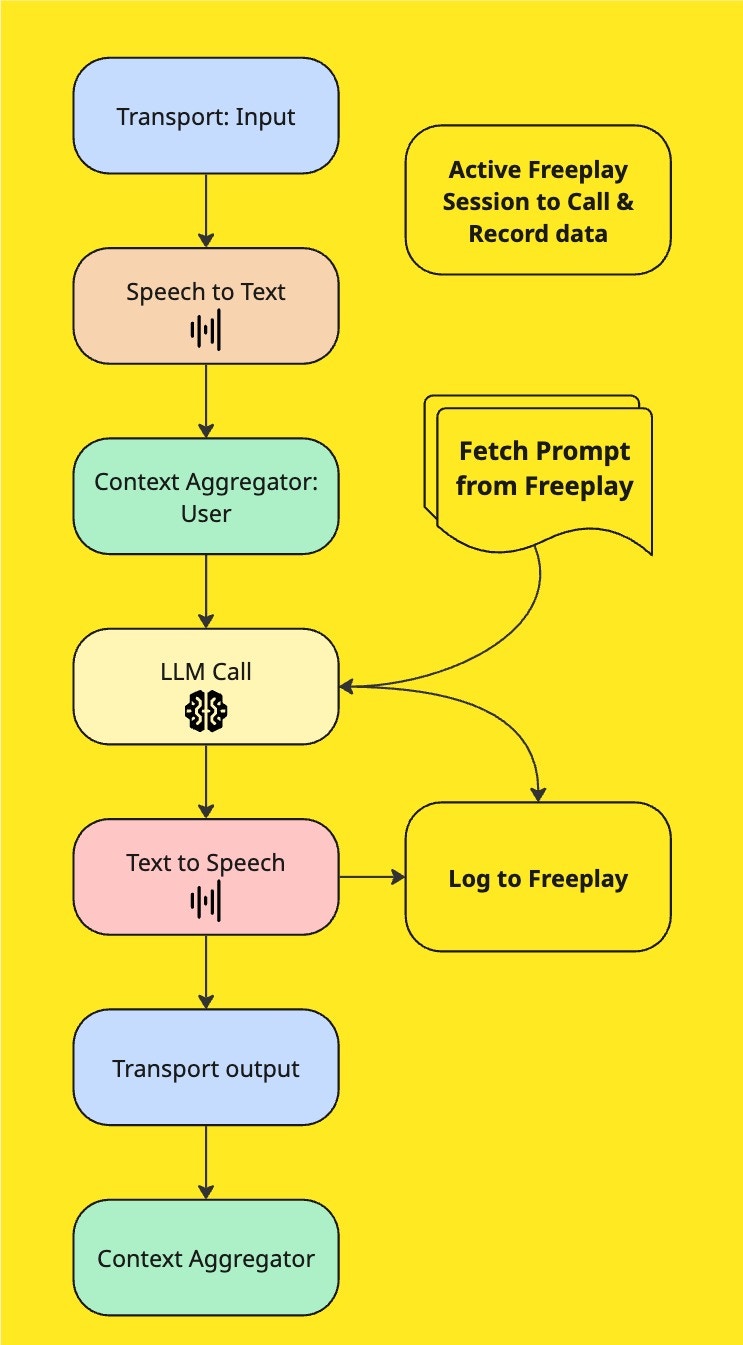
Implementation Guide FreeplayObserver
Pro Tip: AudioBufferProcessor
We highly recommend using Pipecat’s AudioBufferProcessor alongside the FreeplayObserver. This well-tested utility:- Formats audio data consistently for logging
- Provides reliable callbacks for conversation turn detection
- Simplifies audio handling and storage
Prerequisites
Before starting, make sure you have:- A Freeplay account set up (follow our quick start guide)
- Your prompts configured in Freeplay (follow our prompting guide)
- A working Pipecat + Twilio application
Step 1: Import Prompt Configuration from Freeplay
First, fetch your prompt configuration from Freeplay and prepare it for use in your Pipecat pipeline:Step 2: Create Your Freeplay Observer
Create a FreeplayObserver to handle conversation memory, frame monitoring, and data logging. See the full code here.Step 3: Configure Your Pipeline with Audio Buffering
Set up your Pipecat pipeline with the FreeplayObserver and audio buffering capabilities:Step 4: Set Up Audio Capture Callbacks & Configure Pipeline
Configure callbacks to capture audio at the optimal moments:-
Add the
FreeplayObserverto Your Pipeline - Initialize at Conversation Level The FreeplayObserver must be initialized at the conversation level to properly track the entire interaction flow.
- Automatic Frame Processing As audio frames pass through the observer’s on_push_frame method, it automatically updates the processor variables with both user and bot audio data and metadata.
-
Recording with AudioBufferProcessor Callbacks To determine the optimal timing for recording to Freeplay, we recommend using AudioBufferProcessor callbacks:
on_bot_turn_audio_data- Captures when the bot completes its audio responseon_user_turn_audio_data- Captures when the user finishes speaking
Alternative: FreeplayProcessor Integration
Step 1: Import Your Prompt from Freeplay & Pass to the LLMProcessor
Note, here we get an unformatted prompt from Freeplay and then bind it, this allows us to pass it to the system and not have to make repeated calls to retrieve the llm prompt from Freeplay. The binding allows us to add new variables and information at each turn of the conversation. You can see morehere.Step 2: Create a Freeplay Processor
The processor handles the memory of the conversation, processing of key frames, and and keeps track of information to log to Freeplay. This inherits fromFrameProcessor in Pipecat. See the full code implementation here.
Note: It is required to modify the
processes_frame function in pipecat’s base_llm.py to pass along the OpenAILLMContext frame, this makes the handling easier in the FreeplayLLMLogger - process_frame:
Step 3: Add the FreeplayProcessor To Your Pipeline
Initialize yourFreeplayProcessor and add it as a step in your pipeline. It is recommended that you add this after the STT or the audioBuffer steps in your pipeline so that all of the information needed is available when you log to Freeplay.