An overview of Evals in Freeplay
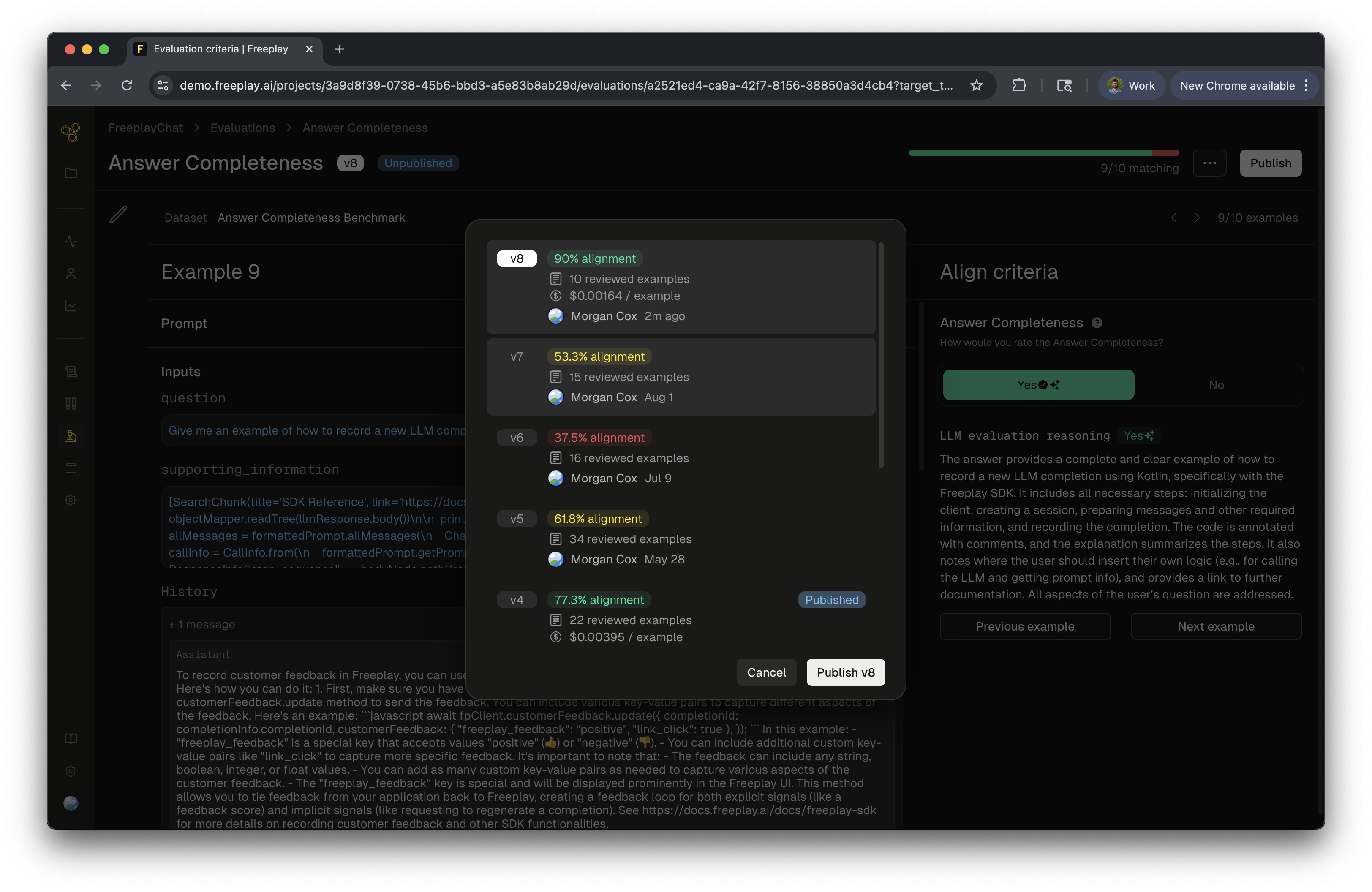
There are 3 types of evals in Freeplay: Model-graded evals, Human labeling, and Code evals. Model-graded evals and Human labeling are defined and managed in the Freeplay app as part of a given prompt. Today, code evals are written, managed, and executed separately in your code and then recorded to Freeplay via the SDK or API. Model-graded evals are executed in two scenarios:- Live Monitoring
- Test Runs
Create and Align Model-Graded Evals in Freeplay
In this guide, we will cover the process of creating a new model-graded eval. Once you create your eval you can continue to iterate on it over time, the process of iterating on and improving alignment for an existing model-graded eval is the same.Step 1: Create a new Model-graded Eval
First navigate to the prompt from which you want to create an eval, and click “New evaluation”. You’ll then be prompted to choose between a Human labeling criteria and a Model-graded eval. In this case we will select “Model graded”.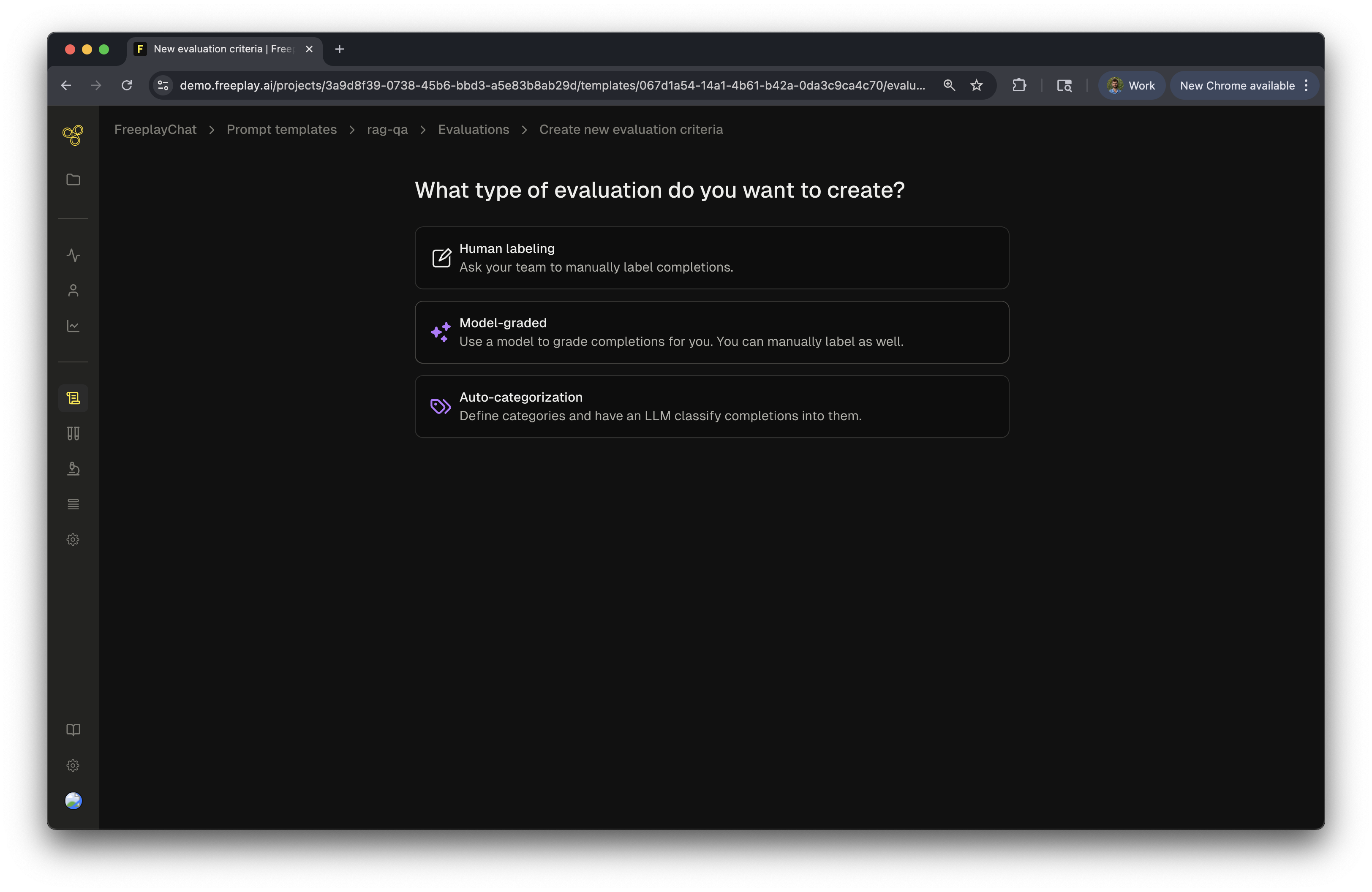
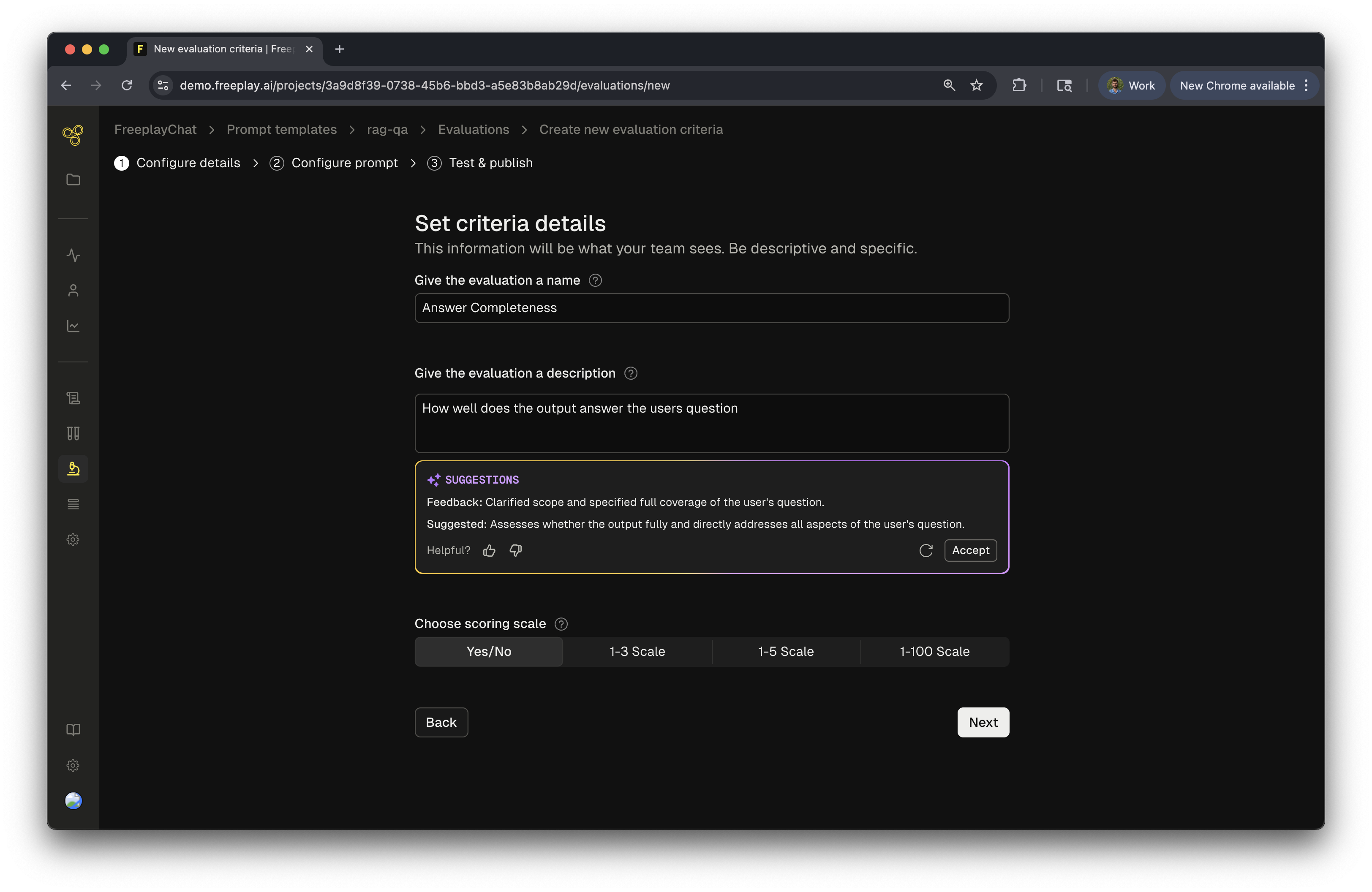
Step 2: Define your Model-graded Eval Prompt
Now you’ll define the prompt for your model-graded eval. These are the instructions the LLM will use to score each Completion it is run on. First you will write the evaluation prompt. Since Freeplay manages your prompt templates as well, you can easily target specific components of the underlying prompt metadata by using Mustache syntax. When running an eval for a given prompt template:- Input variables for the Prompt template are referenced via the
{{inputs.}}prefix - The output is referenced via
{{output}} - If you’re using chat history, you can reference the history via
{{history}} - You can optionally do pairwise comparisons, which are useful when using ground truth datasets. Access the ground truth dataset output via
{{dataset.output}}
- Context Relevance: Is the retrieved context from
{{inputs.context}}relevant to the original user query from{{inputs.question}}? - Answer Similarity: Is the new version of the prompt output from
{{output}}similar to the ground truth value from{{dataset.output}}? - Entailment: Does the answer from the prompt output
{{output}}logically entail from the provided context{{inputs.context}}and the prior chat history{{history}}?
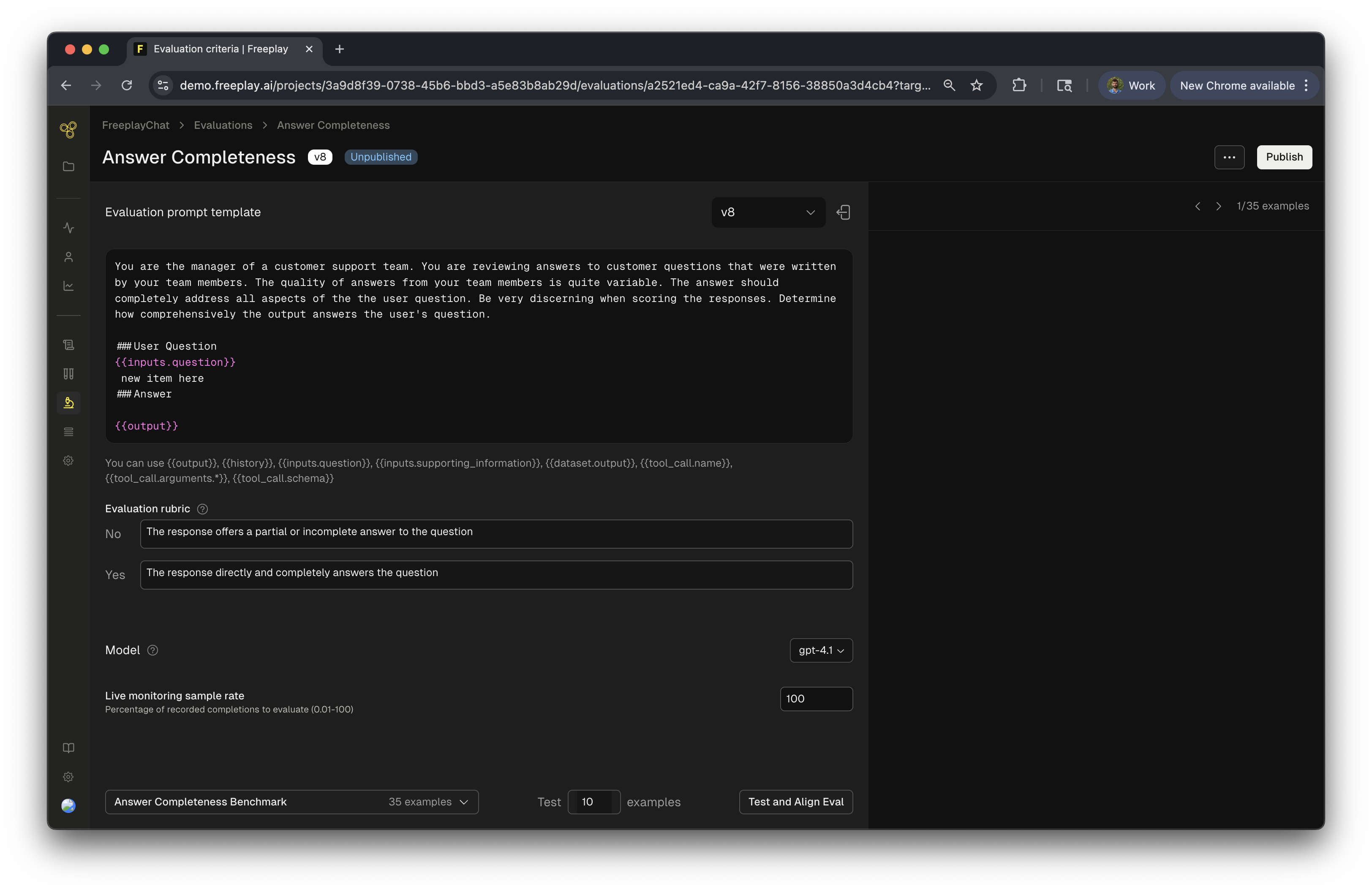
- Choose what model you want to use for the evaluator.
- (Optionally) Define an “Evaluation rubric” so that the LLM evaluator knows exactly what each scoring label means.
- Toggle the “Enable Live Monitoring” feature on or off for the given criteria. If it’s off, your eval will only run on Test scenarios.
Step 3: Select a dataset to test your evaluator
We will now move to testing your new evaluator and we will need a dataset to test with. The default option will use your benchmark dataset for that eval criteria. Note: Benchmark datasets are automatically built as you label examples. Examples will be sampled from your production logs to seed the dataset. Then as you human label data, those examples will be added to this criteria-specific benchmark dataset building it up over time. Alternatively, you can select any other pre-existing dataset that is compatible with your underlying prompt. Click “Test and Align Eval” in the bottom cornerStep 4: Label examples
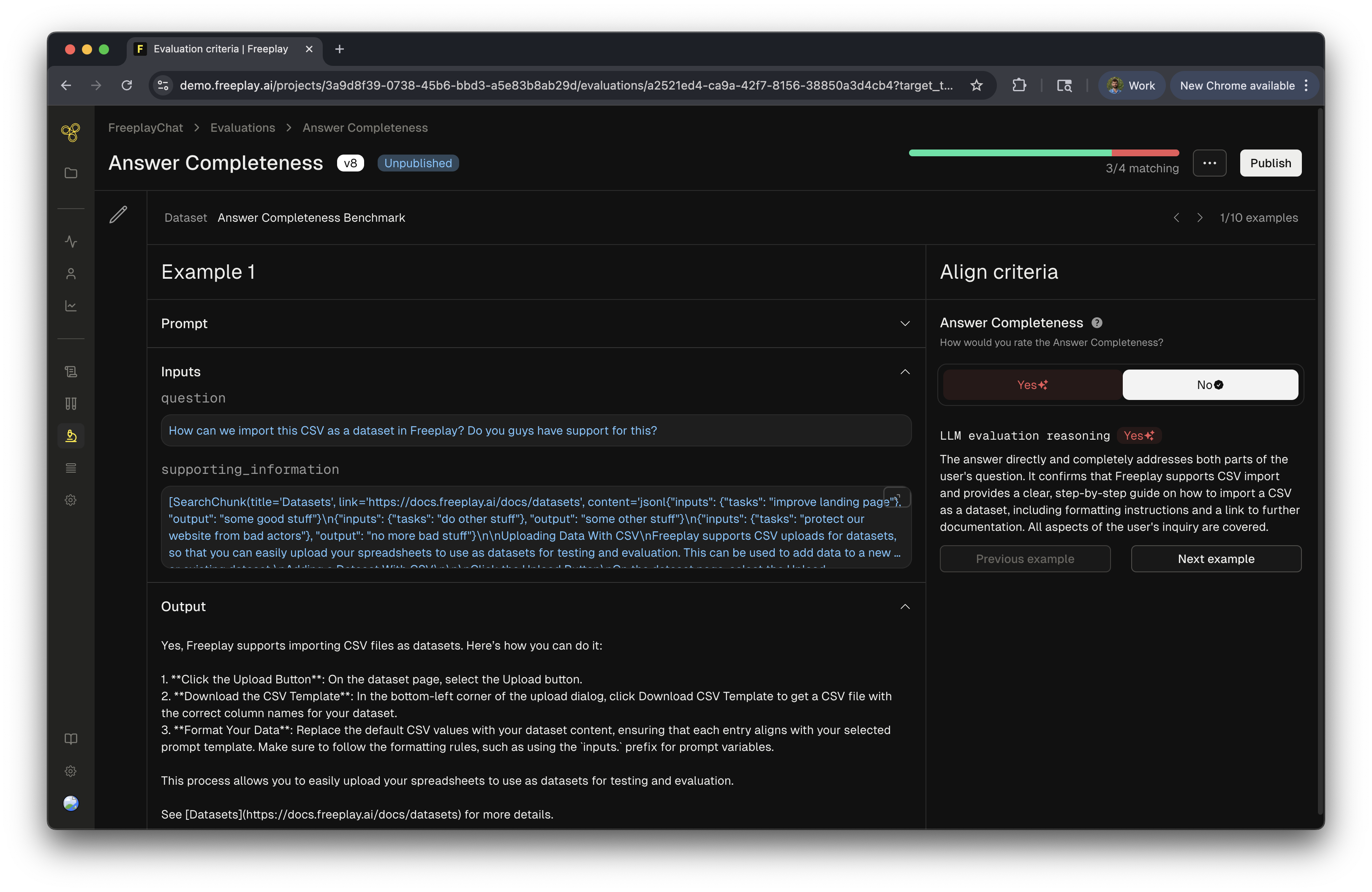
Step 5: Publish your model-graded eval