

Integrating Freeplay with your application unlocks the full platform: production monitoring, dataset creation from real traffic, online and offline evaluations, and optional prompt and model deployment tools.Documentation Index
Fetch the complete documentation index at: https://docs.freeplay.ai/llms.txt
Use this file to discover all available pages before exploring further.
Need a Freeplay account?
Sign up for free to get started, or reach out about self-hosting and enterprise options.
New to Freeplay?
See the Glossary for definitions of key terms like sessions, traces, completions, and prompt templates.
Choose your integration pattern
Before writing code, decide how you want to manage prompts.Pattern 1: Freeplay manages your prompts (recommended)
Freeplay becomes the source of truth for your prompt templates. Your application fetches prompts from Freeplay either at runtime, or as part of your build process (or both). Benefits:- Non-engineers can iterate on prompts and swap models without code changes
- Deploy prompt updates like feature flags and/or as part of your build process
- Automatic versioning and environment promotion
- Detailed observability with each log connected directly to a specific version (prompt and model configuration)
You can configure your Freeplay client to retrieve prompts from the server at runtime, or “bundle” them as part of your build process (learn more about “prompt bundling”).Many Freeplay customers retrieve prompts at runtime in lower-level environments like dev or staging to get the benefit of fast server-side experimentation, then use prompt bundling in production for tighter release management and zero latency.
Pattern 2: Code manages your prompts
The source of truth for your prompts remains your codebase. You push prompt templates and model configurations to Freeplay to enable experimentation and organize your observability data. Benefits:- Prompts stay entirely in your code
- Use your existing code review process for prompt changes
- Full flexibility over prompt structure
- Sync prompts to Freeplay automatically via API in your CI/CD pipeline
Example: Creating a prompt template via API
Example: Creating a prompt template via API
With Pattern 2, you create prompt templates in Freeplay programmatically using the API. Use the
create_template_if_not_exists parameter to sync prompts from your codebase:Optional: Start with observability only
You can begin by logging LLM calls to Freeplay without setting up prompt templates. This gets you started quickly, but this is not recommended as an end state since it limits core Freeplay features. What works without prompt templates:- Basic observability and search, including any evaluation values or other metadata you choose to log
- Manual agent dataset curation (trace level)
- Configuring auto-evaluations to run at the trace / agent level
- Experimenting in the Freeplay playground
- Creating prompt datasets from observability logs (requires
inputsfield / knowledge of variables in your prompts) - Running evaluations that target prompt-level changes
- Searching by prompt template or version
- Running test runs against saved prompts
- Tracking prompt version performance over time
- You want to start logging immediately and add prompt templates later
- You’re evaluating Freeplay before committing to a prompt management pattern
Upgrade path: Set up prompt templates as soon as possible to unlock the full set of Freeplay features. You can create templates either in the Freeplay UI or via the API, then update your code to include
prompt_version_info when recording.Example: Observability-only integration
Example: Observability-only integration
Get started
Step 1: Install the SDK
You can integrate directly with your code using one of Freeplay’s SDKs, or select from integrations with common frameworks outlined below.Alternative: Framework integrations
If you’re using a common AI framework, Freeplay provides native integrations that require separate packages from our standard SDKs. Learn more:LangGraph
Instrument LangGraph agents with Freeplay
Vercel AI SDK
Add observability to Vercel AI applications
Google ADK
Integrate with Google’s Agent Development Kit
OpenTelemetry
Use standard OTel tracing with Freeplay
Step 2: Create a prompt template
Create your first prompt template in the UI or via the API. Once you save a prompt, the Integration tab provides code snippets tailored to your template.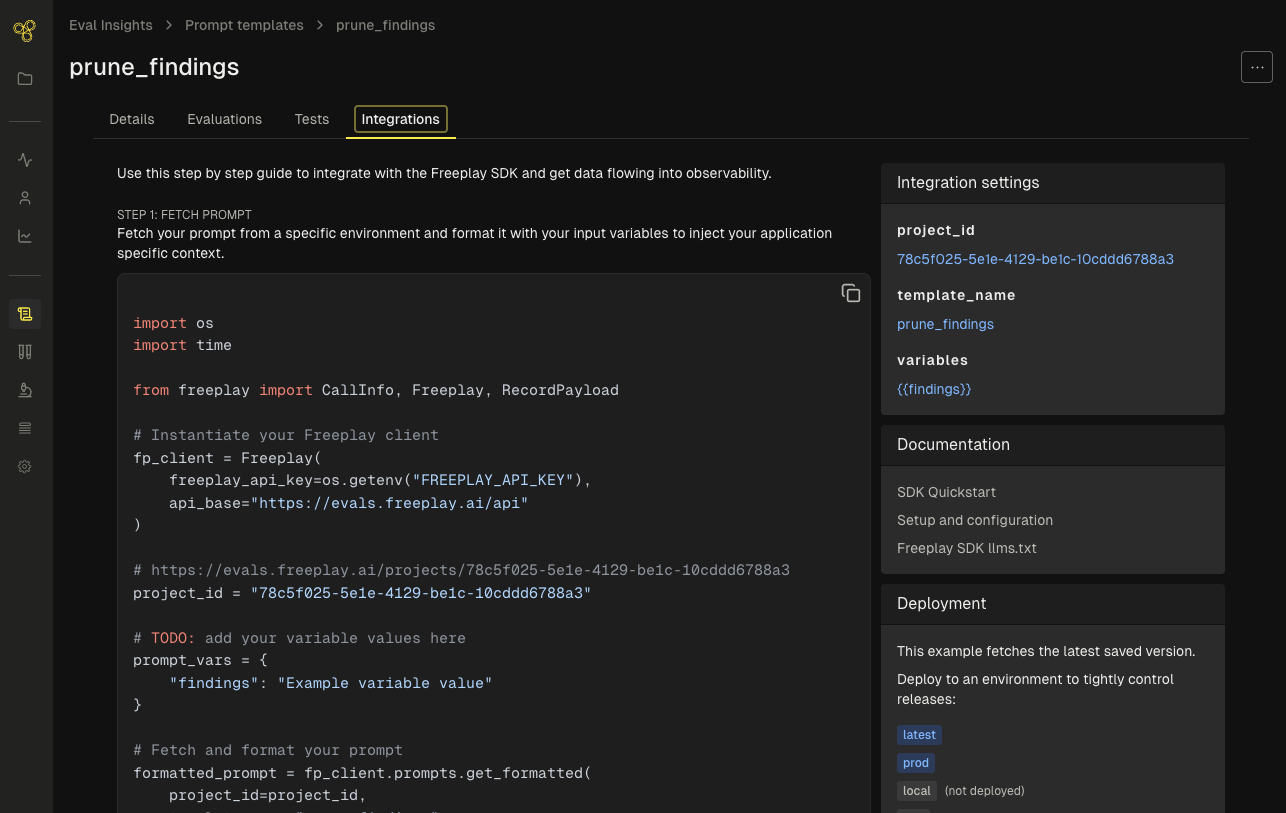
Step 3: Integrate
- Pattern 1: Freeplay-managed prompts
- Pattern 2: Code-managed prompts
Fetch prompts from Freeplay and log completions:
Next steps
Your integration is complete. Sessions will appear in the Observability dashboard as you log data from your application. With prompts and observability configured, you can now set up evaluations and run tests.Create evaluations
Learn more about evaluation types and alignment
Run tests
Execute batch tests to compare prompt versions and measure quality