

Environments
Managing prompt deployment across different stages of your development lifecycle. Environments in Freeplay allow you to control how and where prompt versions are deployed throughout your development workflow. By configuring environments, you can safely test changes, manage multiple deployment stages, and maintain different versions of prompts for various use cases.Common Use Cases
Many teams make use of prompt bundling in production. See our guide on Prompt
Bundling for reference.
Staged Deployment
The most common use of environments is to create one for each environment that teams use. For example if your team follows a typical testing, staging, production environment flow, you would create a tag for each. This provides you the ability to rapidly test and iterate with the “test” environment tag and then once a new prompt version is ready, you can promote it to staging and finally production.Shadow Testing
Create a tag for your main prompt and a secondary tag to run new or experimental versions to compare performance without affecting user experience. Log interactions from both versions to evaluate and monitor improvements before full deployment.Rapid Iteration
Teams commonly create a “sandbox” or similar testing environment that allows team members to rapidly iterate on prompts without impacting other environments. Team members can use the “latest” tag for this or create their own to prevent overlapping with others.Feature Flags & A/B Testing
Use environments to manage feature rollouts or run A/B tests. Deploy different prompt variants to specific environments and route traffic accordingly based on your testing strategy.Setting Up Environments
Navigate to Settings > Environments to view and configure your environments. Freeplay includes three default environments:- latest - Automatically assigned to newly created prompt versions. Ideal for initial testing and development work.
- dev - Development environment for active iteration and experimentation.
- prod - Your stable, live environment serving end users.
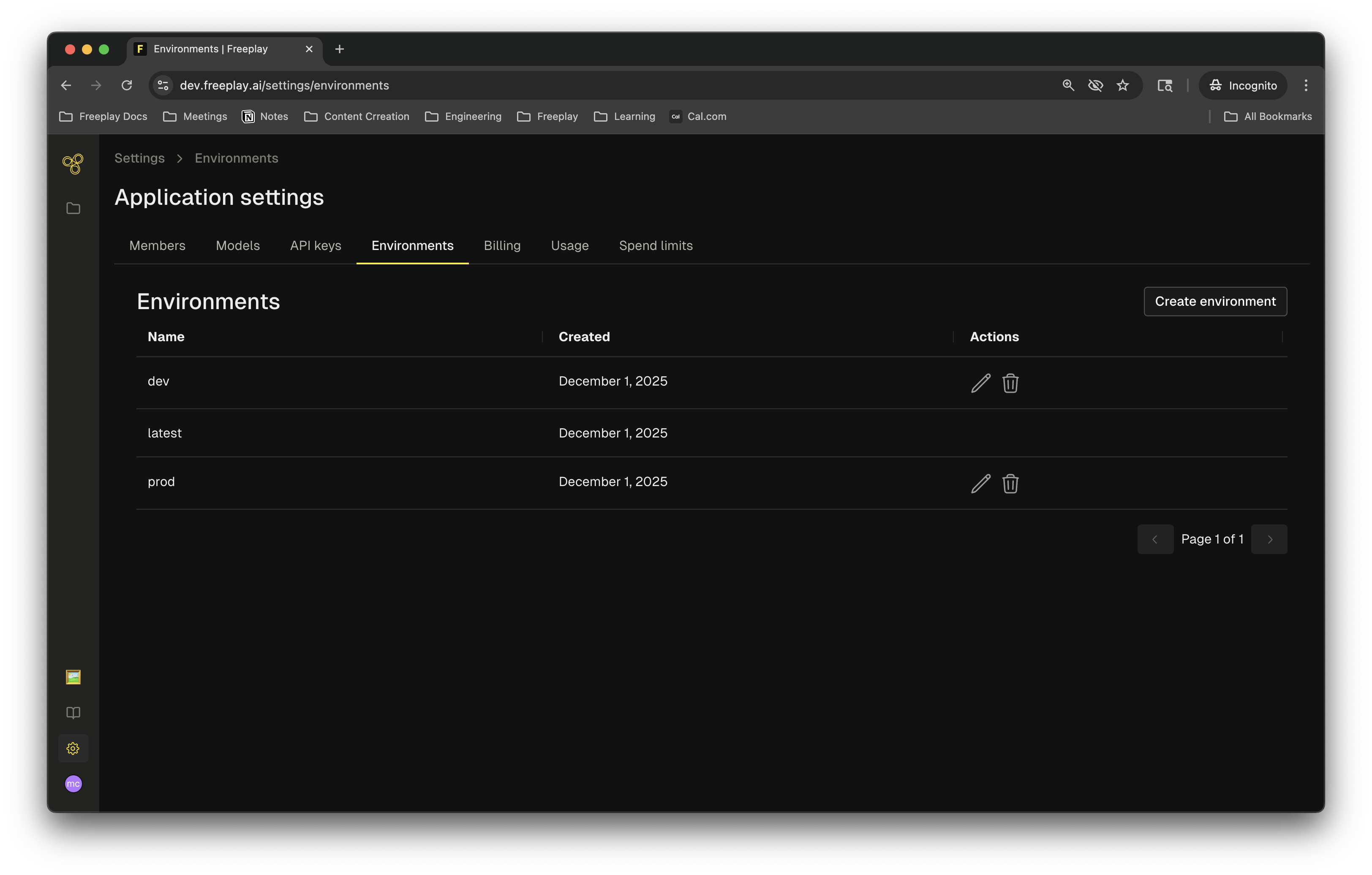
Deploying Prompts to Environments
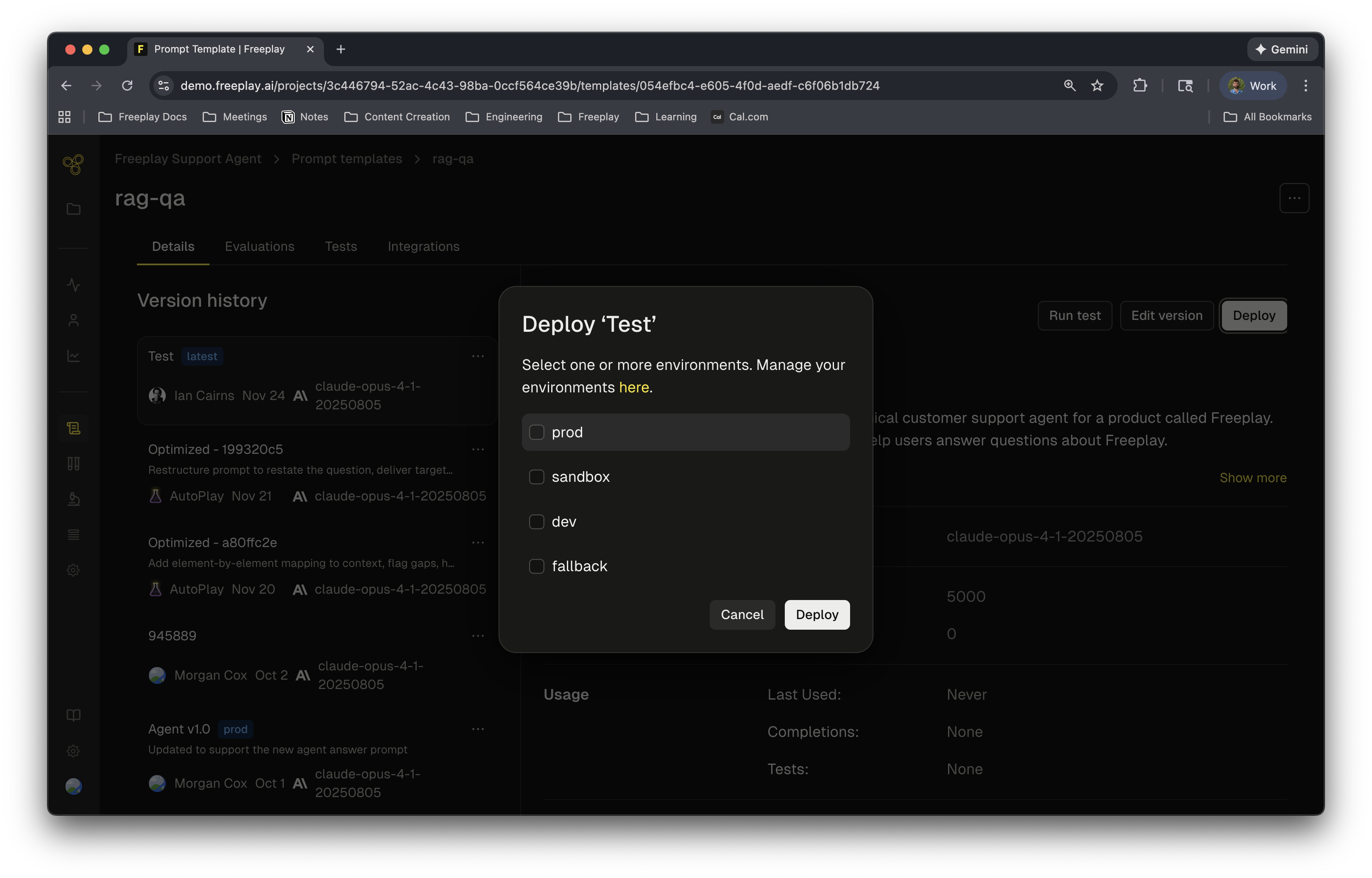
- Open the prompt template
- Select the version you want to deploy
- Choose your target environment & select Deploy
Using Environments in Your Code
We recommend setting your environment tags as environment variables so they do not change for production deployments, while for quick testing you can easily set in code:Prompt Bundling Observability