

Prompt Templates
What is a Prompt Template?
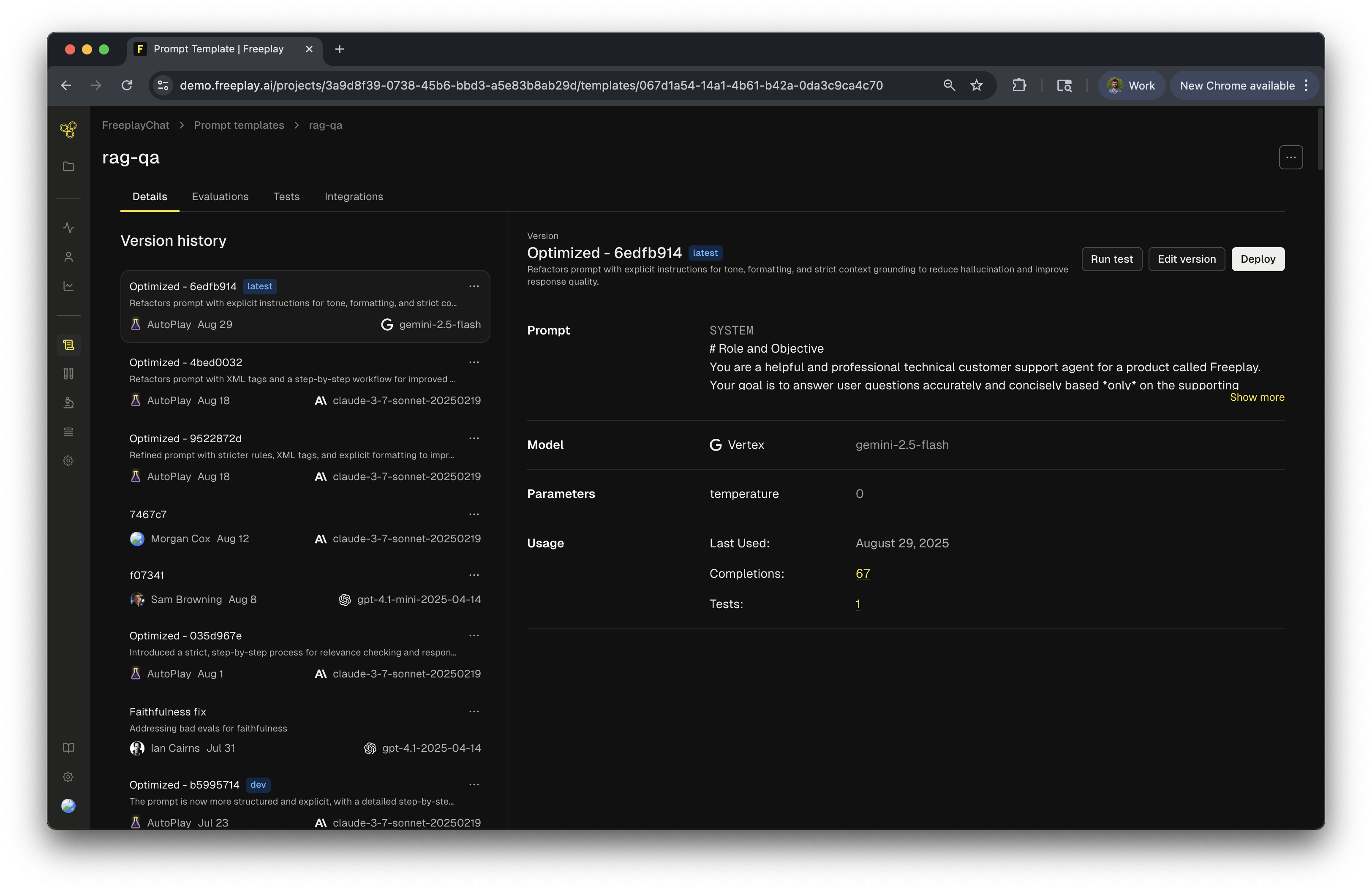
A prompt template in Freeplay defines the configuration for an LLM interaction: the messages, model settings, and optional tools or output schemas. Each template can have multiple versions as you iterate and refine your prompts.Components of a Prompt Template Version
The following elements make up the configuration of a prompt template version.- Content (e.g. messages)
- Model config
- Tools (optional)
- Structured output schemas (optional)
Content
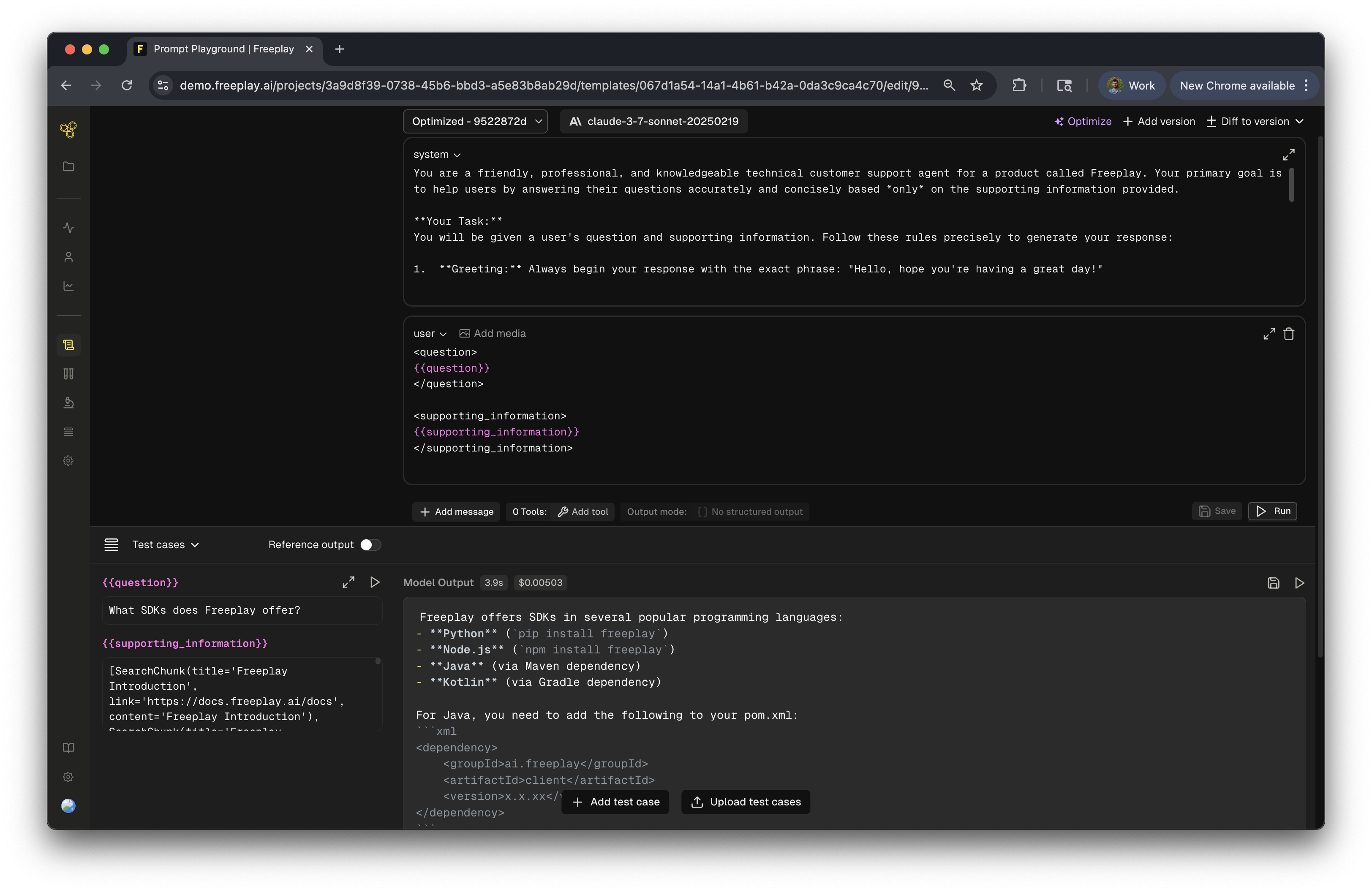
This is the actual text content of your prompt. The constant parts of your prompt will be written as normal text while the variable parts of your prompt will be denoted with variable place holders. When the prompt is invoked, the application specific content will be injected into the variables at runtime. Take the following example: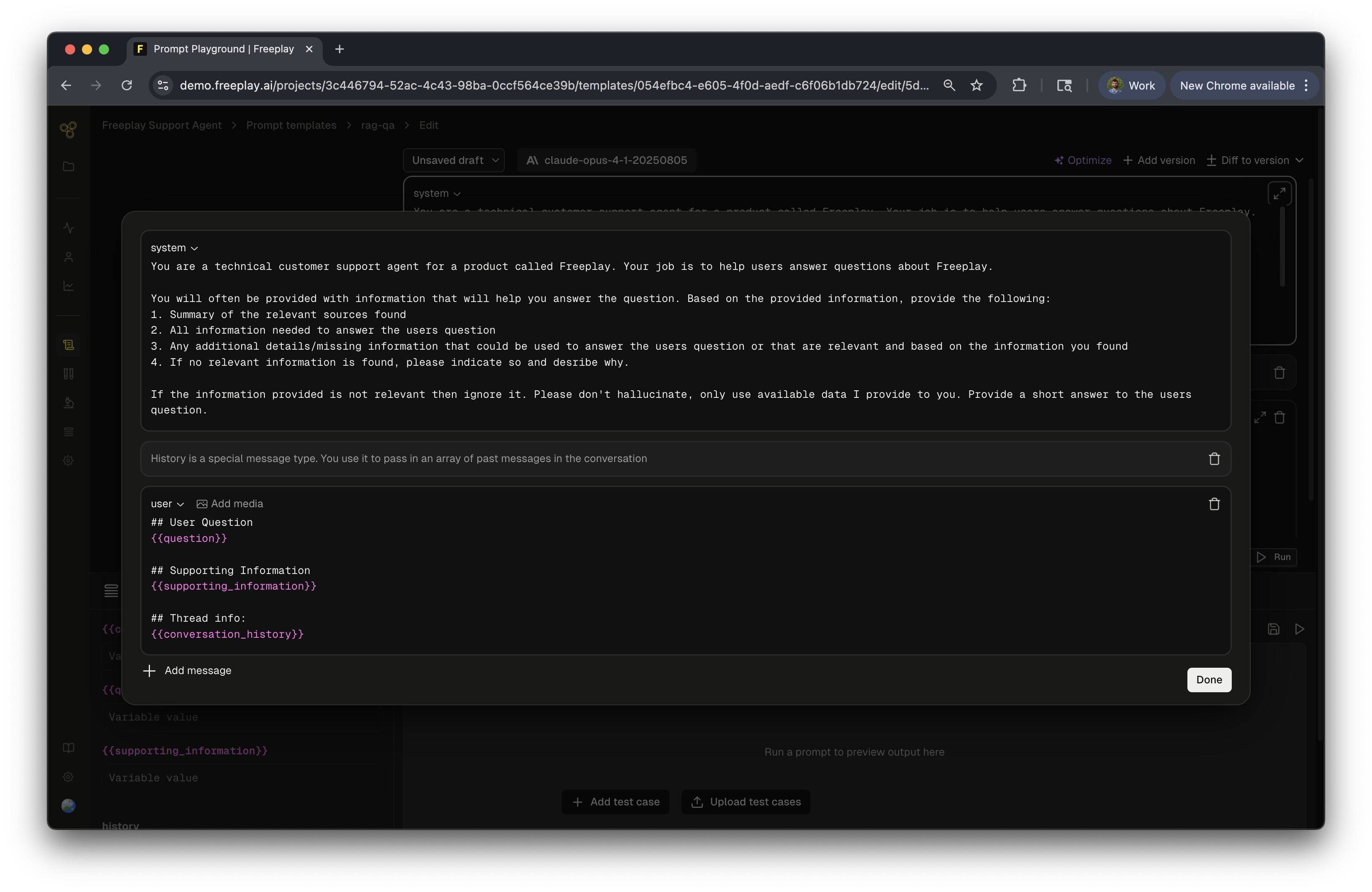
question, conversation_history, and supporting_information. When invoked the prompt will become fully hydrated and what is actually sent to the LLM would look like this
Variables in Freeplay are defined via mustache syntax, you can find more information on advanced mustache usage for things like conditionals and structured inputs in this guide.
Model Config
Model configuration includes model selection as well as associated parameters like temperature, max tokens, etc.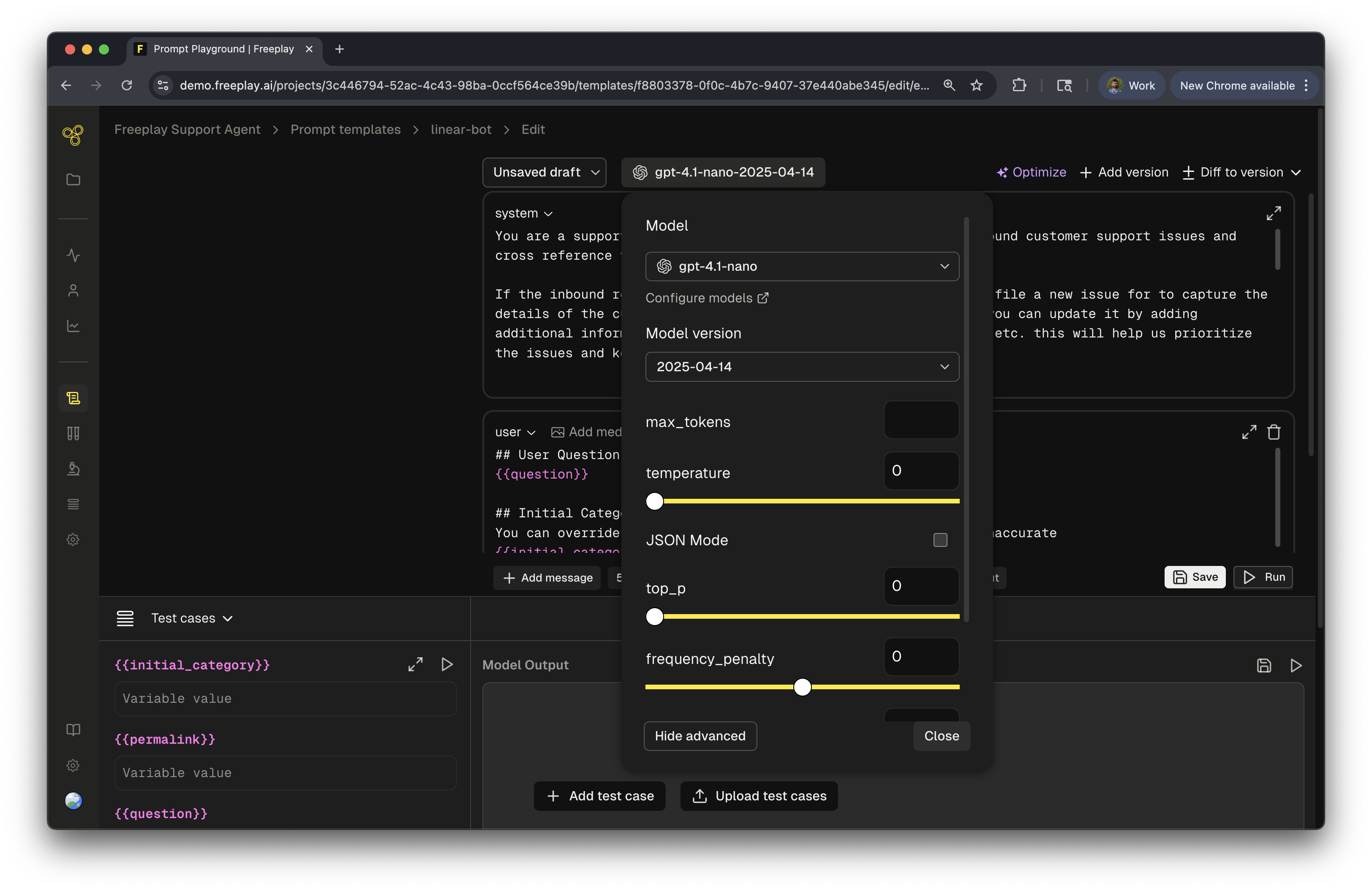
Tools (optional)
Tool schemas can also be managed in Freeplay as part of your prompt templates. Just like with content messages and model configuration the tool schema configured in Freeplay will be passed down in the SDK to be used in code. See more details on working with tools in Freeplay here.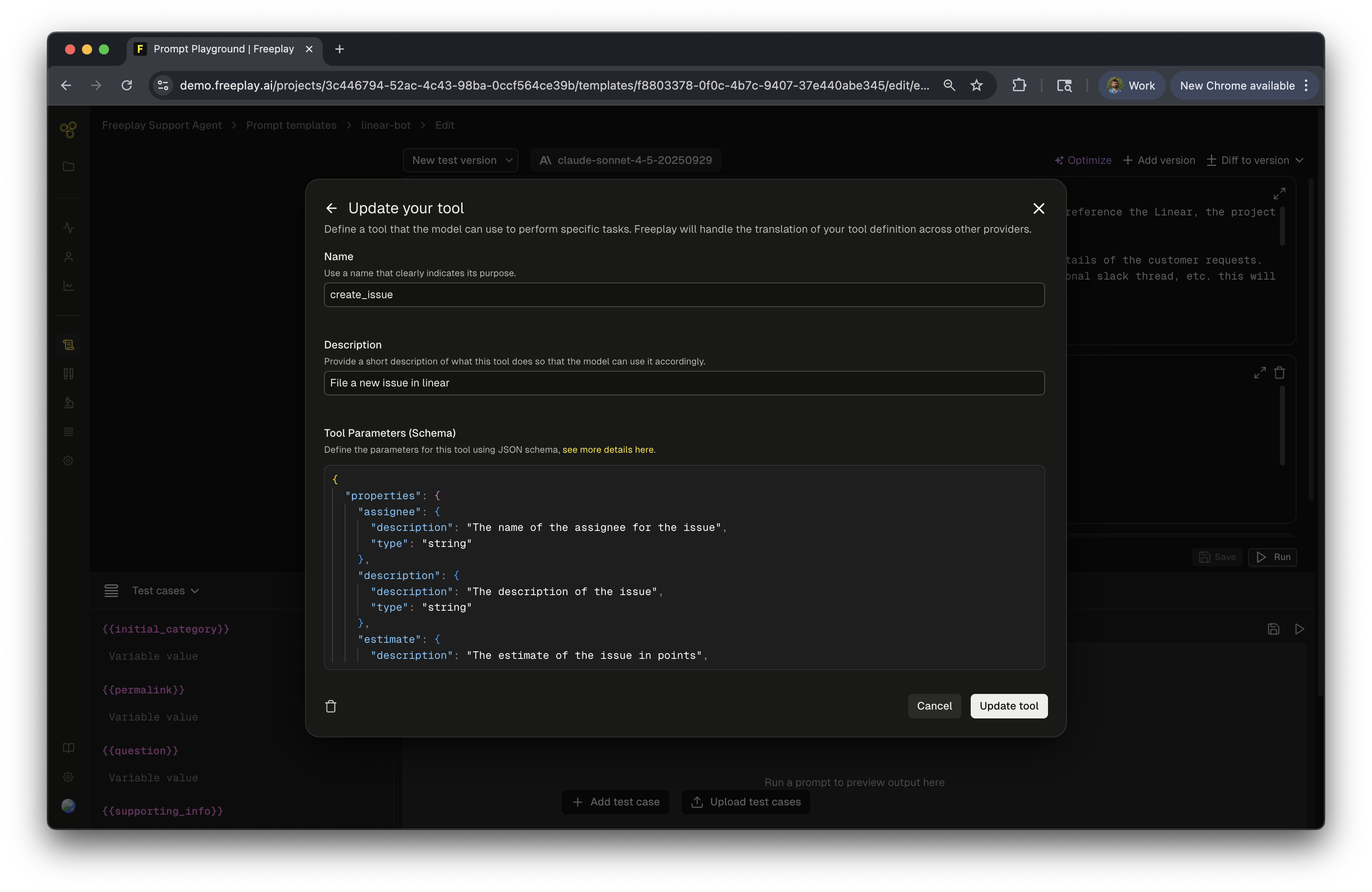
Structured Output Schemas (optional)
Structured outputs allow you to rely on the model outputting its results in a consistent format. Many models support a JSON output mode that can be defined and they will respect that format. Additionally, some model providers support the ability to define typed outputs that are more structured and formal than JSON outputs. Freeplay supports both. You can learn more here.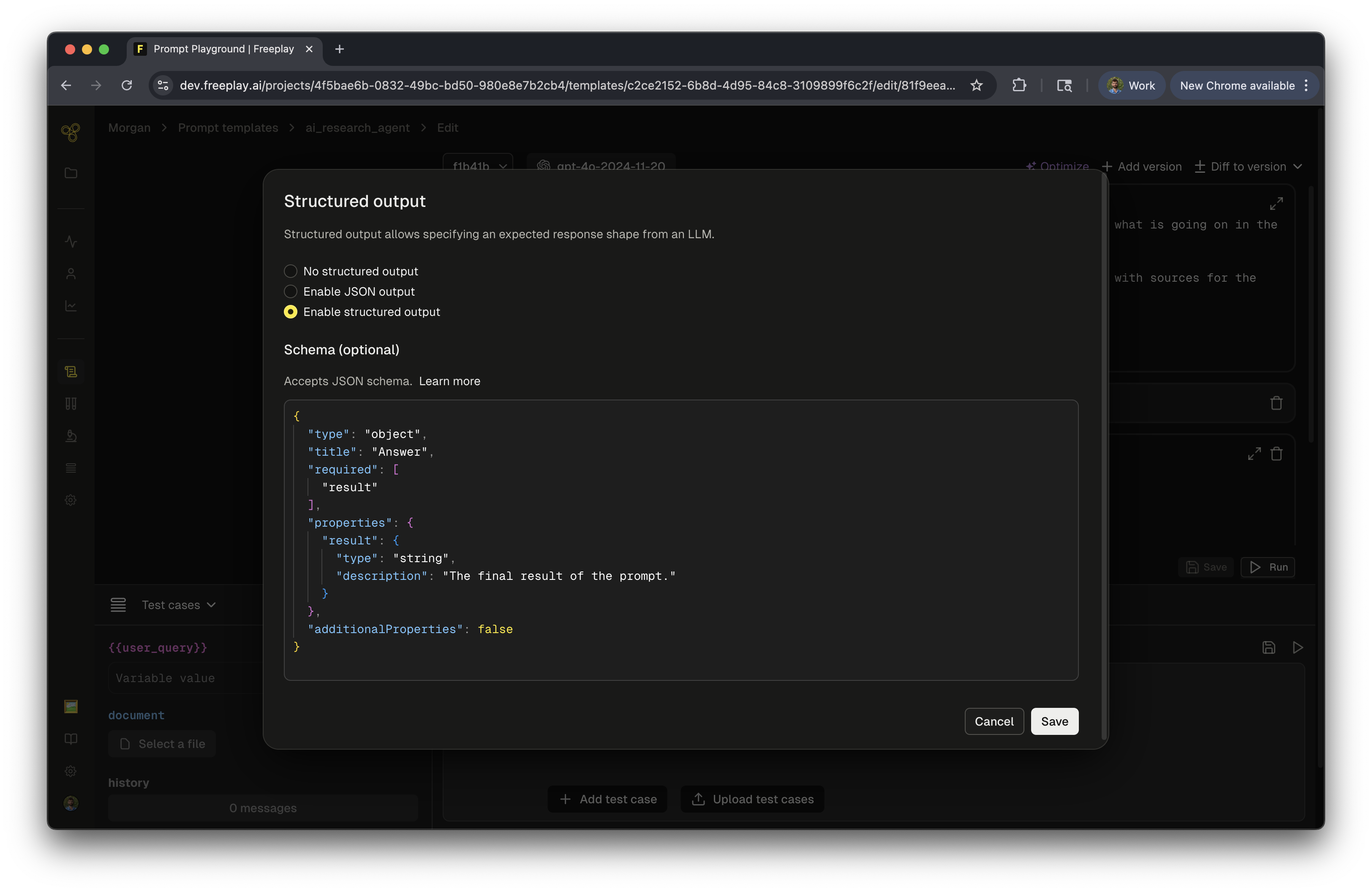
Prompt Management
Freeplay offers a number of different features related to prompt management including- Native versioning with full version history for transparent traceability
- An interactive prompt editor equipped with dozens of different models and integrated with your dataset
- A deployment mechanism tied into the Freeplay SDK
- A structured templating language for writing prompts and associated evaluations
- Freeplay as the source of truth for prompts, or
- Code as the source of truth for prompts
Freeplay as the source of truth for prompts
In this usage pattern new prompts are created within Freeplay and then passed down in code. Freeplay becomes the source of truth for the most up to date version of a given prompt. The flow follows the steps below.1. Create a new prompt template version
If you don’t already have a prompt template set up you can create one by going to Prompts → Create Prompt Template.If you do already have a prompt template set up you can start making changes to your prompt template and you’ll see that prompt turn to an unsaved draft.As you make edits you can run your prompt against your dataset examples in real-time to understand the impacts of your changes.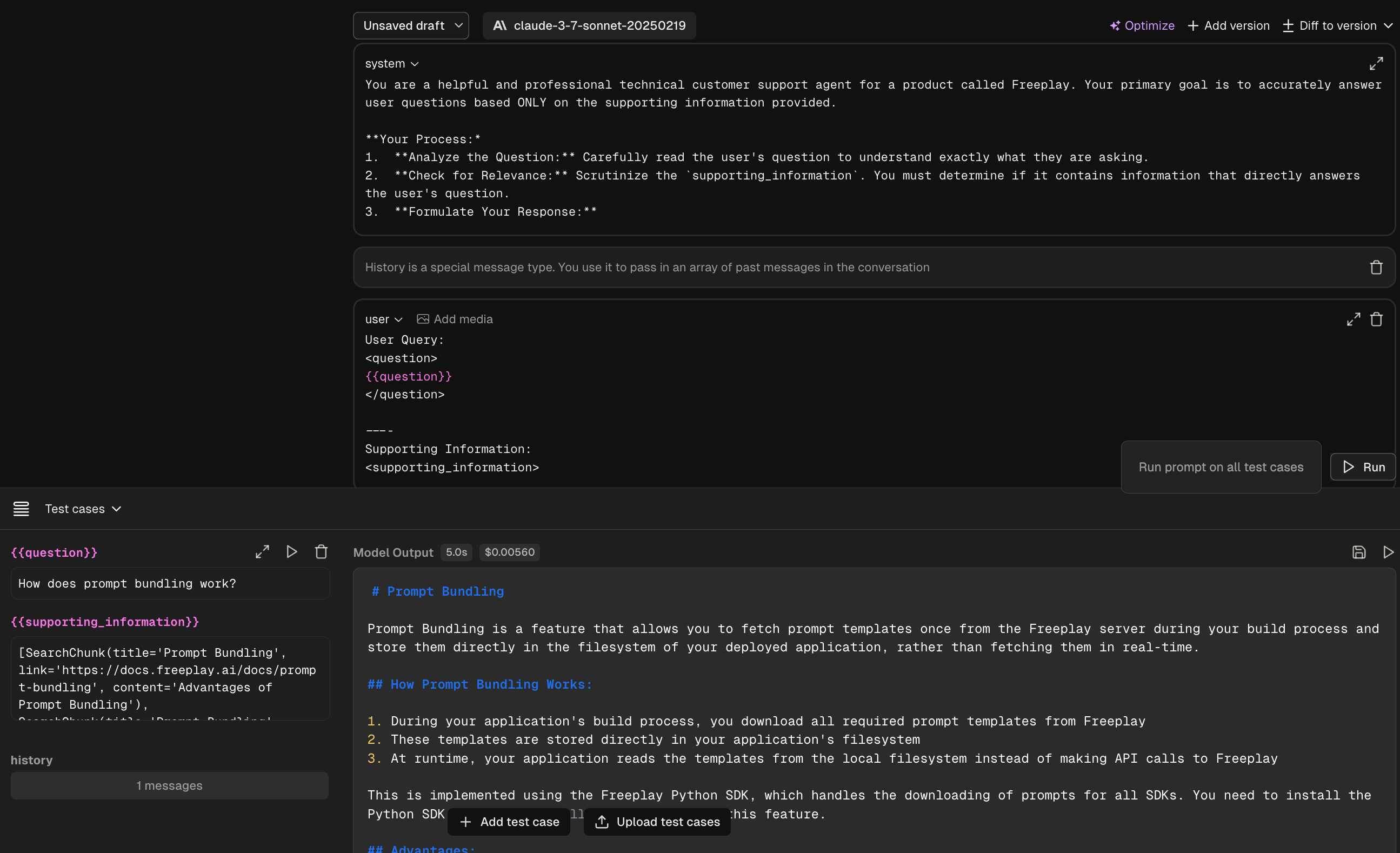
2. Select deployment environment
Freeplay enables you to deploy different prompt version across your various environments helping facilitate the traditional environment promotion flow.By default a new prompt template version will be tagged with latest. Once you’re ready to promote that prompt template version to other environments you can add additional environments by hitting the “Deploy” button.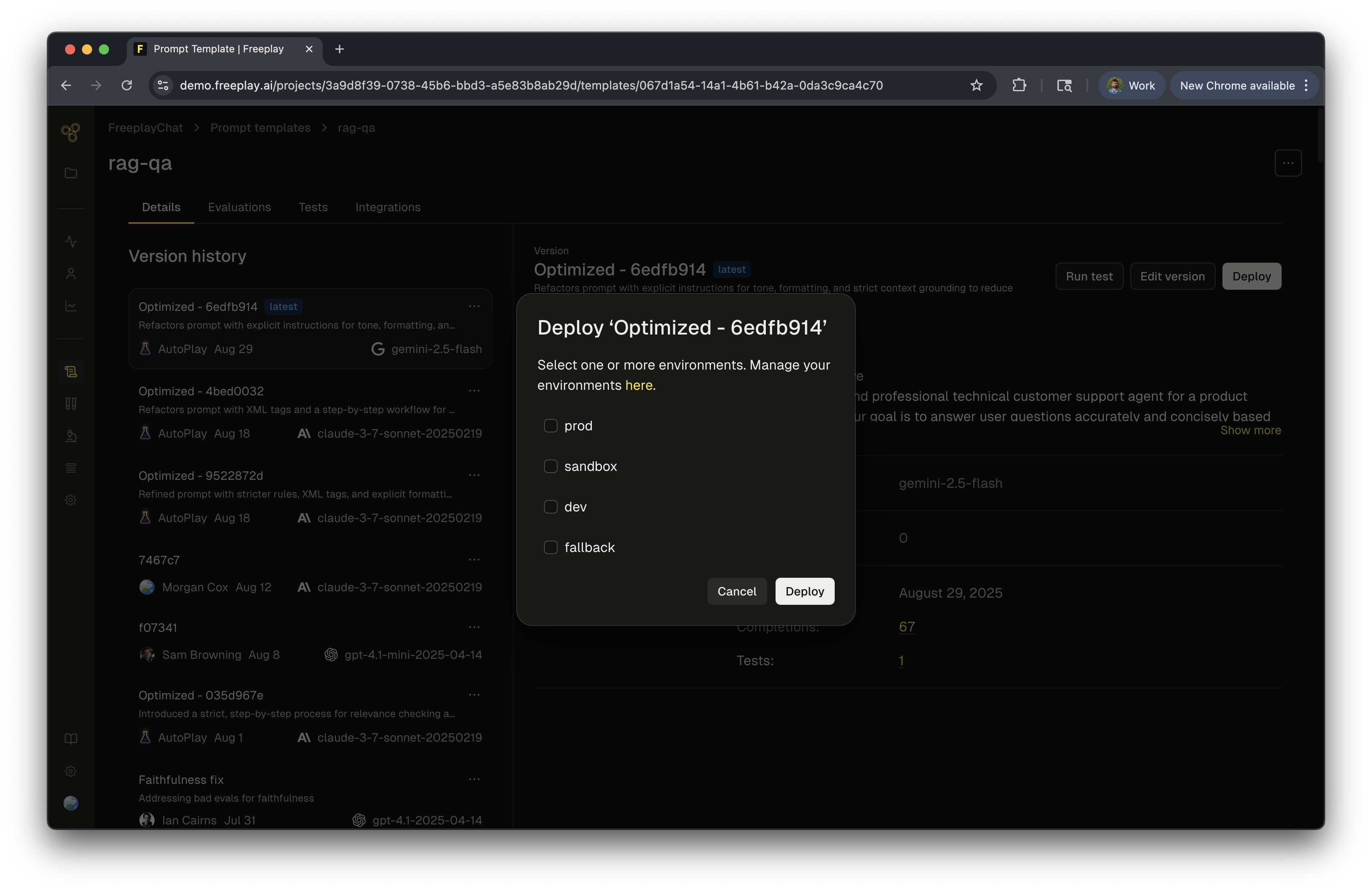
3. Fetch prompts in code
Once a prompt version has been created it can be fetched via the SDK to be used in code.There a number of different ways to fetch prompt templates (full details here) but the most common method is to retrieve a formatted prompt from a specific environmentThis will retrieve the version of the rag-qa prompt that is tagged with the dev environment. It will also inject the proper variable values to form a fully hydrated prompt.This returns a formatted prompt object which is a helpful data object to be used when calling your LLM. You can key off of the object for the messages and model information and know it will all be formatted properly for your provider.
By default prompt retrieval will fetch prompts from the Freeplay server each time. To remove that dependency you can use prompt bundling which will instead copy the prompts to your local filesystem and retrieve them from there removing the network call altogether.
4. Record back to Freeplay
When recording back to Freeplay you will pass through the prompt information to associated the specific prompt version with that observed completion.By linking the prompt to the observed completion you will get a structured recording like this.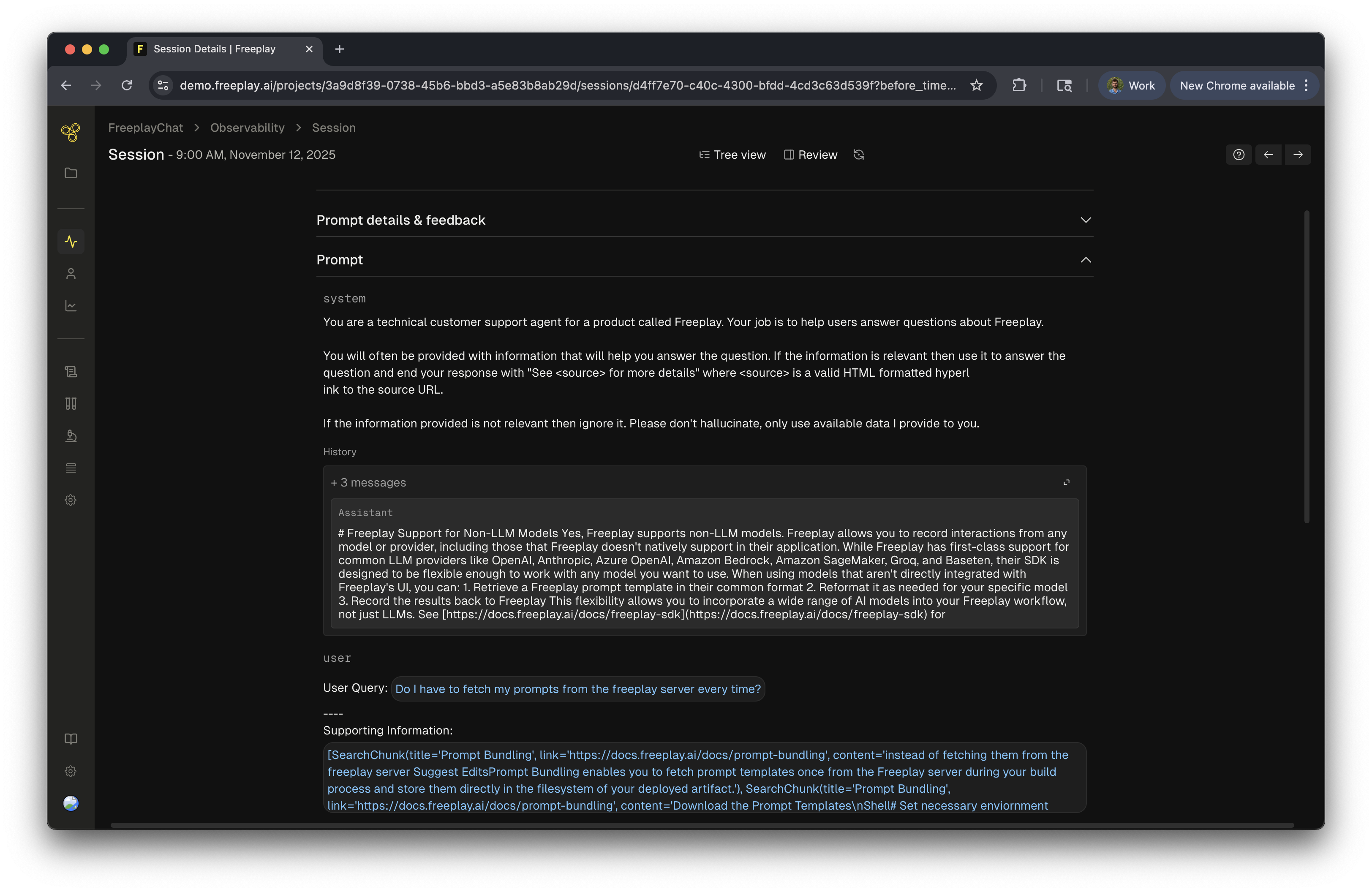
Code as the source of truth for prompts
In this usage pattern prompts live in your codebase and you push new versions to Freeplay programmatically. This gives you:- Code-first workflow: Any changes happen solely in your code
- Standard review process: Use your existing code review workflow for prompt changes
- Full flexibility: Programmatically manage all prompt aspects
- Automatic sync: Push prompt updates to Freeplay as part of your CI/CD pipeline
1. Create or update prompt templates via API
You can also create templates in the Freeplay UI.
create_template_if_not_exists=true query parameter to create a template if it doesn’t exist yet, or add a new version if it does. This enables an “upsert” workflow ideal for CI/CD pipelines.prompt_template_id and prompt_template_version_id which you’ll use when recording completions.2. Associate prompt versions with your logged data
When recording completions, include the prompt template version ID to link observability data to specific prompt versions:By linking prompt template versions to related completions, you get structured logging, can target prompts with evaluations, track each prompt version’s usage and quality metrics, and run copies of the prompt directly from the Freeplay UI.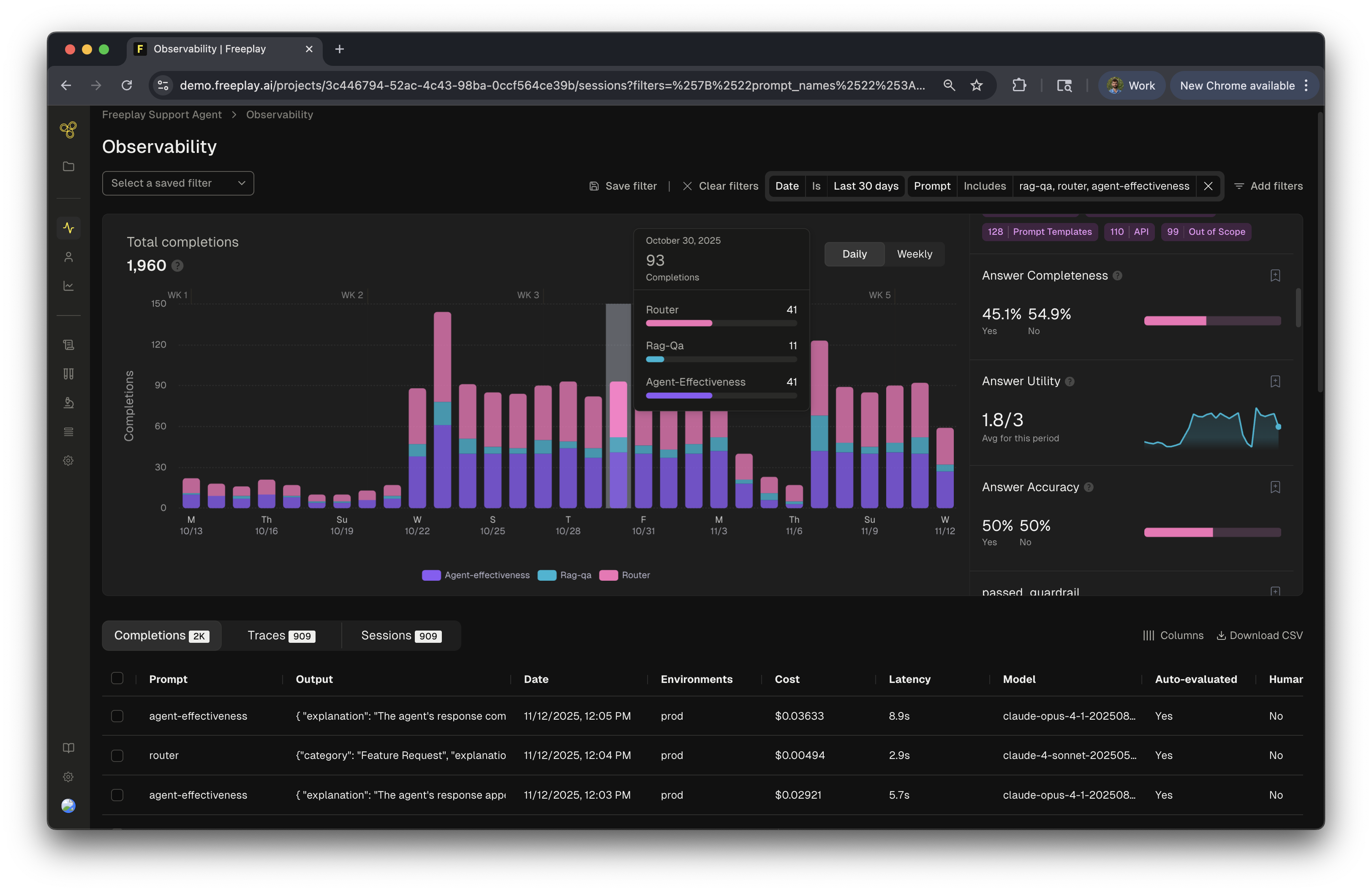
[Optional] 3. Sync prompts from Freeplay into code
Even when treating code as the source of truth, you can use Freeplay’s prompt editor to experiment with changes, then sync those changes back to code. Use the Get all prompt templates by environment endpoint to export prompts.
Next steps
Integration guide
See complete integration patterns for fetching and using prompts
Create evaluations
Learn more about evaluation types and alignment
Run tests
Execute batch tests to compare prompt versions and measure quality