> ## Documentation Index
> Fetch the complete documentation index at: https://docs.freeplay.ai/llms.txt
> Use this file to discover all available pages before exploring further.
# Multimodal Data
> Freeplay supports multimodal data in your prompts and completions, allowing you to work with images, audio files, and documents alongside text. This guide explains how to use multimodal features throughout the Freeplay platform.
## Overview
Many LLM applications now leverage multi-modal data types beyond just text. For mutimodal models, product images, charts, PDFs, and even audio can provide critical context to generate better responses.
**Quick start**
To get started using multimodal support within Freeplay follow these steps:
1. Define media variables in prompt templates (similar to other Mustache variable)
2. Upload and test sample files in the Freeplay prompt editor
3. Update your code to handle media files with the Freeplay SDK
4. Record and view multimodal interactions in Freeplay
5. Save recorded examples to your data datasets
This document walks through more details of how to use Freeplay to build, test, review logs, and capture feedback for your multimodal LLM applications, including how to make use of media inputs.
## Introduction
### Understanding Multimodal Data for LLMs
Multimodal models can process and analyze different types of data such as images, audio, and documents alongside text. This allows your LLM applications to "see," "hear," and "read" just like humans do. Consider these examples of how multimodal data enhances LLM applications:
**Image + Text**
* User uploads a product image with a defect and asks: "What's wrong with my product?"
* The LLM can see the image, identify the issue, and provide a relevant response.
**Document + Text**
* User uploads a financial report and asks: "Summarize the key findings in this report."
* The LLM can analyze the document contents and generate an accurate summary.
**Audio + Transcript**
* User uploads a phone call recording and asks: "Describe the tone of this call and summarize the key points".
* The LLM can analyze the audio and provide tonal analysis and generate a more accurate summary with that in mind.
Using multimodal inputs allows the LLM to interpret the additional context which can help improve your LLM system outputs, both of the above examples are able to provide much more detailed responses due to using multimodal.
## Using Freeplay with Multimodal Data
What's different about using Freeplay with multimodal data? There are a couple important things to be aware of:
1. **Prompt Templates**: You'll define media variables in a prompt template allowing you to pass image, audio, or document data at the right point. This can only be done with models that support multi-media inputs.
2. **Recording Multimodal Data**: You'll record media inputs with each completion, making it possible to view the original inputs alongside the LLM's responses during review.
3. **Media in History**: You can record media as part of history, helping you preserve key context and inputs passed within your system.
## Media Variables in Prompt Templates
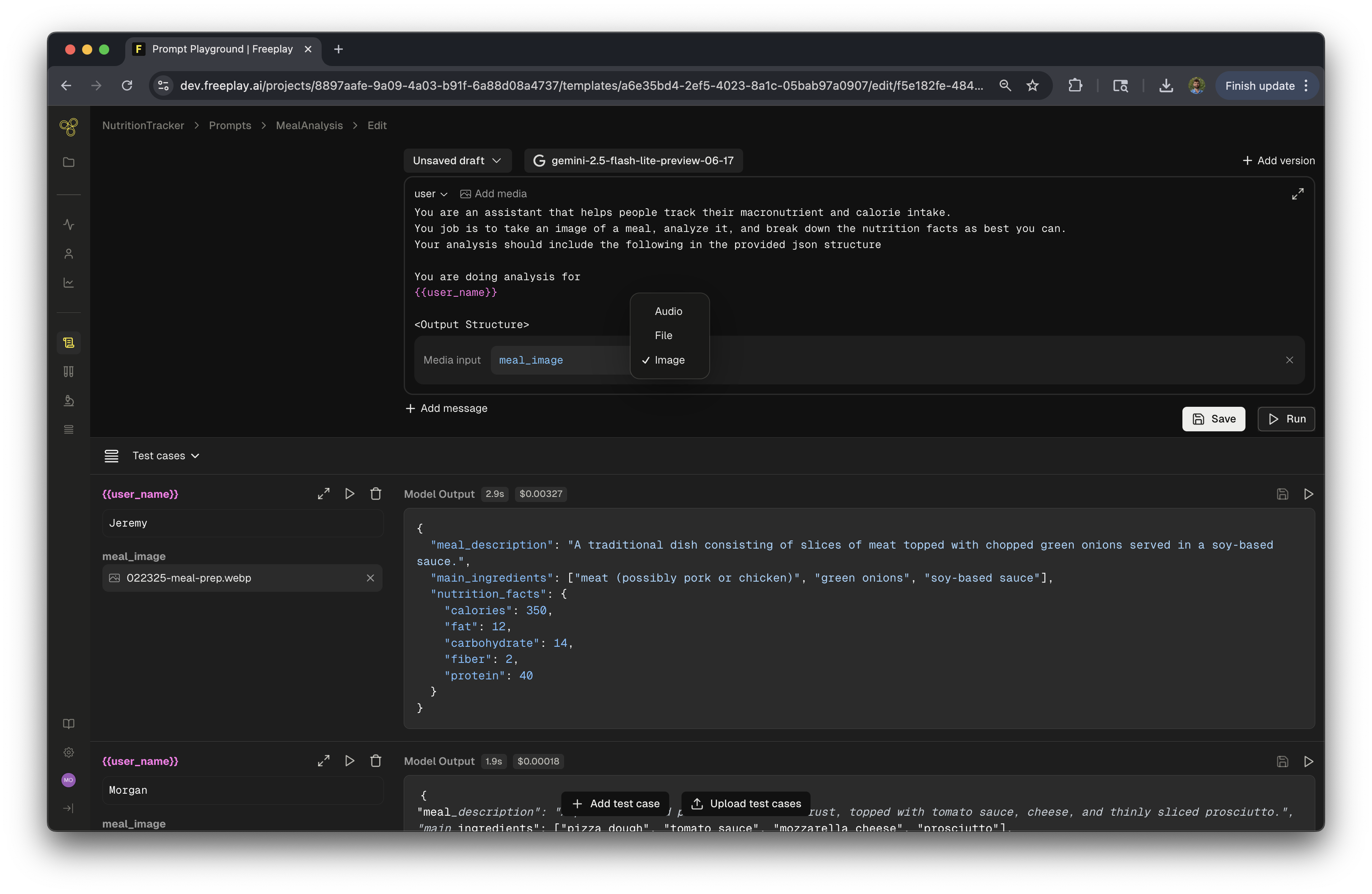 ### **Media variables should be configured within your Prompt Templates in Freeplay.**
When configuring your Prompt Template, you will add media variables to user or assistant messages. This tells Freeplay where to insert image, audio, or document data when the prompt template is formatted.
The most common configuration would look like this:
1. When editing or creating a prompt template in the playground, click the "Add media" button next to the prompt section type
2. Note: Media can only be added to user or assistant message types
3. Enter a variable name for your media input (e.g., `product_image`, `support_document`)
4. Select the media type (file, image or audio, types depend on the models support)
This tells Freeplay to insert the media input at that specific location in the message when formatting a prompt.
You must define media variables in a prompt template before you can pass media inputs at record time and have them saved properly for use in datasets.
## Multimodal Data in Freeplay
### Observability and Completions
### **View original media inputs alongside LLM responses in Freeplay's interface.**
When reviewing completions in Freeplay, you'll be able to see the original images, documents, or audio files that were included in the prompt. This provides essential context when evaluating model performance.
### **Media variables should be configured within your Prompt Templates in Freeplay.**
When configuring your Prompt Template, you will add media variables to user or assistant messages. This tells Freeplay where to insert image, audio, or document data when the prompt template is formatted.
The most common configuration would look like this:
1. When editing or creating a prompt template in the playground, click the "Add media" button next to the prompt section type
2. Note: Media can only be added to user or assistant message types
3. Enter a variable name for your media input (e.g., `product_image`, `support_document`)
4. Select the media type (file, image or audio, types depend on the models support)
This tells Freeplay to insert the media input at that specific location in the message when formatting a prompt.
You must define media variables in a prompt template before you can pass media inputs at record time and have them saved properly for use in datasets.
## Multimodal Data in Freeplay
### Observability and Completions
### **View original media inputs alongside LLM responses in Freeplay's interface.**
When reviewing completions in Freeplay, you'll be able to see the original images, documents, or audio files that were included in the prompt. This provides essential context when evaluating model performance.
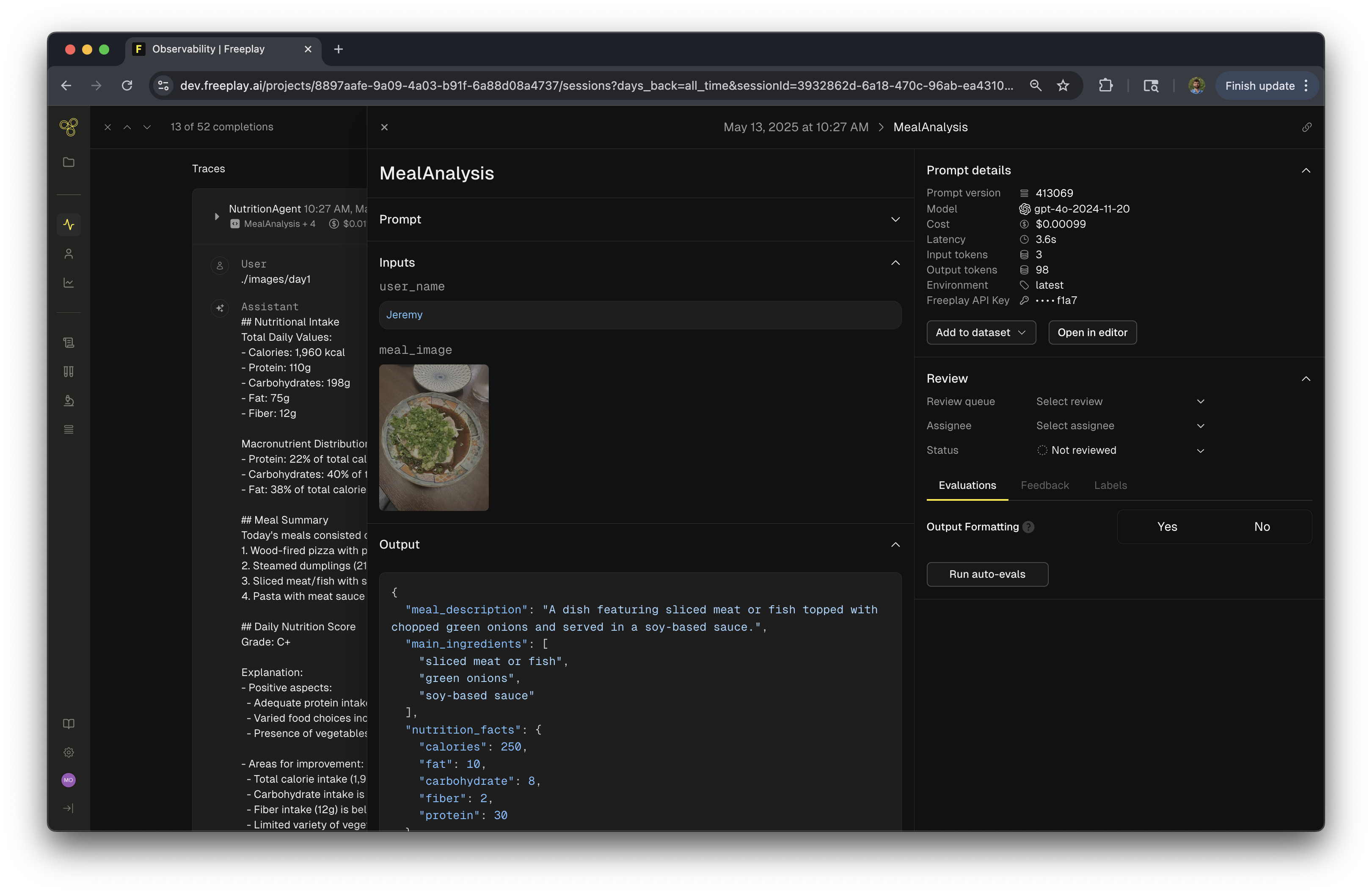 In the Freeplay observability interface, completions that include media inputs will display the media alongside the text inputs and outputs. This makes it easy to understand the full context of each interaction.
When clicking into a specific completion, you can see:
* The full prompt including all media inputs
* The model's response
* Evaluation scores and feedback
This visibility is crucial for understanding how your multimodal LLM is performing and identifying areas for improvement.
### Testing Multimodal Prompts with Real Data
Freeplay enables rapid prompt iteration by allowing you to load completions with multimodal data directly into the prompt playground. This streamlined workflow lets you test new prompt versions against real production data without leaving the editor interface.
In the Freeplay observability interface, completions that include media inputs will display the media alongside the text inputs and outputs. This makes it easy to understand the full context of each interaction.
When clicking into a specific completion, you can see:
* The full prompt including all media inputs
* The model's response
* Evaluation scores and feedback
This visibility is crucial for understanding how your multimodal LLM is performing and identifying areas for improvement.
### Testing Multimodal Prompts with Real Data
Freeplay enables rapid prompt iteration by allowing you to load completions with multimodal data directly into the prompt playground. This streamlined workflow lets you test new prompt versions against real production data without leaving the editor interface.
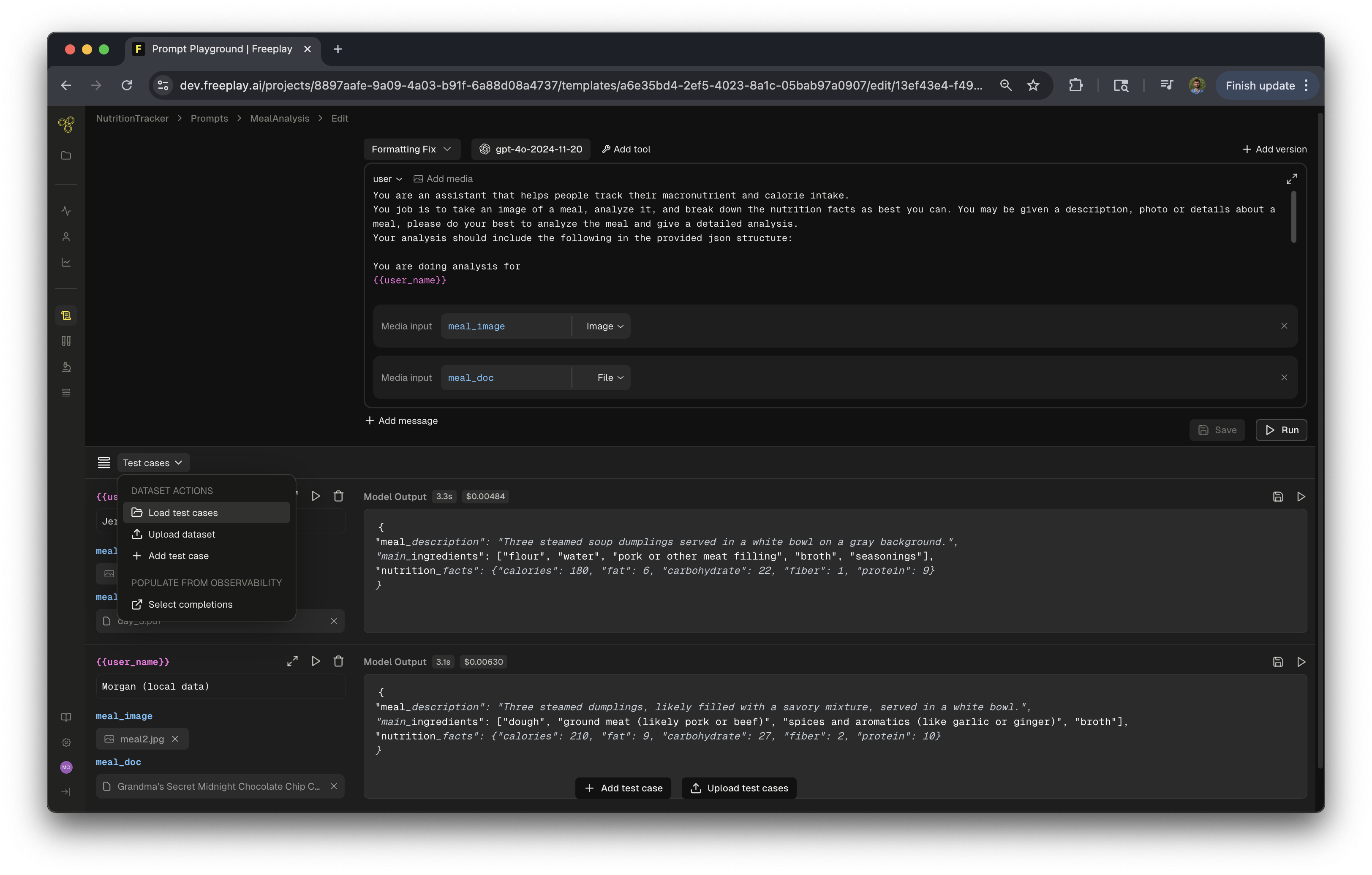 Beyond production completions, you can also pull data from existing datasets or upload new examples for testing. This comprehensive testing approach—combining production data, curated datasets, and custom examples—accelerates your prompt development cycle and helps you deliver better AI experiences to your customers.
## Testing Workflows with Multimodal
## Multimodal Data in the SDK
### **Create a`media_inputs` map when formatting prompts via the SDK.**
When using the Freeplay SDK, you'll create a map of media variable names to their corresponding data, then pass this map to the `get_formatted` method.
### Creating Media Inputs
### Using the Media Input Map
To create the media map, import the proper type from `freeplay.resources.prompts` Then create a map of the variable name in your Freeplay prompt template to the data associated with it. In the examples below, the variable names are `product_image`, `legal_document`, and `voice_recording` .
Freeplay accepts media in one of two formats: base64-encoded data or via URL. Depending on which format you choose, you'll need to adjust how you create the media input map accordingly. See the examples below for implementation details.
To work with multimodal data in your code, follow these steps:
1. Create a media input map (either `MediaContentUrl` or `MediaContentBase64`)
2. Pass it to the `get_formatted` method
3. Include it when recording the completion
Here's how to create a media input map:
```python python theme={null}
# New imports
# Note this is in version 5.2.0 and up of the api, for older versions use freeplay.resources.prompts
from freeplay.model import MediaInputBase64, MediaInputMap, TextBlock
# Create media input map for an image
media_inputs = {
'product_image': MediaInputBase64(
type="base64",
content_type="image/jpeg",
data=encode_image_data("product.jpg") # Your function to encode image
)
}
# For a PDF document
media_inputs = {
'legal_document': MediaInputBase64(
type="base64",
content_type="application/pdf",
data=encode_file_data("contract.pdf") # Your function to encode PDF
)
}
# For audio
media_inputs = {
'voice_recording': MediaInputBase64(
type="base64",
content_type="audio/mpeg", # change audio types here
data=encode_audio_data("recording.mp3") # Your function to encode audio
)
}
###########################################
# Using URLs
###########################################
media_inputs = {
'product_image': MediaContentUrl(
type="base64",
content_type="image/jpeg",
url="https://localhost/product.jpeg" # Your function to encode image
)
}
# For a PDF document
media_inputs = {
'legal_document': MediaContentUrl(
type="base64",
content_type="application/pdf",
url="https://localhost/contract.pdf" # Link to pdf file
)
}
# For audio
media_inputs = {
'voice_recording': MediaContentUrl(
type="base64",
content_type="audio/mpeg", # change audio types here
url="https://localhost/audio.mpeg" # link to audio file
)
}
```
```typescript typescript theme={null}
import Freeplay, {
getCallInfo,
getSessionInfo,
MediaInputMap,
MediaContentUrl,
SessionInfo,
} from ...
// Image data
const media: MediaInputMap = {
"image-one": {
type: "url",
url: "https://localhost/image",
},
"image-two": {
type: "base64",
content_type: "image/jpeg",
data: "some-base64-data",
},
};
// Audio Data
const media: MediaInputMap = {
"voice_recording_1": {
type: "base64",
content_type: "audio/mpeg",
data: audioData,
},
"voice_recording_2": {
type: "url",
content_type: "audio/mpeg",
url: "https://localhost/audio.mpeg",
},
};
// File
const media: MediaInputMap = {
"legal_document_1": {
type: "base64",
content_type: "application/pdf",
data: documentData,
},
"legal_document_2": {
type: "url",
content_type: "application/pdf",
url: "https://localhost/contract.pdf",
},
};
```
### Getting Formatted Prompt with Media
When calling the Freeplay API to get a formatted prompt, include your media inputs:
```python python theme={null}
formatted_prompt = freeplay_client.prompts.get_formatted(
project_id=project_id,
template_name="multimodal-prompt",
environment="latest",
variables=input_variables,
media_inputs=media_inputs # Include your media inputs here
)
```
```typescript typescript theme={null}
const formattedPrompt =
await freeplay.prompts.getFormatted({
projectId,
templateName,
environment: "latest",
variables: input_variables,
media, // Pass in the media map to the formatted prompt
});
```
### Recording Completions with Media
When recording the completion, make sure to include the media inputs:
```python python theme={null}
record_response = freeplay_client.recordings.create(
RecordPayload(
project_id=project_id,
all_messages=[
*formatted_prompt.llm_prompt,
{"role": "assistant", "content": response_content}
],
session_info=session_info,
inputs=input_variables,
media_inputs=media_inputs, # Include your media inputs here
prompt_version_info=formatted_prompt.prompt_info,
call_info=CallInfo.from_prompt_info(formatted_prompt.prompt_info,
start_time, end_time),
)
)
```
```typescript typescript theme={null}
await freeplay.recordings.create({
projectId,
allMessages: [
...(formattedPrompt.llmPrompt || []),
{
role: "assistant",
content,
},
],
inputs: input_variables,
mediaInputs: media, // Pass the media here
sessionInfo: session_info,
promptInfo: formattedPrompt.promptInfo,
callInfo: getCallInfo(formattedPrompt.promptInfo, start, end)
});
```
## Media Support
### Supported Media Types
Freeplay supports the following media types:
* Images - JPG,JPEG,PNG, WebP
* Audio - WAV, MP3
* Documents - PDFs
Note: Support for specific file types depends on the model provider's capabilities. Please reach out to [privacy@freeplay.ai](mailto:privacy@freeplay.ai) if you’re interested to use other data types.
### Supported Sizes
We support a total request size of up to 30 mb. If your file/data is over that limit it will not work within the Freeplay Application.
### Supported Providers
Multimodal functionality is supported today by default with:
* [OpenAI](https://platform.openai.com/docs/models)
* [Claude (Anthropic)](https://www.anthropic.com/api)
* [Gemini (Google)](https://cloud.google.com/use-cases/multimodal-ai?hl=en)
Please reach out to [support@freeplay.ai](mailto:support@freeplay.ai) if you’re interested in using other models.
## Best Practices
* **Keep file sizes reasonable**: While Freeplay supports various file sizes, providers may have limits on the size of media files they can process, this can also drive up costs.
* **Test & Monitor thoroughly**: Multimodal models may perform differently with various types of images, audio quality, or document formats, Freeplay allows for rapid testing, review and iteration to ensure your product performs as expected.
* **Combine media types**: For complex use cases, you can include multiple media inputs of different types in the same prompt such as documents and images.
* **Iterate regularly**: Regularly review completions with media inputs to ensure your model is interpreting the media correctly.
Now that you're well-versed on working with multimodal data in Freeplay, you can enhance your LLM applications with rich, contextual understanding of various media types.
Beyond production completions, you can also pull data from existing datasets or upload new examples for testing. This comprehensive testing approach—combining production data, curated datasets, and custom examples—accelerates your prompt development cycle and helps you deliver better AI experiences to your customers.
## Testing Workflows with Multimodal
## Multimodal Data in the SDK
### **Create a`media_inputs` map when formatting prompts via the SDK.**
When using the Freeplay SDK, you'll create a map of media variable names to their corresponding data, then pass this map to the `get_formatted` method.
### Creating Media Inputs
### Using the Media Input Map
To create the media map, import the proper type from `freeplay.resources.prompts` Then create a map of the variable name in your Freeplay prompt template to the data associated with it. In the examples below, the variable names are `product_image`, `legal_document`, and `voice_recording` .
Freeplay accepts media in one of two formats: base64-encoded data or via URL. Depending on which format you choose, you'll need to adjust how you create the media input map accordingly. See the examples below for implementation details.
To work with multimodal data in your code, follow these steps:
1. Create a media input map (either `MediaContentUrl` or `MediaContentBase64`)
2. Pass it to the `get_formatted` method
3. Include it when recording the completion
Here's how to create a media input map:
```python python theme={null}
# New imports
# Note this is in version 5.2.0 and up of the api, for older versions use freeplay.resources.prompts
from freeplay.model import MediaInputBase64, MediaInputMap, TextBlock
# Create media input map for an image
media_inputs = {
'product_image': MediaInputBase64(
type="base64",
content_type="image/jpeg",
data=encode_image_data("product.jpg") # Your function to encode image
)
}
# For a PDF document
media_inputs = {
'legal_document': MediaInputBase64(
type="base64",
content_type="application/pdf",
data=encode_file_data("contract.pdf") # Your function to encode PDF
)
}
# For audio
media_inputs = {
'voice_recording': MediaInputBase64(
type="base64",
content_type="audio/mpeg", # change audio types here
data=encode_audio_data("recording.mp3") # Your function to encode audio
)
}
###########################################
# Using URLs
###########################################
media_inputs = {
'product_image': MediaContentUrl(
type="base64",
content_type="image/jpeg",
url="https://localhost/product.jpeg" # Your function to encode image
)
}
# For a PDF document
media_inputs = {
'legal_document': MediaContentUrl(
type="base64",
content_type="application/pdf",
url="https://localhost/contract.pdf" # Link to pdf file
)
}
# For audio
media_inputs = {
'voice_recording': MediaContentUrl(
type="base64",
content_type="audio/mpeg", # change audio types here
url="https://localhost/audio.mpeg" # link to audio file
)
}
```
```typescript typescript theme={null}
import Freeplay, {
getCallInfo,
getSessionInfo,
MediaInputMap,
MediaContentUrl,
SessionInfo,
} from ...
// Image data
const media: MediaInputMap = {
"image-one": {
type: "url",
url: "https://localhost/image",
},
"image-two": {
type: "base64",
content_type: "image/jpeg",
data: "some-base64-data",
},
};
// Audio Data
const media: MediaInputMap = {
"voice_recording_1": {
type: "base64",
content_type: "audio/mpeg",
data: audioData,
},
"voice_recording_2": {
type: "url",
content_type: "audio/mpeg",
url: "https://localhost/audio.mpeg",
},
};
// File
const media: MediaInputMap = {
"legal_document_1": {
type: "base64",
content_type: "application/pdf",
data: documentData,
},
"legal_document_2": {
type: "url",
content_type: "application/pdf",
url: "https://localhost/contract.pdf",
},
};
```
### Getting Formatted Prompt with Media
When calling the Freeplay API to get a formatted prompt, include your media inputs:
```python python theme={null}
formatted_prompt = freeplay_client.prompts.get_formatted(
project_id=project_id,
template_name="multimodal-prompt",
environment="latest",
variables=input_variables,
media_inputs=media_inputs # Include your media inputs here
)
```
```typescript typescript theme={null}
const formattedPrompt =
await freeplay.prompts.getFormatted({
projectId,
templateName,
environment: "latest",
variables: input_variables,
media, // Pass in the media map to the formatted prompt
});
```
### Recording Completions with Media
When recording the completion, make sure to include the media inputs:
```python python theme={null}
record_response = freeplay_client.recordings.create(
RecordPayload(
project_id=project_id,
all_messages=[
*formatted_prompt.llm_prompt,
{"role": "assistant", "content": response_content}
],
session_info=session_info,
inputs=input_variables,
media_inputs=media_inputs, # Include your media inputs here
prompt_version_info=formatted_prompt.prompt_info,
call_info=CallInfo.from_prompt_info(formatted_prompt.prompt_info,
start_time, end_time),
)
)
```
```typescript typescript theme={null}
await freeplay.recordings.create({
projectId,
allMessages: [
...(formattedPrompt.llmPrompt || []),
{
role: "assistant",
content,
},
],
inputs: input_variables,
mediaInputs: media, // Pass the media here
sessionInfo: session_info,
promptInfo: formattedPrompt.promptInfo,
callInfo: getCallInfo(formattedPrompt.promptInfo, start, end)
});
```
## Media Support
### Supported Media Types
Freeplay supports the following media types:
* Images - JPG,JPEG,PNG, WebP
* Audio - WAV, MP3
* Documents - PDFs
Note: Support for specific file types depends on the model provider's capabilities. Please reach out to [privacy@freeplay.ai](mailto:privacy@freeplay.ai) if you’re interested to use other data types.
### Supported Sizes
We support a total request size of up to 30 mb. If your file/data is over that limit it will not work within the Freeplay Application.
### Supported Providers
Multimodal functionality is supported today by default with:
* [OpenAI](https://platform.openai.com/docs/models)
* [Claude (Anthropic)](https://www.anthropic.com/api)
* [Gemini (Google)](https://cloud.google.com/use-cases/multimodal-ai?hl=en)
Please reach out to [support@freeplay.ai](mailto:support@freeplay.ai) if you’re interested in using other models.
## Best Practices
* **Keep file sizes reasonable**: While Freeplay supports various file sizes, providers may have limits on the size of media files they can process, this can also drive up costs.
* **Test & Monitor thoroughly**: Multimodal models may perform differently with various types of images, audio quality, or document formats, Freeplay allows for rapid testing, review and iteration to ensure your product performs as expected.
* **Combine media types**: For complex use cases, you can include multiple media inputs of different types in the same prompt such as documents and images.
* **Iterate regularly**: Regularly review completions with media inputs to ensure your model is interpreting the media correctly.
Now that you're well-versed on working with multimodal data in Freeplay, you can enhance your LLM applications with rich, contextual understanding of various media types.