> ## Documentation Index
> Fetch the complete documentation index at: https://docs.freeplay.ai/llms.txt
> Use this file to discover all available pages before exploring further.
# Tool Calls
> Managing tool schema, recording tool calls with Freeplay
# Overview
Tools allows LLMs to call external services. A tool schema describes the tool's capabilities and parameters. When invoked, the LLM provider responds with a tool call with the specified parameters from the schema. You can learn more about OpenAI tools [here](https://platform.openai.com/docs/guides/function-calling) and Anthropic tools [here](https://docs.anthropic.com/en/docs/build-with-claude/tool-use).
## How does Freeplay help with tools?
Freeplay supports the complete lifecycle of working with tools - from managing tool schemas and recording tool calls to surfacing detailed tool call information in observability and testing. This comprehensive approach enables rapid iteration and testing of your tools.
With the Freeplay web app, you can define tool schemas alongside your prompt templates. The Freeplay SDK formats the tool schema based on your LLM provider. The SDK also supports recording tool calls, associated schemas, and responses from tool calls. You have complete control over how much of this functionality you want to use.
### Managing your tool schema with Freeplay
Freeplay enables you to define tools in a normalized format alongside your prompt template. Freeplay will then handle the translation of your tool definitions across providers so you can smoothly navigate across different providers. Simply provide a Name, Description and a JSON Schema to represent the parameters.
For example here is how you would define the parameters for a tool that fetches the weather
```json json theme={null}
{
"type": "object",
"properties": {
"location": {
"type": "string",
"description": "The city and state e.g. San Francisco, CA"
},
"unit": {
"type": "string",
"enum": [
"c",
"f"
]
}
},
"additionalProperties": false,
"required": [
"location",
"unit"
]
}
```
*properties* represent the parameters of the tool and will be reflected in the arguments of the resulting tool call.
Each parameter has a *type* and either a *description* or an *enum* representing the possible options.
If your tool does not require any parameters to be passed you will want to set an empty schema like this
```json json theme={null}
{
"type": "object",
"properties": {}
}
```
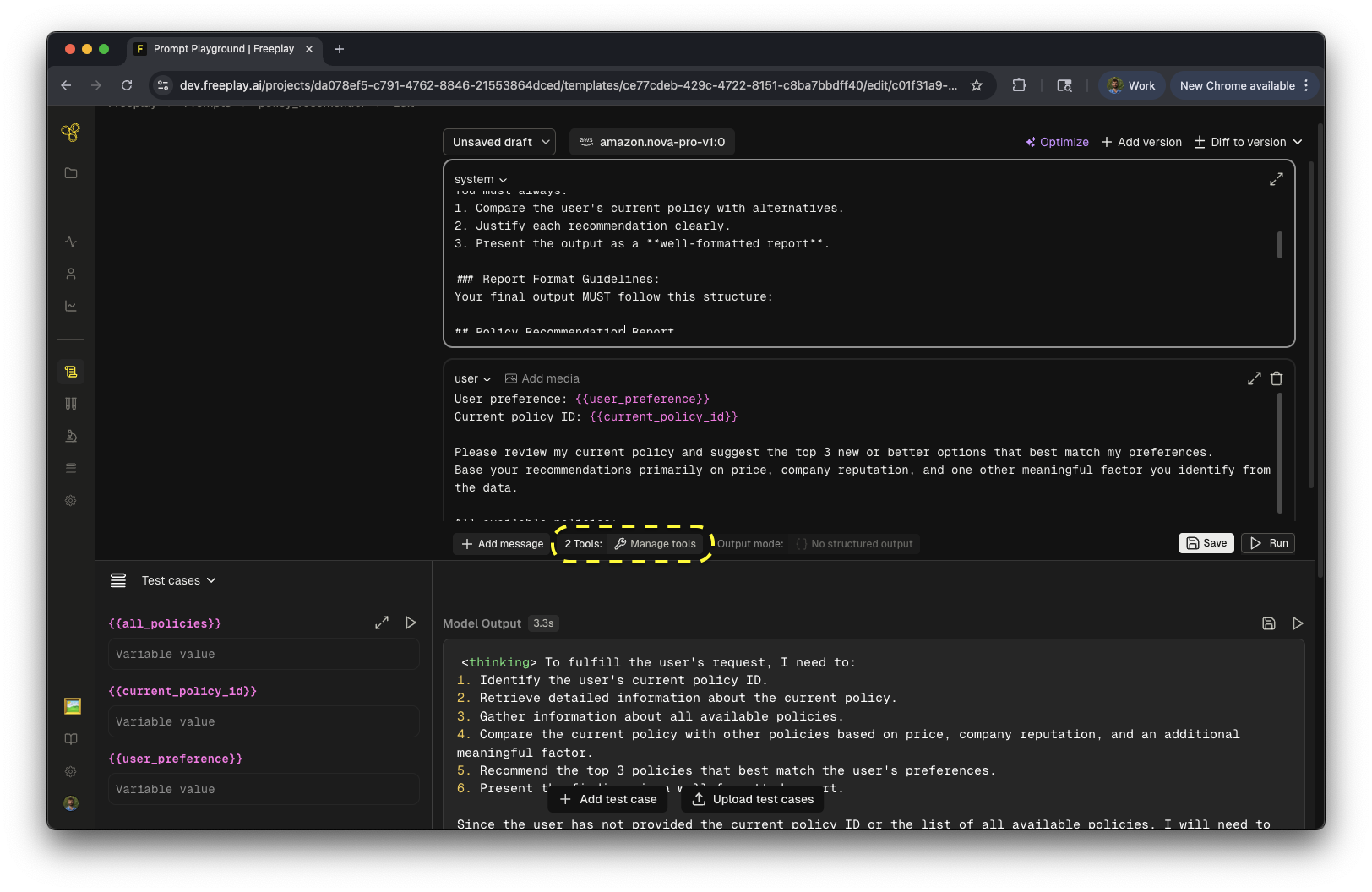
**Here is how you add a Tool to a Prompt Template**
* When adding or editing a prompt template with a supported LLM provider, you will see an "Manage tools" button.
*  Enter a name, description, and parameters for your tool
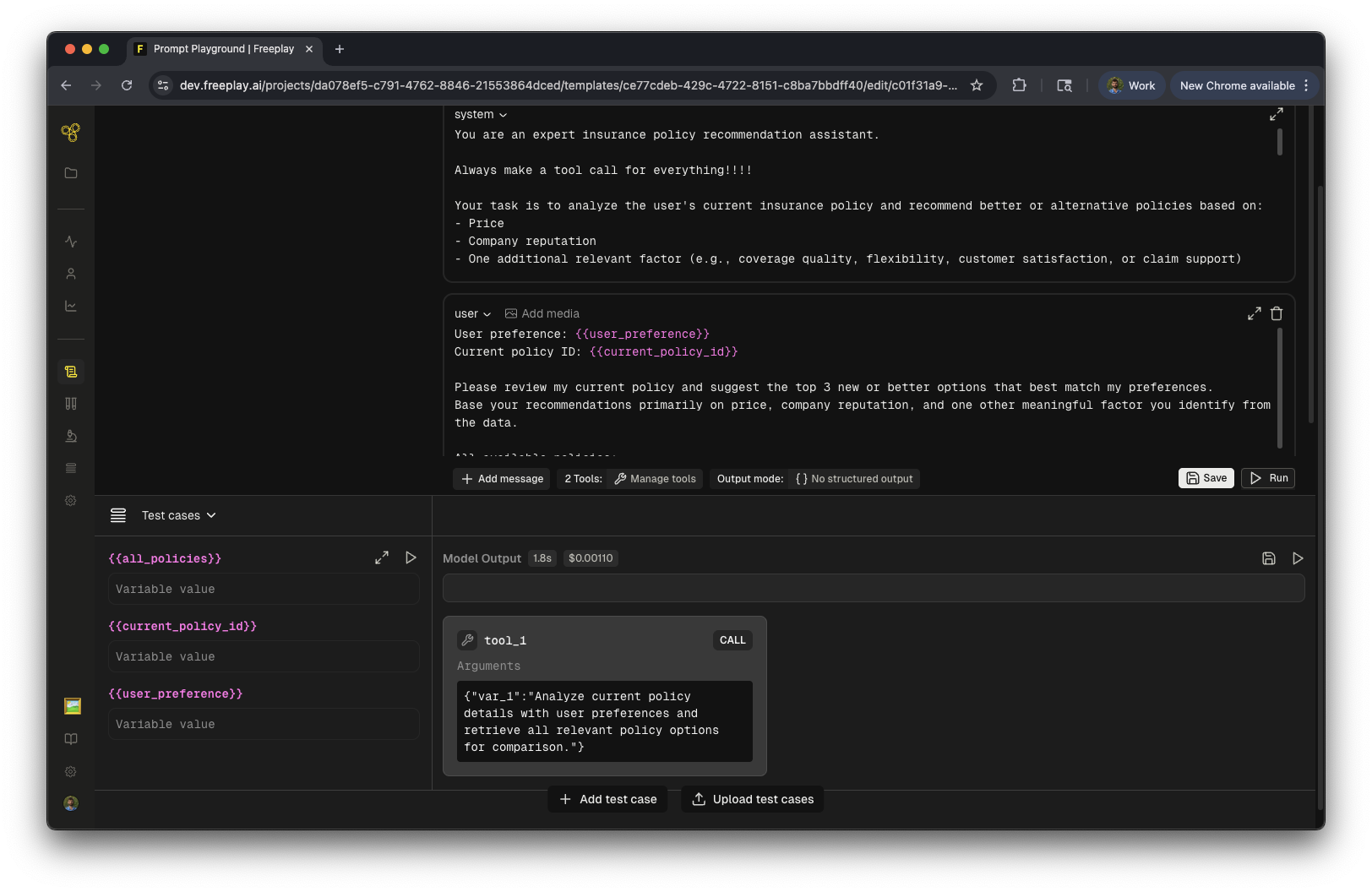
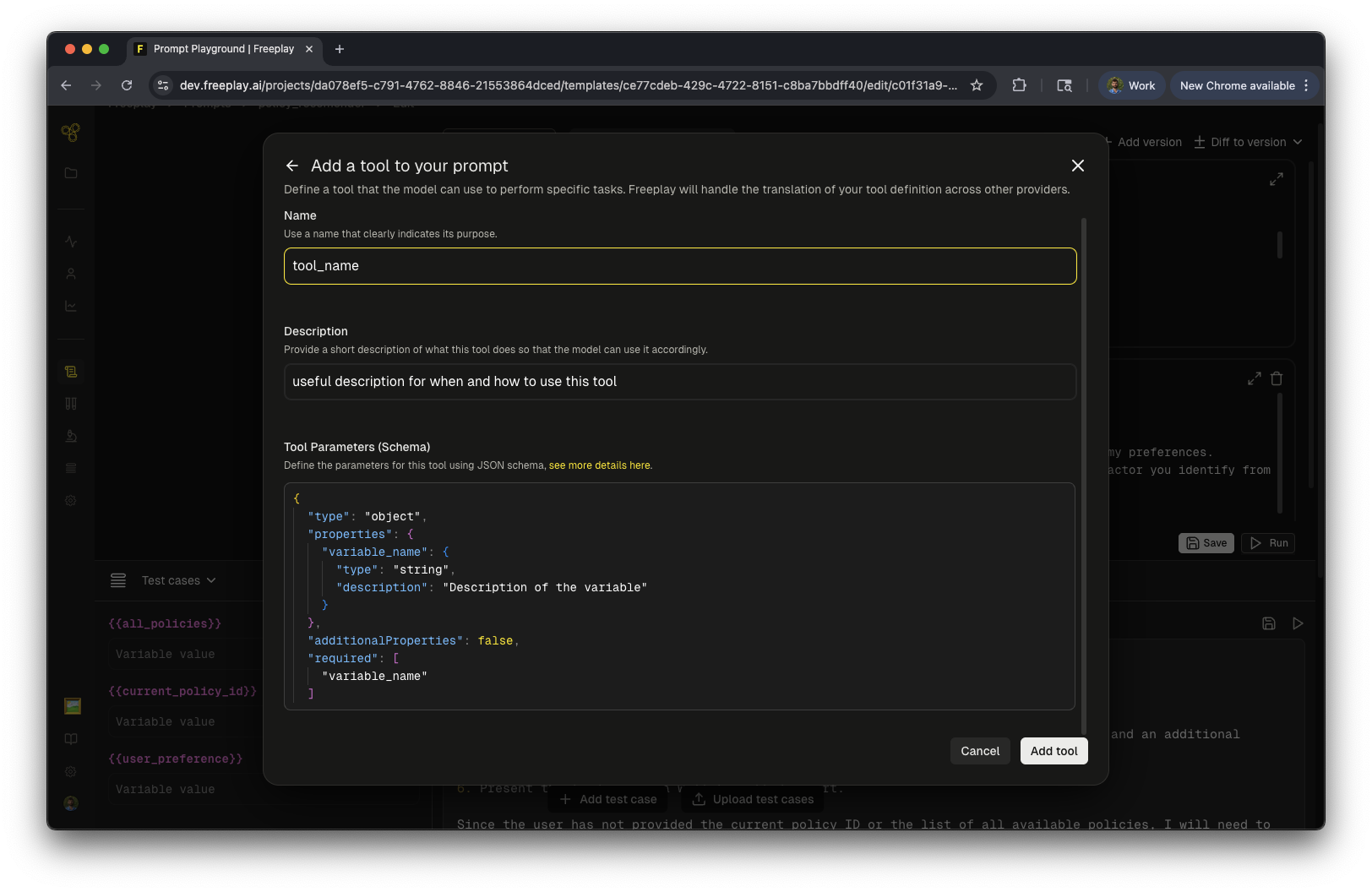 * Click on "Add tool" to add the tool to the prompt template. The prompt template will be in draft mode for you to run interactively in the editor. From there you can click save and create a new prompt template version with your tool schema attached.
 ### Using the tool schema and recording tool calls
You can use the Freeplay SDK to fetch the tool schema as part of prompt retrieval and automatically format it for your LLM provider.
```python python theme={null}
# Fetch prompt template and tool schema from Freeplay
template_prompt = fp_client.prompts.get_formatted(
project_id=project_id,
template_name="your-prompt",
environment="latest",
variables={"user_input": "Hi"}
)
# Pass prompt, model, tools, and parameters to OpenAI client
completion = openai_client.chat.completions.create(
messages=formatted_prompt.llm_prompt,
model=formatted_prompt.prompt_info.model,
tools=formatted_prompt.tool_schema,
**formatted_prompt.prompt_info.model_parameters
)
```
### Logging Tool Calls to Freeplay
When building agents that use tools, tool calls are always recorded as the output of an LLM call. This works by default as long as you properly record the output messages of the LLM call.
You can also add explicit tool spans to provide more data about tool execution, including latency and other metadata. These are recorded as a Trace with `kind='tool'` and linked to the parent completion.
#### Default: Tool calls in completions
Tool calls are recorded as the output from the LLM call, just as you would any other [completion](/core-concepts/observability/sessions-traces-and-completions#completions). When you call `formatted_prompt.all_messages()`, the LLM's tool call output is concatenated into the message history. After executing the tool, you add the tool result as a subsequent message, which becomes an input to the next LLM call.
```python python theme={null}
formatted_prompt = fp_client.prompts.get_formatted(
project_id=project_id,
template_name='my-openai-prompt',
environment='latest',
variables=input_variables
)
start = time.time()
completion = client.chat.completions.create(
messages=formatted_prompt.llm_prompt,
model=formatted_prompt.prompt_info.model,
tools=formatted_prompt.tool_schema,
**formatted_prompt.prompt_info.model_parameters
)
end = time.time()
# Append the completion to list of messages even if it is a tool call message
messages = formatted_prompt.all_messages(completion.choices[0].message)
session = fp_client.sessions.create()
fp_client.recordings.create(
RecordPayload(
project_id=project_id,
all_messages=messages,
session_info=session.session_info,
inputs=input_variables,
prompt_version_info=formatted_prompt.prompt_info,
call_info=CallInfo.from_prompt_info(formatted_prompt.prompt_info, start, end),
tool_schema=formatted_prompt.tool_schema
)
)
```
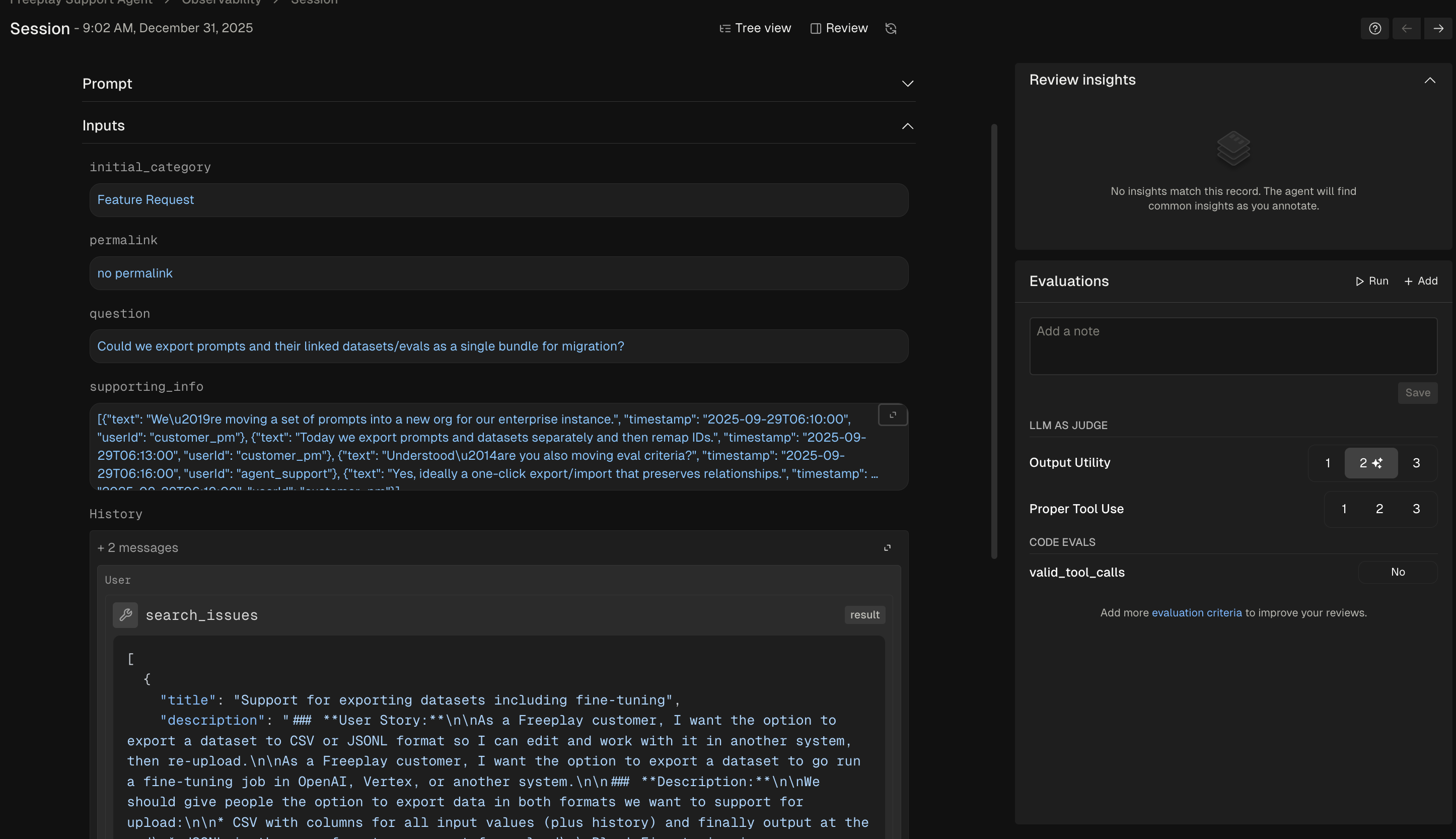
This will create a view that looks like this
### Using the tool schema and recording tool calls
You can use the Freeplay SDK to fetch the tool schema as part of prompt retrieval and automatically format it for your LLM provider.
```python python theme={null}
# Fetch prompt template and tool schema from Freeplay
template_prompt = fp_client.prompts.get_formatted(
project_id=project_id,
template_name="your-prompt",
environment="latest",
variables={"user_input": "Hi"}
)
# Pass prompt, model, tools, and parameters to OpenAI client
completion = openai_client.chat.completions.create(
messages=formatted_prompt.llm_prompt,
model=formatted_prompt.prompt_info.model,
tools=formatted_prompt.tool_schema,
**formatted_prompt.prompt_info.model_parameters
)
```
### Logging Tool Calls to Freeplay
When building agents that use tools, tool calls are always recorded as the output of an LLM call. This works by default as long as you properly record the output messages of the LLM call.
You can also add explicit tool spans to provide more data about tool execution, including latency and other metadata. These are recorded as a Trace with `kind='tool'` and linked to the parent completion.
#### Default: Tool calls in completions
Tool calls are recorded as the output from the LLM call, just as you would any other [completion](/core-concepts/observability/sessions-traces-and-completions#completions). When you call `formatted_prompt.all_messages()`, the LLM's tool call output is concatenated into the message history. After executing the tool, you add the tool result as a subsequent message, which becomes an input to the next LLM call.
```python python theme={null}
formatted_prompt = fp_client.prompts.get_formatted(
project_id=project_id,
template_name='my-openai-prompt',
environment='latest',
variables=input_variables
)
start = time.time()
completion = client.chat.completions.create(
messages=formatted_prompt.llm_prompt,
model=formatted_prompt.prompt_info.model,
tools=formatted_prompt.tool_schema,
**formatted_prompt.prompt_info.model_parameters
)
end = time.time()
# Append the completion to list of messages even if it is a tool call message
messages = formatted_prompt.all_messages(completion.choices[0].message)
session = fp_client.sessions.create()
fp_client.recordings.create(
RecordPayload(
project_id=project_id,
all_messages=messages,
session_info=session.session_info,
inputs=input_variables,
prompt_version_info=formatted_prompt.prompt_info,
call_info=CallInfo.from_prompt_info(formatted_prompt.prompt_info, start, end),
tool_schema=formatted_prompt.tool_schema
)
)
```
This will create a view that looks like this
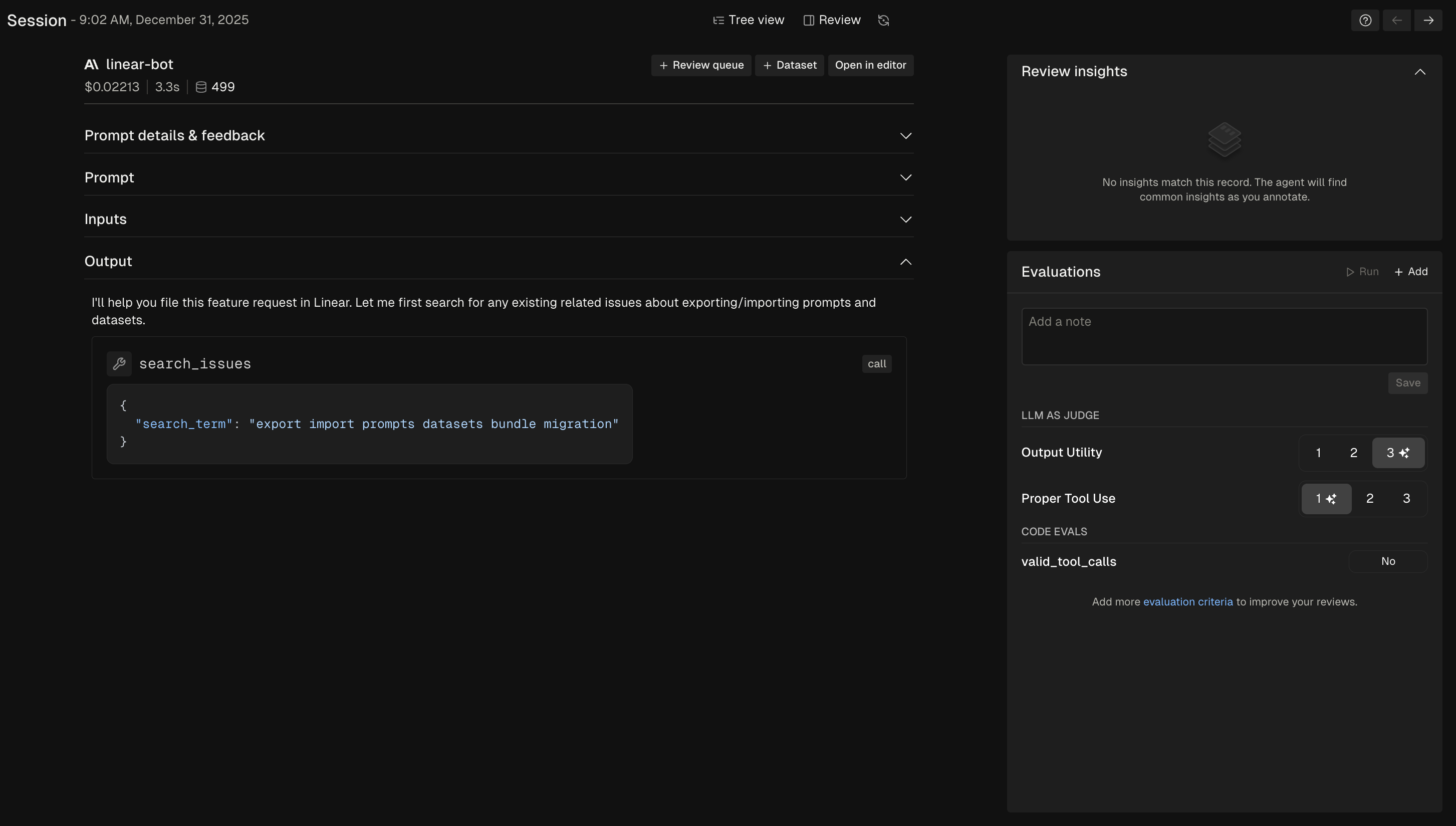 The result of the tool call is then added to the message history and passed as input to the next LLM call.
 #### Adding explicit tool spans
You can add explicit tool spans to provide more data about tool execution. This is useful for:
* Debugging complex agent workflows with many tool calls
* Measuring tool execution timing separately from LLM latency
* Surfacing tool behavior more prominently in observability dashboards
Tool spans are logged **in addition to** the tool calls appearing in the message history—they provide extra visibility, not a replacement.
To link tool calls to the completion that generated them, use the
`completion_id` returned from the `recordings.create()` method as the
`parent_id` when creating the tool span.
```python python theme={null}
formatted_prompt = fp_client.prompts.get_formatted(
project_id=project_id,
template_name='my-openai-prompt',
environment='latest',
variables=input_variables
)
start = time.time()
completion = openai_client.chat.completions.create(
messages=formatted_prompt.llm_prompt,
model=formatted_prompt.prompt_info.model,
tools=formatted_prompt.tool_schema,
**formatted_prompt.prompt_info.model_parameters
)
end = time.time()
# Append the completion to list of messages even if it is a tool call message
messages = formatted_prompt.all_messages(completion.choices[0].message)
session = fp_client.sessions.create()
# Record the LLM completion and get the completion_id
record_response = fp_client.recordings.create(
RecordPayload(
project_id=project_id,
all_messages=messages,
session_info=session.session_info,
inputs=input_variables,
prompt_version_info=formatted_prompt.prompt_info,
call_info=CallInfo.from_prompt_info(formatted_prompt.prompt_info, start, end),
tool_schema=formatted_prompt.tool_schema
)
)
completion_id = record_response.completion_id
# Create tool spans as children of the completion
if completion.choices[0].message.tool_calls:
for tool_call in completion.choices[0].message.tool_calls:
name = tool_call.function.name
args = json.loads(tool_call.function.arguments)
# Link this tool span to the completion that triggered it
tool_trace = session.create_trace(
input=args,
name=name,
kind='tool',
parent_id=uuid.UUID(completion_id)
)
# Execute and record the tool result
tool_result = tool_handler(name, args)
tool_trace.record_output(project_id=project_id, output=tool_result)
```
```typescript typescript theme={null}
const formattedPrompt = await fpClient.prompts.getFormatted({
projectId,
templateName: "my-openai-prompt",
environment: "latest",
variables: inputVariables
});
const startTime = new Date();
const completion = await openaiClient.chat.completions.create({
messages: formattedPrompt.llmPrompt,
model: formattedPrompt.promptInfo.model,
tools: formattedPrompt.toolSchema,
...formattedPrompt.promptInfo.modelParameters
});
const endTime = new Date();
// Append the completion to list of messages even if it is a tool call message
const allMessages = formattedPrompt.allMessages(completion.choices[0].message);
const session = fpClient.sessions.create();
// Record the LLM completion and get the completion_id
const recordResponse = await fpClient.recordings.create({
projectId,
allMessages,
sessionInfo: getSessionInfo(session),
promptVersionInfo: formattedPrompt.promptInfo,
callInfo: {
provider: formattedPrompt.promptInfo.provider,
model: formattedPrompt.promptInfo.model,
startTime,
endTime,
modelParameters: formattedPrompt.promptInfo.modelParameters
},
toolSchema: formattedPrompt.toolSchema
});
const completionId = recordResponse.completionId;
// Create tool spans as children of the completion
const toolCalls = completion.choices[0].message.tool_calls;
if (toolCalls) {
for (const toolCall of toolCalls) {
if (toolCall.type !== "function") continue;
const name = toolCall.function.name;
const args = JSON.parse(toolCall.function.arguments);
// Link this tool span to the completion that triggered it
const toolTrace = session.createTrace({
input: args,
name,
kind: "tool",
parentId: completionId
});
// Execute and record the tool result
const toolResult = await toolHandler(name, args);
await toolTrace.recordOutput(projectId, toolResult);
}
}
```
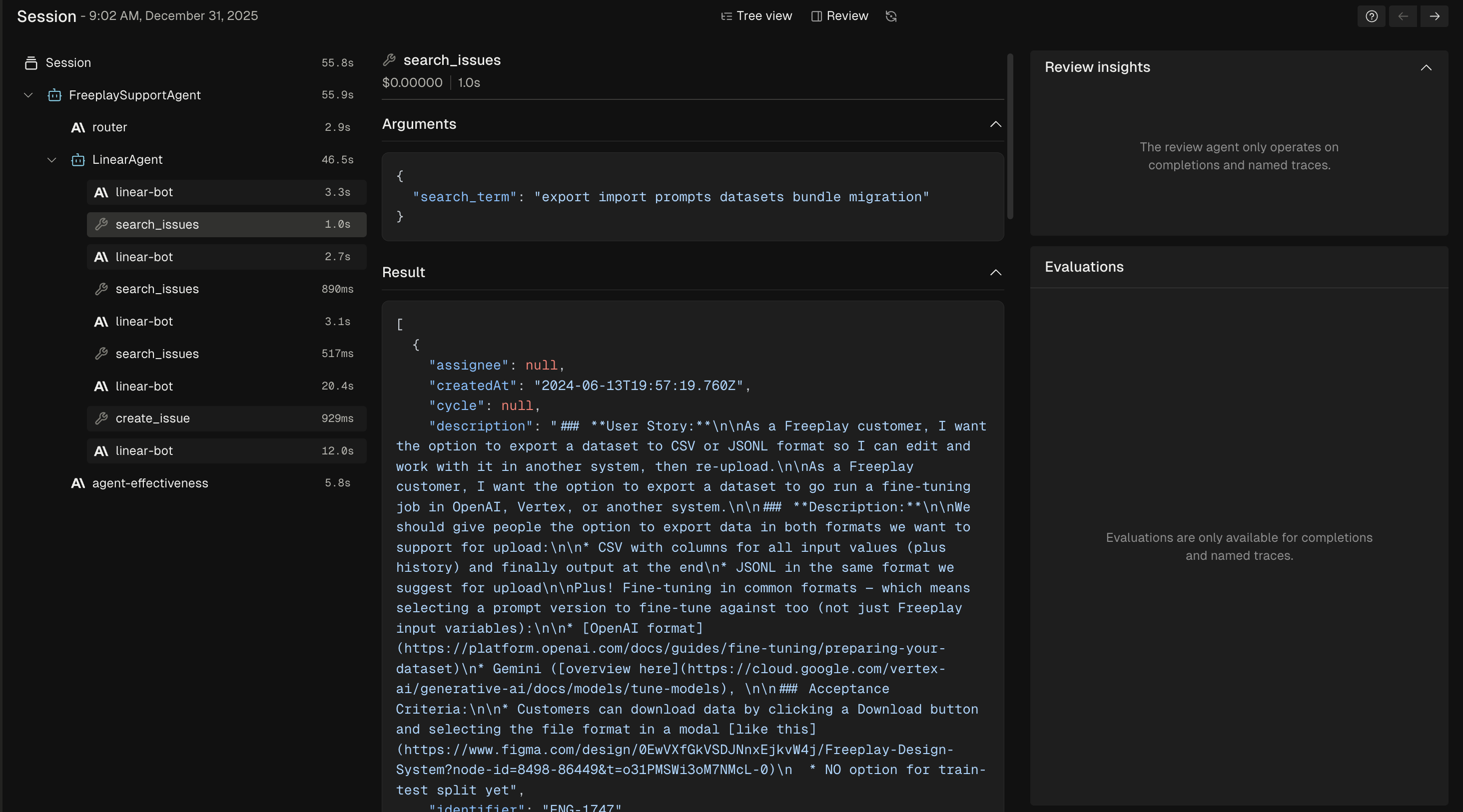
This creates a proper hierarchy in the trace view. Here's an example of a
completion that triggered three tool calls:
```
Session
└── Trace (user request → final response)
└── Completion (LLM call that requested tools)
├── Tool Span: search_web (query → results)
├── Tool Span: read_file (path → contents)
└── Tool Span: execute_code (code → output)
```
#### Adding explicit tool spans
You can add explicit tool spans to provide more data about tool execution. This is useful for:
* Debugging complex agent workflows with many tool calls
* Measuring tool execution timing separately from LLM latency
* Surfacing tool behavior more prominently in observability dashboards
Tool spans are logged **in addition to** the tool calls appearing in the message history—they provide extra visibility, not a replacement.
To link tool calls to the completion that generated them, use the
`completion_id` returned from the `recordings.create()` method as the
`parent_id` when creating the tool span.
```python python theme={null}
formatted_prompt = fp_client.prompts.get_formatted(
project_id=project_id,
template_name='my-openai-prompt',
environment='latest',
variables=input_variables
)
start = time.time()
completion = openai_client.chat.completions.create(
messages=formatted_prompt.llm_prompt,
model=formatted_prompt.prompt_info.model,
tools=formatted_prompt.tool_schema,
**formatted_prompt.prompt_info.model_parameters
)
end = time.time()
# Append the completion to list of messages even if it is a tool call message
messages = formatted_prompt.all_messages(completion.choices[0].message)
session = fp_client.sessions.create()
# Record the LLM completion and get the completion_id
record_response = fp_client.recordings.create(
RecordPayload(
project_id=project_id,
all_messages=messages,
session_info=session.session_info,
inputs=input_variables,
prompt_version_info=formatted_prompt.prompt_info,
call_info=CallInfo.from_prompt_info(formatted_prompt.prompt_info, start, end),
tool_schema=formatted_prompt.tool_schema
)
)
completion_id = record_response.completion_id
# Create tool spans as children of the completion
if completion.choices[0].message.tool_calls:
for tool_call in completion.choices[0].message.tool_calls:
name = tool_call.function.name
args = json.loads(tool_call.function.arguments)
# Link this tool span to the completion that triggered it
tool_trace = session.create_trace(
input=args,
name=name,
kind='tool',
parent_id=uuid.UUID(completion_id)
)
# Execute and record the tool result
tool_result = tool_handler(name, args)
tool_trace.record_output(project_id=project_id, output=tool_result)
```
```typescript typescript theme={null}
const formattedPrompt = await fpClient.prompts.getFormatted({
projectId,
templateName: "my-openai-prompt",
environment: "latest",
variables: inputVariables
});
const startTime = new Date();
const completion = await openaiClient.chat.completions.create({
messages: formattedPrompt.llmPrompt,
model: formattedPrompt.promptInfo.model,
tools: formattedPrompt.toolSchema,
...formattedPrompt.promptInfo.modelParameters
});
const endTime = new Date();
// Append the completion to list of messages even if it is a tool call message
const allMessages = formattedPrompt.allMessages(completion.choices[0].message);
const session = fpClient.sessions.create();
// Record the LLM completion and get the completion_id
const recordResponse = await fpClient.recordings.create({
projectId,
allMessages,
sessionInfo: getSessionInfo(session),
promptVersionInfo: formattedPrompt.promptInfo,
callInfo: {
provider: formattedPrompt.promptInfo.provider,
model: formattedPrompt.promptInfo.model,
startTime,
endTime,
modelParameters: formattedPrompt.promptInfo.modelParameters
},
toolSchema: formattedPrompt.toolSchema
});
const completionId = recordResponse.completionId;
// Create tool spans as children of the completion
const toolCalls = completion.choices[0].message.tool_calls;
if (toolCalls) {
for (const toolCall of toolCalls) {
if (toolCall.type !== "function") continue;
const name = toolCall.function.name;
const args = JSON.parse(toolCall.function.arguments);
// Link this tool span to the completion that triggered it
const toolTrace = session.createTrace({
input: args,
name,
kind: "tool",
parentId: completionId
});
// Execute and record the tool result
const toolResult = await toolHandler(name, args);
await toolTrace.recordOutput(projectId, toolResult);
}
}
```
This creates a proper hierarchy in the trace view. Here's an example of a
completion that triggered three tool calls:
```
Session
└── Trace (user request → final response)
└── Completion (LLM call that requested tools)
├── Tool Span: search_web (query → results)
├── Tool Span: read_file (path → contents)
└── Tool Span: execute_code (code → output)
```
 ### Using tools in a test run
Check out [this](/developer-resources/recipes/run-a-test-with-tools-programmatically) recipe that demonstrates how to use tools programmatically in a test run.
## Code recipes
For complete code examples of tool calling with different providers:
* [Using Tools with OpenAI](/developer-resources/recipes/using-tools-with-openai)
* [Using Tools with Anthropic](/developer-resources/recipes/using-tools-with-anthropic)
### Using tools in a test run
Check out [this](/developer-resources/recipes/run-a-test-with-tools-programmatically) recipe that demonstrates how to use tools programmatically in a test run.
## Code recipes
For complete code examples of tool calling with different providers:
* [Using Tools with OpenAI](/developer-resources/recipes/using-tools-with-openai)
* [Using Tools with Anthropic](/developer-resources/recipes/using-tools-with-anthropic)