> ## Documentation Index
> Fetch the complete documentation index at: https://docs.freeplay.ai/llms.txt
> Use this file to discover all available pages before exploring further.
# Model Management
> Configure LLM providers, manage API keys, and control which models your team can use.
Only Freeplay admin role users have permission to manage model access and keys.
***
## Configuring Model Access
Freeplay has first-class support for calling models from common hosts/providers including OpenAI, Anthropic, Azure OpenAI Service, Amazon Bedrock, Amazon SageMaker, Groq, Baseten and more. These providers can be directly configured in the Freeplay UI, including configuring appropriate endpoints and API keys or other relevant credentials. These models can then be used end-to-end in the Freeplay application, including in our playground UI.
At the same time, **our SDKs allow you to call any model you want** and record the results with Freeplay. The Freeplay application then lets you configure those models as part of your prompt templates and experiments. An SDK example of calling other models is [here](/freeplay-sdk/recording-completions#calling-any-model).
You can control which of these models and providers your team is able to use and deploy on the Models page.
Navigate to **Settings > Models** to configure models for your team.
* You can disable Default models (e.g. if your team doesn't have permission to use a given provider)
* You can add your own models and endpoints to default providers, like OpenAI fine-tuned models or Llama 3 on SageMaker
* You can control configurability on prompt templates for any other custom models you might have logged with Freeplay
***
## API Keys & Credentials
### Bringing Your Own Keys to Freeplay
Freeplay allows customers to store their LLM provider keys with Freeplay so that Freeplay's application can route requests in the interactive Prompt Editor and for UI-driven Tests. LLM provider keys stored with Freeplay are only used for routing LLM requests, and will not be surfaced in the Freeplay dashboard or via the Freeplay API.
### Security Matters
Freeplay uses application-level encryption to encrypt customer LLM provider keys both at rest and in transit. Keys are only decrypted prior to routing requests to customer models. This level of encryption is supplementary to transparent data encryption provided by cloud providers. We follow industry best practices of encryption key management including regular key rotation and audit logging of all key access. More details on security [here](/security-compliance/security-overview).
### Customer Key Best Practices
1. Provide a unique API key with finely-scoped access for use by Freeplay. Freeplay's application only needs access to make requests to the inference endpoints for your provider.
* e.g. for OpenAI, we recommend creating a separate Project with a cost limit, and creating a key with only access to the `/v1/chat/completions` endpoint.
2. Use Freeplay's UI to rotate your LLM provider keys following your organization's guidelines. As soon as a key is updated in Freeplay's UI, the old value will be destroyed, and the new value will be used for future requests.
3. Monitor usage of your API keys regularly. Freeplay does not set limits on use of customer keys other than those imposed by the LLM providers.
### Configuring Keys in the Dashboard
You can set a default API key for a given provider by clicking on the provider name in the list. This default key will be used for most situations.
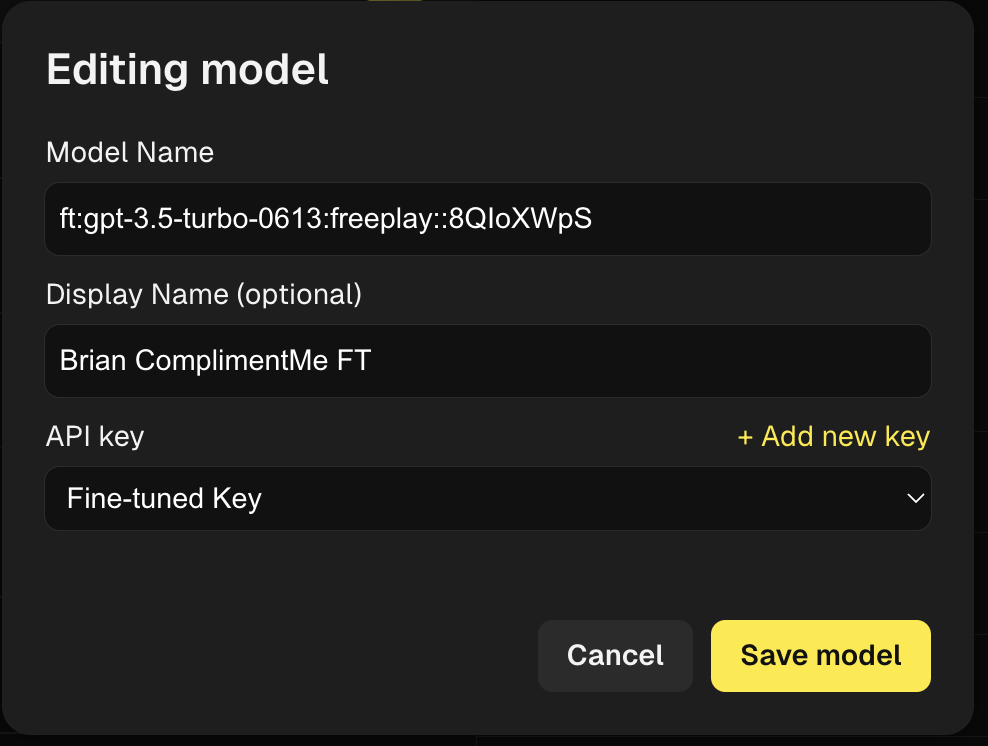
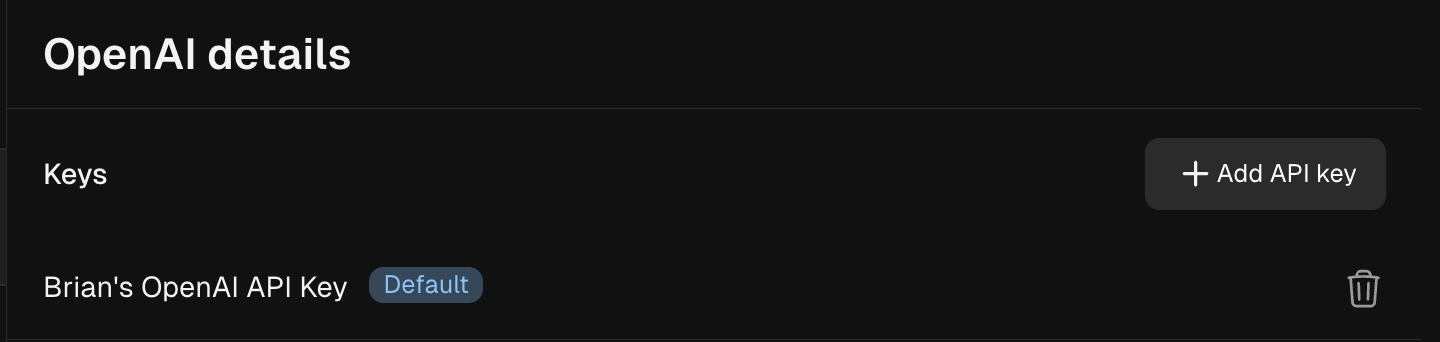 For advanced use, you can also link different keys to each endpoint for a given provider, e.g. if you want to use a different key for a fine-tuned model. Set a different key by clicking on the model name.
 ### Isolating API keys for test runs
Freeplay [test runs](/core-concepts/test-runs/test-runs) execute evaluations with high parallelism to deliver fast results. Without proper key isolation, this parallel traffic can consume rate limits shared with your production application.
To prevent this, create a dedicated API key for Freeplay that is scoped to its own rate limits, separate from your production keys. This ensures test run traffic never competes with your live application for capacity.
If you use the same API key for both Freeplay and your production application, parallel test runs may trigger rate limits (HTTP 429 errors) that affect your production traffic. Freeplay handles 429 responses with exponential backoff, but this does not protect your production application from hitting the same shared limits.
OpenAI supports project-level API keys with independent rate limits:
1. Go to [platform.openai.com](https://platform.openai.com) → **Settings** → **Projects**
2. Click **Create project** (e.g., "Freeplay")
3. Under the new project, go to **API Keys** → **Create a new key**
4. Go to the project's **Limits** tab and set TPM/RPM caps you are comfortable allocating to Freeplay (e.g., 50% of your org limit)
5. In Freeplay, navigate to **Settings** → **Models** and update your OpenAI key to the new project-scoped key
Anthropic supports workspace-level API keys with independent rate limits:
1. Go to [console.anthropic.com](https://console.anthropic.com) → **Settings** → **Workspaces**
2. Create a new workspace (e.g., "Freeplay")
3. In the workspace, go to **API Keys** → **Create a new key**
4. Go to the workspace's **Limits** tab and set caps
5. In Freeplay, navigate to **Settings** → **Models** and update your Anthropic key to the workspace-scoped key
You cannot set custom rate limits on Anthropic's default workspace. You must create a new workspace to configure independent limits.
If your provider is not listed above, the same principle applies: create a separate API key dedicated to Freeplay with its own rate limits or usage scope. This prevents test run traffic from affecting your production application.
Check your provider's documentation for options like projects, workspaces, or service accounts that support independent rate limiting.
***
## Provider-Specific Configuration
For IAM-based authentication with **Amazon Bedrock** or **Google Vertex AI** (using your own AWS roles or GCP service accounts instead of API keys), see [Cloud Provider IAM Authentication](/account-setup/cloud-provider-iam-auth).
## Configuring OpenAI Fine-Tuned Models
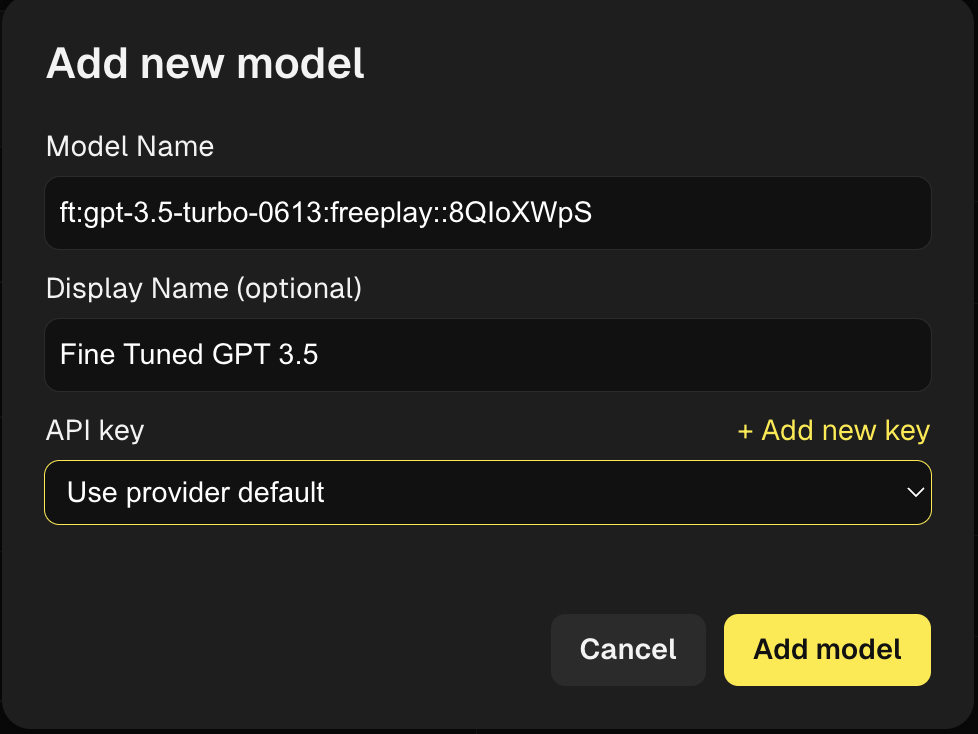
You can configure fine-tuned OpenAI models by navigating to **Settings > Models** and choosing **Add fine-tuned model** under the OpenAI Details heading.
Enter the name of your fine-tuned model as provided by OpenAI. You may also optionally enter a more readable display name and specify an associated API key.
### Isolating API keys for test runs
Freeplay [test runs](/core-concepts/test-runs/test-runs) execute evaluations with high parallelism to deliver fast results. Without proper key isolation, this parallel traffic can consume rate limits shared with your production application.
To prevent this, create a dedicated API key for Freeplay that is scoped to its own rate limits, separate from your production keys. This ensures test run traffic never competes with your live application for capacity.
If you use the same API key for both Freeplay and your production application, parallel test runs may trigger rate limits (HTTP 429 errors) that affect your production traffic. Freeplay handles 429 responses with exponential backoff, but this does not protect your production application from hitting the same shared limits.
OpenAI supports project-level API keys with independent rate limits:
1. Go to [platform.openai.com](https://platform.openai.com) → **Settings** → **Projects**
2. Click **Create project** (e.g., "Freeplay")
3. Under the new project, go to **API Keys** → **Create a new key**
4. Go to the project's **Limits** tab and set TPM/RPM caps you are comfortable allocating to Freeplay (e.g., 50% of your org limit)
5. In Freeplay, navigate to **Settings** → **Models** and update your OpenAI key to the new project-scoped key
Anthropic supports workspace-level API keys with independent rate limits:
1. Go to [console.anthropic.com](https://console.anthropic.com) → **Settings** → **Workspaces**
2. Create a new workspace (e.g., "Freeplay")
3. In the workspace, go to **API Keys** → **Create a new key**
4. Go to the workspace's **Limits** tab and set caps
5. In Freeplay, navigate to **Settings** → **Models** and update your Anthropic key to the workspace-scoped key
You cannot set custom rate limits on Anthropic's default workspace. You must create a new workspace to configure independent limits.
If your provider is not listed above, the same principle applies: create a separate API key dedicated to Freeplay with its own rate limits or usage scope. This prevents test run traffic from affecting your production application.
Check your provider's documentation for options like projects, workspaces, or service accounts that support independent rate limiting.
***
## Provider-Specific Configuration
For IAM-based authentication with **Amazon Bedrock** or **Google Vertex AI** (using your own AWS roles or GCP service accounts instead of API keys), see [Cloud Provider IAM Authentication](/account-setup/cloud-provider-iam-auth).
## Configuring OpenAI Fine-Tuned Models
You can configure fine-tuned OpenAI models by navigating to **Settings > Models** and choosing **Add fine-tuned model** under the OpenAI Details heading.
Enter the name of your fine-tuned model as provided by OpenAI. You may also optionally enter a more readable display name and specify an associated API key.
 ### Calling Your Fine-Tuned Model
When creating or editing Prompt Templates you will now see **fine-tuned** as an option in the Model dropdown. Model Version will then populate with all your fine tuned models.
### Calling Your Fine-Tuned Model
When creating or editing Prompt Templates you will now see **fine-tuned** as an option in the Model dropdown. Model Version will then populate with all your fine tuned models.
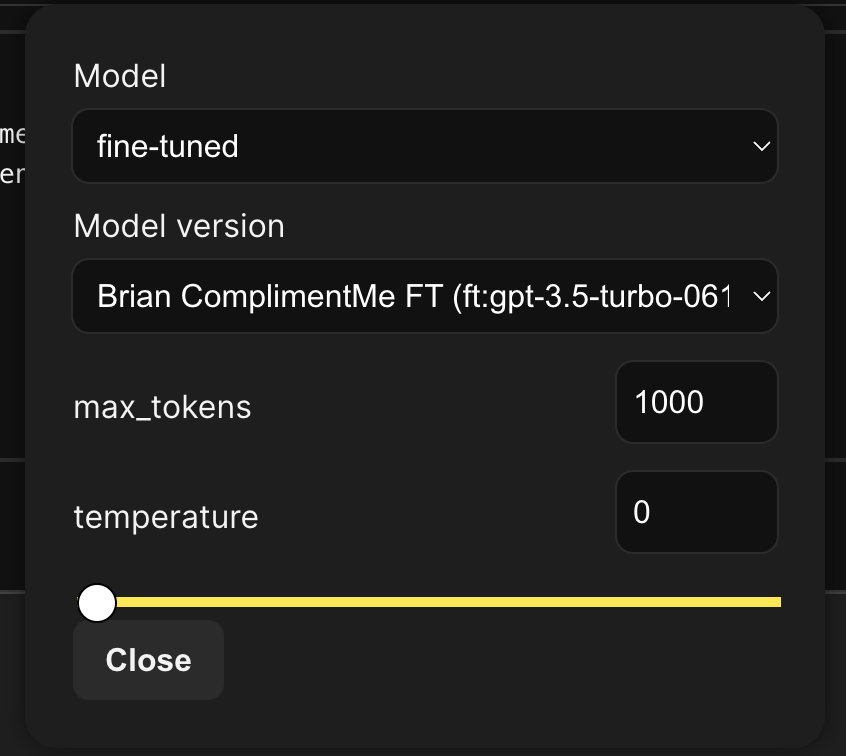 You can call your fine-tuned model from within the prompt editor as well as use your fine-tuned model in the [Freeplay SDK](/freeplay-sdk/recording-completions#record-an-llm-interaction) just as you would any other OpenAI model. Keying the model name, messages and model parameters off of the prompt object.