> ## Documentation Index
> Fetch the complete documentation index at: https://docs.freeplay.ai/llms.txt
> Use this file to discover all available pages before exploring further.
# Configure LiteLLM Proxy Models in Freeplay
> Set up LiteLLM Proxy as a custom provider to access multiple models through a unified interface.
* **Model Flexibility**: Easily switch between different LLM providers while using only OpenAI code for all model interactions.
* **Unified Interface**: Use a consistent API format regardless of the underlying model
* **Simplified Management**: Access numerous models through a single integration
* **Custom Models**: Reference custom-deployed LLMs with the same workflow
## Setting Up LiteLLM Proxy in Freeplay
### Step 1: Set up LiteLLM Proxy & Add Models
In this example we will use gpt-3.5-turbo and claude-3-5-sonnet via Anthropic. To get set up with LiteLLM you can see the full docs [here](https://docs.litellm.ai/docs/proxy/docker_quick_start). To start, ensure you have a model config file like the one below:
```yaml yaml theme={null}
model_list:
- model_name: gpt-3.5-turbo # Use this exact name in Freeplay
litellm_params:
model: openai/gpt-3.5-turbo
api_key: os.environ/OPENAI_API_KEY
- model_name: claude-3-5-sonnet # Use this exact name in Freeplay
litellm_params:
model: anthropic/claude-3-5-sonnet-20240219
api_key: os.environ/ANTH_API_KEY
```
**Important**: When configuring models, the name in Freeplay must match the `model_name` in your LiteLLM Proxy configuration file.
### Step 2: Configure LiteLLM Proxy as a Custom Provider
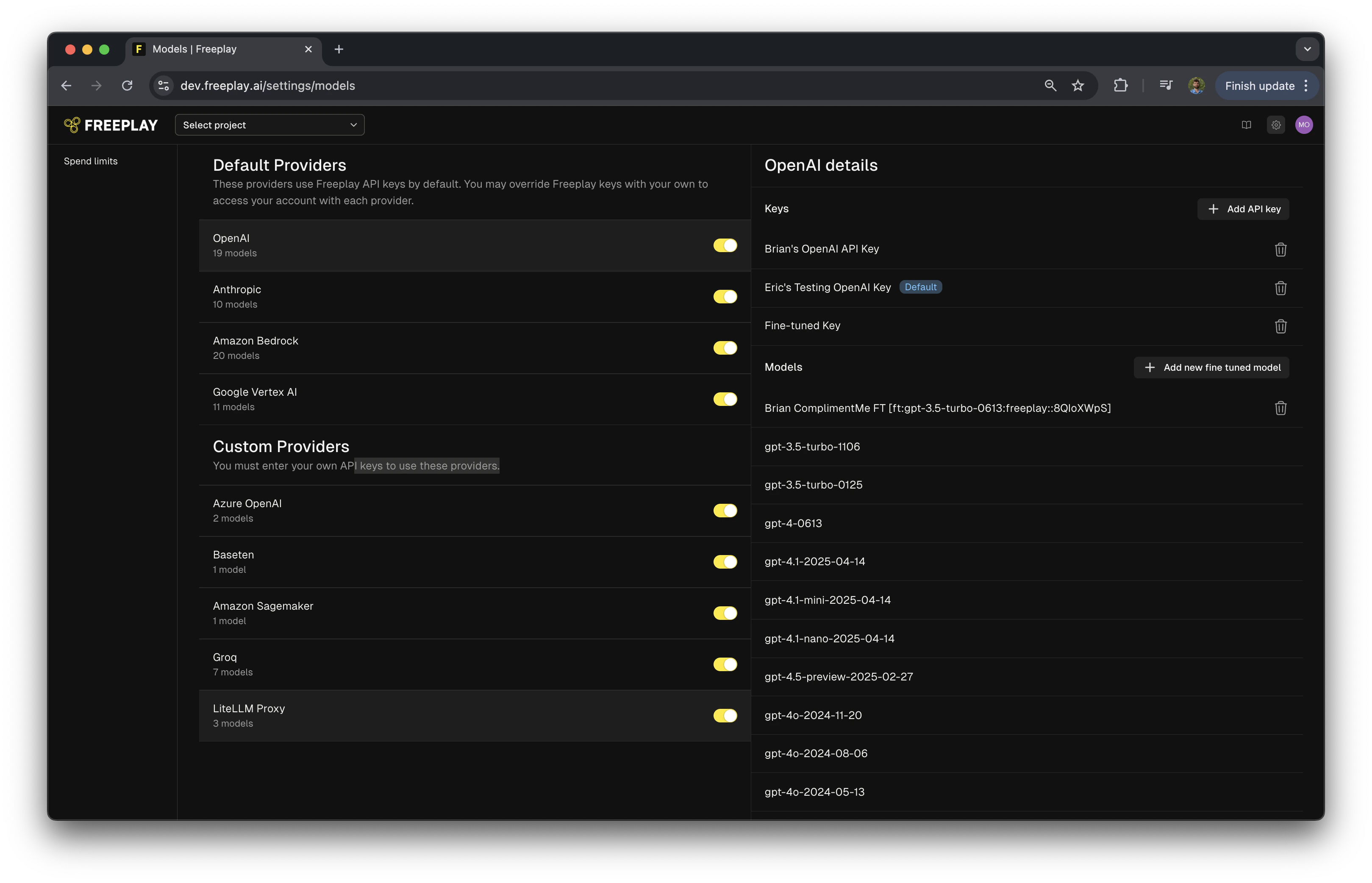
1. Navigate to Settings in your Freeplay account
2. Find "Custom Providers" section
3. Enable "LiteLLM Proxy" provider
 ### Step 3: Add an API Key
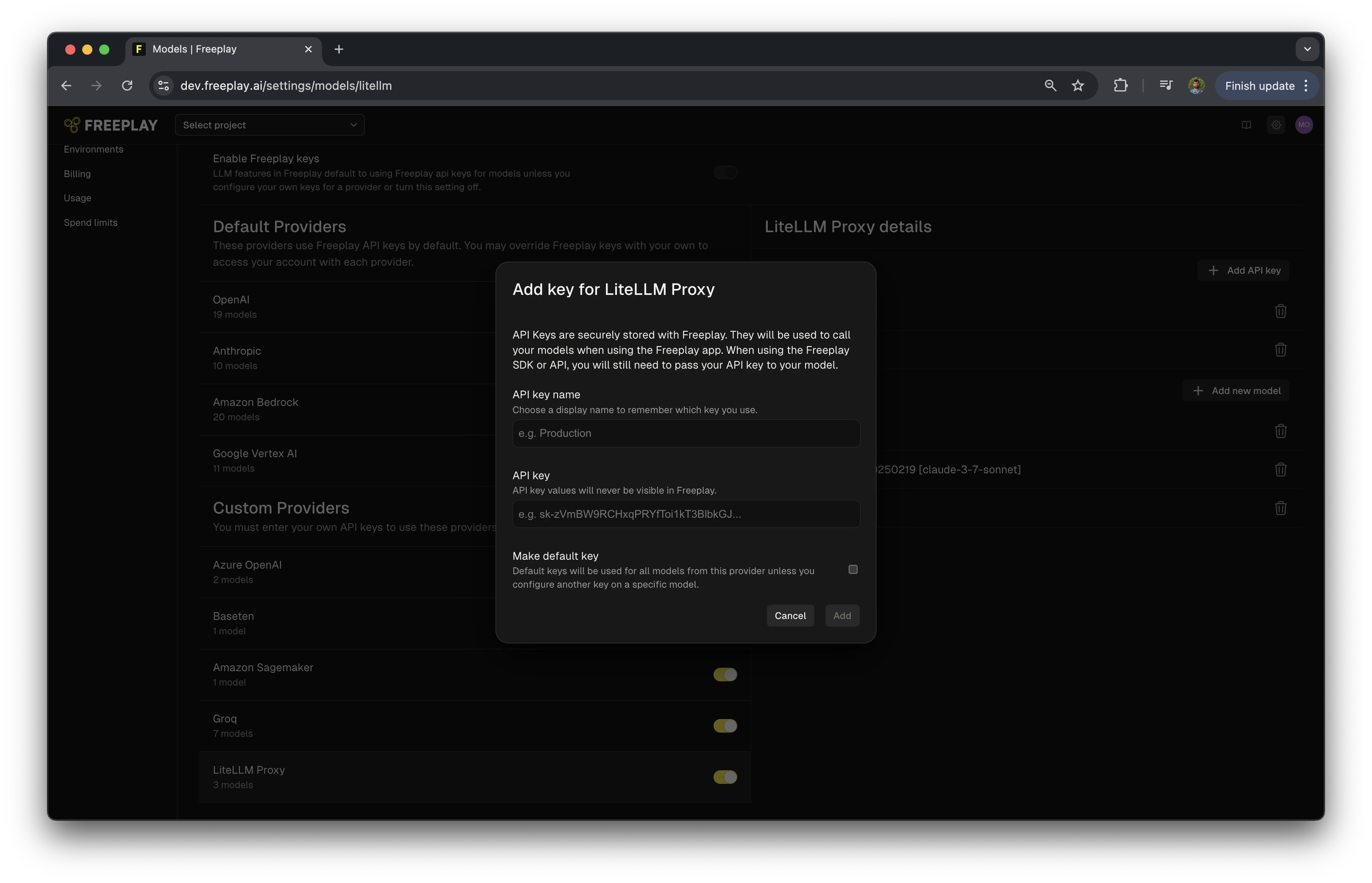
1. Click "Add API Key"
2. Name your API key
3. Enter your LiteLLM Proxy Master key
4. Optionally, mark it as the default key for LiteLLM Proxy
### Step 3: Add an API Key
1. Click "Add API Key"
2. Name your API key
3. Enter your LiteLLM Proxy Master key
4. Optionally, mark it as the default key for LiteLLM Proxy
 ### Step 4: Add Your LiteLLM Proxy Models
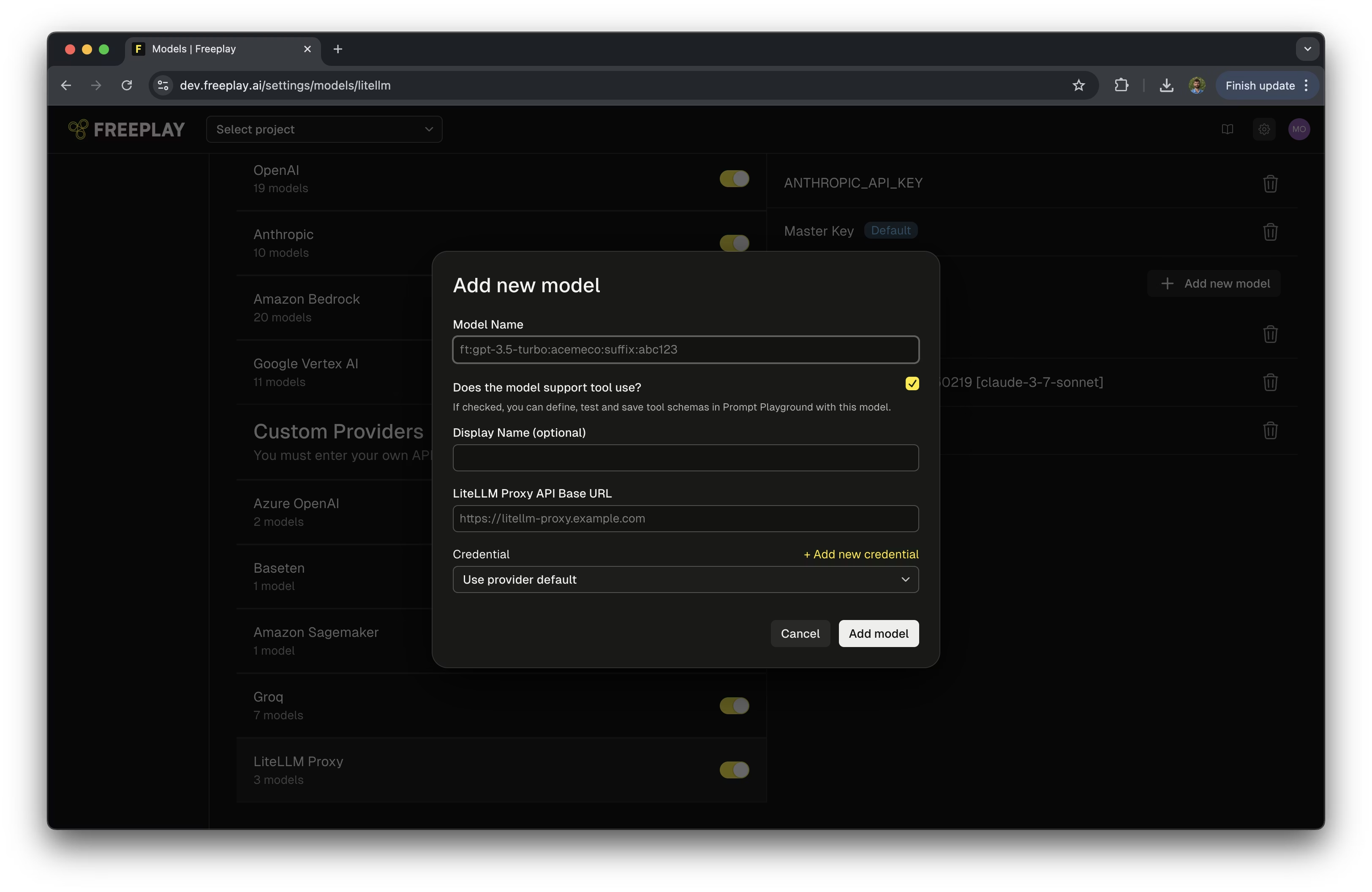
1. Select "Add a New Model"
2. Optionally select if the model supports tool use
3. Optionally add a display name for the model
4. Enter link to your LiteLLM API Proxy
Note: Token pricing information is automatically fetched from LiteLLM Proxy so you do not need to provide it.
### Step 4: Add Your LiteLLM Proxy Models
1. Select "Add a New Model"
2. Optionally select if the model supports tool use
3. Optionally add a display name for the model
4. Enter link to your LiteLLM API Proxy
Note: Token pricing information is automatically fetched from LiteLLM Proxy so you do not need to provide it.
 ### Step 5: Using LiteLLM Proxy Models in the Prompt Editor
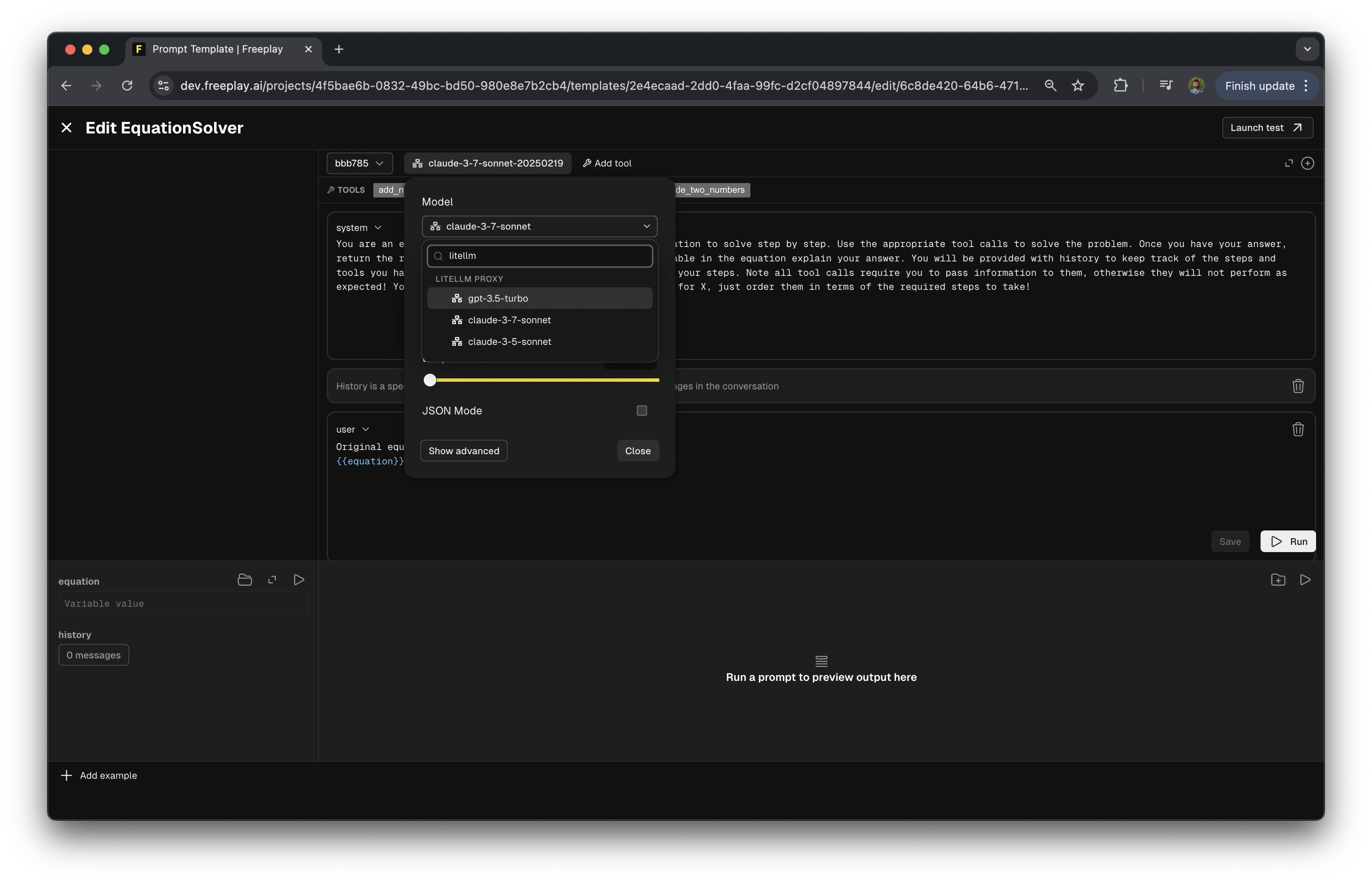
1. Open the prompt editor in Freeplay
2. In the model selection field, search for "LiteLLM Proxy"
3. Select one of your configured models
### Step 5: Using LiteLLM Proxy Models in the Prompt Editor
1. Open the prompt editor in Freeplay
2. In the model selection field, search for "LiteLLM Proxy"
3. Select one of your configured models
 ## Integrating LiteLLM Proxy with Your Code
The following example shows how to configure and use LiteLLM Proxy with Freeplay in your application. The benefit of using LiteLLM Proxy is you only need to configure your calls to work with OpenAI, LiteLLM Proxy will handle all the formatting:
```python python theme={null}
#######################
## Configure Clients ##
#######################
# Configure the Freeplay Client
fp_client = Freeplay(
freeplay_api_key=API_KEY,
api_base=f"{API_URL}"
)
# Call OpenAI using the LiteLLM url and api_key.
# This handles the routing to your models while keeping the response
# in a standard format.
client = OpenAI(
api_key=userdata.get("LITE_LLM_MASTER_KEY"),
base_url=userdata.get("LITE_LLM_BASE_URL")
)
#####################
## Call and Record
#####################
# Get the prompt from Freeplay
formatted_prompt = fp_client.prompts.get_formatted(
project_id=PROJECT_ID,
template_name=prompt_name,
environment=env,
variables=prompt_vars,
history=history
)
# Call the LLM with the fetched prompt and details
start = time.time()
completion = client.chat.completions.create(
messages=formatted_prompt.llm_prompt,
model=formatted_prompt.prompt_info.model,
tools=formatted_prompt.tool_schema,
**formatted_prompt.prompt_info.model_parameters
)
# Extract data from LiteLLM response
completion_message = completion.choices[0].message
tool_calls = completion_message.tool_calls
text_content = completion_message.content
finish_reason = completion.choices[0].finish_reason
end = time.time()
print("LLM response: ", completion)
# Record to Freeplay
## First, store the message data in a Freeplay format
updated_messages = formatted_prompt.all_messages(completion_message)
## Now, record the data directly to Freeplay
completion_log = fp_client.recordings.create(
RecordPayload(
project_id=PROJECT_ID,
all_messages=updated_messages,
inputs=prompt_vars,
session_version_info=session,
trace_info=trace,
prompt_info=formatted_prompt.prompt_info, # Note: you must pass UsageTokens for the cost calculation to function
call_info=
CallInfo.from_prompt_info(formatted_prompt.prompt_info, start, end,
UsageTokens(completion.usage.prompt_tokens, completion.usage.completion_tokens))
)
)
```
## Current Limitations
* **Automatic Cost Calculation:** UsageTokens must be passed for cost calculations to work with LiteLLM Proxy. Also, for self hosted models that depend on time, cost calculation is not currently supported.
* **Auto-Evaluation Compatibility**: Model-graded evals that are configured and run by Freeplay do not currently support LiteLLM Proxy models.
## Additional Resources
* [LiteLLM Proxy Server Documentation](https://docs.litellm.ai/docs/proxy/quick_start)
* [LiteLLM Supported Models](https://docs.litellm.ai/docs/providers)
* [Configure, Test & Deploy a Fallback LLM Provider](/practical-guides/configuring-a-fallback-llm-provider-with-freeplay)
* [Voice-Enabled AI with Pipecat, Twilio, and Freeplay](/practical-guides/build-voice-enabled-ai-applications-with-pipecat-twilio-and-freeplay)
```
```
## Integrating LiteLLM Proxy with Your Code
The following example shows how to configure and use LiteLLM Proxy with Freeplay in your application. The benefit of using LiteLLM Proxy is you only need to configure your calls to work with OpenAI, LiteLLM Proxy will handle all the formatting:
```python python theme={null}
#######################
## Configure Clients ##
#######################
# Configure the Freeplay Client
fp_client = Freeplay(
freeplay_api_key=API_KEY,
api_base=f"{API_URL}"
)
# Call OpenAI using the LiteLLM url and api_key.
# This handles the routing to your models while keeping the response
# in a standard format.
client = OpenAI(
api_key=userdata.get("LITE_LLM_MASTER_KEY"),
base_url=userdata.get("LITE_LLM_BASE_URL")
)
#####################
## Call and Record
#####################
# Get the prompt from Freeplay
formatted_prompt = fp_client.prompts.get_formatted(
project_id=PROJECT_ID,
template_name=prompt_name,
environment=env,
variables=prompt_vars,
history=history
)
# Call the LLM with the fetched prompt and details
start = time.time()
completion = client.chat.completions.create(
messages=formatted_prompt.llm_prompt,
model=formatted_prompt.prompt_info.model,
tools=formatted_prompt.tool_schema,
**formatted_prompt.prompt_info.model_parameters
)
# Extract data from LiteLLM response
completion_message = completion.choices[0].message
tool_calls = completion_message.tool_calls
text_content = completion_message.content
finish_reason = completion.choices[0].finish_reason
end = time.time()
print("LLM response: ", completion)
# Record to Freeplay
## First, store the message data in a Freeplay format
updated_messages = formatted_prompt.all_messages(completion_message)
## Now, record the data directly to Freeplay
completion_log = fp_client.recordings.create(
RecordPayload(
project_id=PROJECT_ID,
all_messages=updated_messages,
inputs=prompt_vars,
session_version_info=session,
trace_info=trace,
prompt_info=formatted_prompt.prompt_info, # Note: you must pass UsageTokens for the cost calculation to function
call_info=
CallInfo.from_prompt_info(formatted_prompt.prompt_info, start, end,
UsageTokens(completion.usage.prompt_tokens, completion.usage.completion_tokens))
)
)
```
## Current Limitations
* **Automatic Cost Calculation:** UsageTokens must be passed for cost calculations to work with LiteLLM Proxy. Also, for self hosted models that depend on time, cost calculation is not currently supported.
* **Auto-Evaluation Compatibility**: Model-graded evals that are configured and run by Freeplay do not currently support LiteLLM Proxy models.
## Additional Resources
* [LiteLLM Proxy Server Documentation](https://docs.litellm.ai/docs/proxy/quick_start)
* [LiteLLM Supported Models](https://docs.litellm.ai/docs/providers)
* [Configure, Test & Deploy a Fallback LLM Provider](/practical-guides/configuring-a-fallback-llm-provider-with-freeplay)
* [Voice-Enabled AI with Pipecat, Twilio, and Freeplay](/practical-guides/build-voice-enabled-ai-applications-with-pipecat-twilio-and-freeplay)
```
```